For regular interview transcription at a shared-office desk, start with a monitor you can position comfortably; a 27-inch QHD display is a practical choice for transcript-focused work. Consider 4K if you regularly keep a transcript, references and media controls visible together, or Full HD if you mainly use one window and accept less screen detail. Check laptop compatibility before relying on USB-C charging, and use a separate, workplace-appropriate way to listen to interviews rather than monitor speakers.
Who this setup suits
Long-session transcript editors
If you spend extended periods reading, typing and checking timestamps, screen placement matters as well as text detail. The Health and Safety Executive advises positioning the top of the screen at eye level and the display about an arm’s length away.
USB-C laptop transcribers
If you move a laptop between meetings and a fixed desk, a compatible USB-C monitor may simplify connecting the display and charging the laptop. Check what the laptop can send through its USB-C port and how much charging power it needs.
Single-window transcript users
If most of your work stays in one transcript window, a 27-inch Full HD screen may be sufficient. At that size, it has fewer pixels per inch than the QHD alternative specified by BenQ, which matters if you also want dense text or several windows visible.
What matters when choosing
For a shared-office transcription desk, decide how you will position the screen and arrange private interview listening before choosing resolution or laptop connections. The concerns below distinguish consumers by the need most likely to decide their monitor choice.
| Concern |
What to check |
Who this matters to |
| Screen position and text work |
Check stand adjustment or compatible mounting, then whether the display can sit at a comfortable height and distance. |
When I spend long sessions reading and correcting a transcript, I need a screen I can place without working around a fixed stand. Around 42% of consumers put adjustable, comfortable text work first. |
| Laptop connection |
Check USB-C video support on the laptop and compare its charging needs with the monitor’s stated power delivery. |
If I take my laptop away between interviews, reconnecting it at the desk should be straightforward. Roughly 33% of consumers make laptop docking convenience their primary concern. |
| Resolution for the workflow |
Compare Full HD, QHD and 4K at the intended size; consider how many windows you keep open and your preferred text scaling. |
When I mainly edit one transcript window, I may accept less space for notes and media controls in exchange for a simpler setup. About 25% of consumers prioritise that basic, single-window route. |
Common buying mistakes
-
Choosing 27-inch Full HD for its size alone
A large diagonal does not tell you how much text detail the screen can show. BenQ specifies 82 pixels per inch for its 27-inch Full HD GW2790 and 109 pixels per inch for its 27-inch QHD GW2790QT.
Compare the resolution at the exact screen size, then decide whether you normally use one transcript window or keep notes, references and media controls beside it.
-
Treating an eye-care label as a substitute for screen placement
A comfort feature does not position the monitor for you. The Health and Safety Executive’s workstation guidance places the top of the screen at eye level and the display about an arm’s length away.
Check whether the stand offers the adjustment your desk needs, or whether the monitor can use a suitable arm. Plan the screen position alongside the chair and keyboard.
-
Assuming every USB-C monitor provides one-cable docking
A monitor’s USB-C socket does not establish that your laptop can send video through its port or use the monitor’s available charging power.
Check the laptop’s video-output and charging requirements against the monitor’s USB-C specification, including which cable is needed.
Depending on that match, you may still need a separate dock, charger or cable.
Relevant monitor brands
Dell
Dell has 27-inch QHD and 4K monitor models relevant to laptop-based transcription desks.
- Dell lists a 4K IPS panel and up to 130 mm of height adjustment for the S2725QC.
- Dell’s QHD USB-C S2722DC is marked unavailable on its model page, so check the availability of the exact model rather than treating it as a current purchase option.
BenQ
BenQ’s 27-inch GW2790QT and GW2790 illustrate different resolution choices for text-based desk work.
- BenQ specifies QHD resolution, 109 pixels per inch, 65 W USB-C power delivery and an adjustable stand for the GW2790QT.
- Its Full HD GW2790 is specified at 82 pixels per inch. Neither an eye-care label nor a higher pixel density replaces appropriate workstation positioning.
LG
LG’s 27UP650K-W is a reference point for a 27-inch 4K IPS display with stand adjustment.
- LG lists height, tilt and pivot adjustment for the 27UP650K-W.
- If one-cable laptop docking is essential, check the ports of the exact model and variant before choosing it.
Joybuy monitors for transcription
These monitors offer QHD or 4K display options for transcript work at a desk. Choose between them by the windows you need visible, the screen finish and the connections your laptop can use; their built-in audio features are not a substitute for private interview listening.
 No image available
ASUS ProArt PA278CV IPS WQHD monitor
Consider this WQHD IPS model for transcript-focused desk work. If USB-C docking matters, check the exact connection and charging specifications against your laptop before ordering.
View on Joybuy
 No image available
BenQ MA270UP 27-inch 4K Nano Glossy monitor
Consider the 4K IPS display if you want transcript and reference windows visible together. Its Nano Glossy finish makes reflections at the intended desk position worth checking; confirm that its USB-C connection suits your laptop.
View on Joybuy
 No image available
MSI MD272UPSW 27-inch 4K IPS monitor
Consider this 4K display when you keep several transcription windows open. The product name specifies USB-C with 65 W power delivery; check that your laptop supports video over that connection and can use the stated charging level. Its audio features do not provide shared-office listening privacy.
View on Joybuy
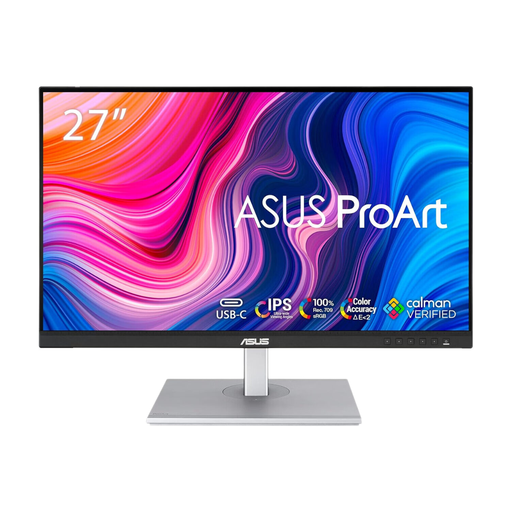 No image available
ASUS ProArt PA278CFRV QHD 100 Hz IPS monitor
Consider this QHD IPS model for transcript-centred desk work. If you need one-cable laptop docking, confirm the ports and power delivery on the exact variant you are buying rather than assuming they are included.
View on Joybuy
 No image available
LG 27UP650K 27-inch 4K IPS monitor
Consider this 4K model if you want room for a transcript and reference material. The product name specifies HDMI and DisplayPort; check the exact ports if USB-C docking is essential. Built-in speakers are not a private way to listen to interview audio in a shared office.
View on Joybuy
Questions about transcription monitors
Is 4K necessary for transcribing interviews?
No: a 27-inch QHD monitor can suit transcript-focused work, particularly when you can position it comfortably. Consider 4K if you regularly keep a transcript, notes and media controls visible together, and check how your preferred text size works with display scaling.
Will any USB-C laptop work with a USB-C monitor?
No. Check whether the laptop outputs video through its USB-C port and whether the monitor’s power delivery meets its charging needs. BenQ specifies 65 W USB-C power delivery for the GW2790QT, but that monitor specification alone cannot establish compatibility with a particular laptop.
Where should I place the monitor for transcription?
Place it so the top of the screen is around eye level and the display is about an arm’s length away, in line with Health and Safety Executive workstation guidance. Keep the screen and keyboard in front of you where the desk layout allows, rather than repeatedly twisting towards the transcript.
Does buying a new monitor address workplace display-screen requirements?
No. The Health and Safety Executive says UK display-screen-equipment regulations apply to workers who use such equipment daily for continuous periods of an hour or more. A monitor is only one part of the workstation, so screen choice should sit alongside assessment of the wider working setup.


