What matters when choosing?
Decide whether your main constraint is desk space, keeping several windows visible or positioning the screen for recurring work. Then check the connections and physical fit of the particular monitor you are considering.
| Concern |
What to check |
Who this matters to |
| Desk fit and document space |
Measure the desk and stand footprint; compare a compact Full HD screen with the space you need for writing. |
I usually work on one letter at a time and need the monitor to fit a small desk without dominating it. Around 36% of consumers put that compact writing setup first. |
| Room for several windows |
Compare QHD and wider layouts for your preferred window arrangement; check laptop video output and charging requirements if USB-C matters. |
Keeping the vacancy, CV and letter draft in view saves me switching between them while I write. For around 36% of consumers, that multi-window workspace is the primary need. |
| Positioning for regular use |
Check stand adjustment and desk suitability, including the edge if you plan to use a clamp. |
When I spend longer periods at the desk, I need to place the screen to suit the rest of my workstation. That positioning need comes first for around 28% of consumers. |
Brands and model examples
These named models illustrate different screen and connection arrangements; their specifications do not apply to every monitor made by the same brand.
ASUS
A compact document-writing example is the VU249CFE.
- ASUS specifies a 23.8-inch Full HD IPS panel, HDMI and USB-C DisplayPort Alt Mode for this model.
- Its stated USB-C power delivery is 15W; compare that with your laptop’s charging requirement.
BenQ
The GW2790QT is a 27-inch QHD example for a laptop-centred writing desk.
- BenQ specifies an adjustable stand, USB hub and 65W USB-C power delivery for the GW2790QT.
- Check that your laptop supports the required USB-C video connection and that 65W meets its charging needs.
Dell
The UltraSharp U2722DE illustrates a 27-inch QHD USB-C hub arrangement.
- Dell UK lists QHD resolution and 90W USB-C power delivery for the U2722DE.
- Dell UK marks this particular model unavailable; check the exact connections and stand features of any alternative model.
LG
The 32UN880K-B is a large, clamp-mounted example for a desk with sufficient room.
- LG specifies a 31.5-inch 4K IPS panel, a stand with several adjustments and USB-C power delivery up to 60W.
- Check desk-edge compatibility, available space and your laptop’s charging requirement before choosing this arrangement.
Joybuy monitors for this work
These choices include compact document screens and larger WQHD options for job-application work. Match the screen to your desk and confirm the exact connections before relying on a laptop setup.
 Image unavailable
ASUS PROART PA278CV IPS WQHD
Consider this for document work if a WQHD screen suits your desk.
The name specifies an IPS panel and WQHD resolution. If you need one-cable laptop use, confirm this variant’s USB-C video capability and charging output before buying.
Joybuy
 Image unavailable
ASUS PROART PA328QV IPS WQHD
This is an option for keeping writing and reference windows visible if you have room for a larger monitor.
The name specifies IPS and WQHD. Measure your desk and check that the model’s video inputs match your computer.
Joybuy
 Image unavailable
ASUS ZenScreen MB249C IPS USB-C
Consider this model if you want an external writing screen for a changing or shared workspace.
The name identifies an IPS model with USB-C. Confirm your computer’s USB-C video support, the monitor’s charging output and which mounting accessories are included.
Joybuy
 Image unavailable
DELL P2425 24-inch monitor
The 24-inch format is worth considering when a larger screen would crowd your writing desk.
Check the stand footprint and video ports against your workspace and computer. Confirm USB-C functionality before planning a one-cable laptop connection.
Joybuy
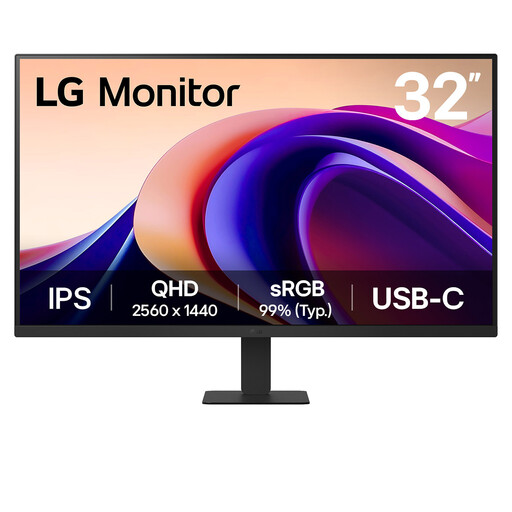 Image unavailable
LG 32U631A 32-inch QHD IPS, 100 Hz
Consider this screen if you want a larger document workspace and your desk can accommodate a 32-inch monitor.
The name specifies QHD 1440p, IPS, USB-C and HDMI. Check USB-C video capability and your laptop’s charging requirement before relying on that connection.
Joybuy
Frequently asked questions
Do I need a 4K monitor to write covering letters?
No: 4K is not a requirement for drafting a covering letter. ASUS’s 23.8-inch Full HD VU249CFE illustrates a compact route, while LG’s 31.5-inch 4K 32UN880K-B is an option to consider if you regularly want a much larger workspace and have a suitable desk.
Will a USB-C monitor display video and charge my laptop?
It can do both only when the laptop supports the monitor’s USB-C video connection and the monitor provides enough power for that laptop. For comparison, ASUS specifies 15W for the VU249CFE, BenQ 65W for the GW2790QT and LG up to 60W for the 32UN880K-B; check your own laptop’s requirements.
Does workplace screen guidance apply when I write at home?
The Health and Safety Executive’s display-screen equipment guidance addresses workers who use a screen daily for continuous periods of an hour or more as part of normal work. Its workstation guidance considers equipment, furniture, working conditions and individual requirements—not just the monitor. Occasional personal job applications do not, by themselves, establish that those workplace conditions apply.
What should I do with an old monitor?
Use an appropriate electrical-waste route rather than general rubbish. Oxfordshire County Council classifies equipment with electrical parts as waste electrical and electronic equipment; check your own council’s instructions for local arrangements.


