Keyboard-only accessibility testers
You need to see where focus lands as you use Tab, Shift+Tab and other keyboard controls. W3C Web Accessibility Initiative guidance calls for a visible focus indicator and a focus order that preserves meaning.


A 27-inch QHD monitor with an adjustable stand is a practical starting point for testing keyboard navigation at a fixed desk: it gives you room to inspect a page alongside tools and notes. Choose 4K if finer visual detail matters and your preferred scaling keeps focus indicators easy to see; consider USB-C for a laptop setup only after checking what both devices support. No monitor can establish whether an interface has a visible focus indicator or a meaningful focus order.
You need to see where focus lands as you use Tab, Shift+Tab and other keyboard controls. W3C Web Accessibility Initiative guidance calls for a visible focus indicator and a focus order that preserves meaning.
You may need to position the screen for longer sessions and connect a test laptop without repeatedly changing a complicated cable setup. If USB-C is part of the plan, check that the laptop and monitor support the video functions you need.
Extra workspace or pixel density can help when examining text, screenshots and small focus outlines. Check the interface at the display scaling you intend to use so those details remain easy to judge.
For keyboard-navigation checks at a quiet desk, start with the part of the setup that most affects your work: seeing focus clearly, positioning the screen or connecting test devices. Then check the actual interface with the keyboard; display specifications cannot establish its accessibility.
| Concern | What to check | Who this matters to |
|---|---|---|
| Visible focus and text clarity | Check native resolution and whether your chosen display scaling leaves browser text and focus outlines easy to inspect. | If I am tracing focus through a page, I need to see the active control without losing track of small interface details. Around 44% of consumers would put clear focus and text first. |
| Comfort at a fixed desk | Look for the stand adjustments you will use, such as height or tilt; check mounting compatibility if you plan to use an arm. | During a longer test session, I want to place the screen where I can view it comfortably rather than work around a fixed position. For around 33% of consumers, positioning and comfort would be the primary concern. |
| Connections and workspace | Match the monitor inputs to your computer’s video outputs, and check USB-C video and charging functions separately if needed. | If I switch test devices or connect a laptop regularly, I need a setup that works with those devices while leaving room for the page and supporting tools. Connection and workspace flexibility would come first for around 23% of consumers. |
At the same 27-inch size, 4K can make interface elements physically smaller at 100% scaling. Resolution also cannot tell you whether focus is visible or follows a meaningful order.
View representative pages at your intended operating-system scaling, then check focus visibility and order using the keyboard.
A USB-C connector alone does not establish which video, charging or hub functions a monitor and laptop can use together.
Check the exact monitor variant and your computer’s USB-C or Thunderbolt display capability before relying on a one-cable setup.
Colour-gamut and calibration features may matter for design or screenshot review, but they do not establish keyboard operability, visible focus or focus order.
If your work is functional keyboard testing, prioritise an inspectable interface, screen positioning and compatible inputs; assess colour features separately if you also review visual design.
Dell UltraSharp is worth considering for a desk-based QHD setup where stand adjustment matters.
BenQ’s ergonomic monitor line is relevant if screen positioning and a USB-C connection are priorities.
Lenovo ThinkVision is a reference point for a professional QHD desk display.
LG’s UltraFine 4K range is relevant when finer visual detail is useful alongside an adjustable desk setup.
ASUS ProArt is relevant when keyboard checks sit alongside colour-sensitive UI or screenshot review.
These monitors offer QHD or 4K choices for desk-based keyboard-navigation testing. Compare their stated display characteristics with your preferred scaling, desk position and test computer; gaming or creator features do not replace checks of the interface itself.
 No image available
Consider this WQHD option when you want to inspect a page alongside supporting tools. Its product name identifies an IPS display; check the exact connections and stand adjustments against your desk and computer before choosing it.
 No image available
This 27-inch 4K UHD option is worth considering if fine interface detail is important. Check focus indicators at your intended display scaling, and confirm the connections required by your test computer.
 No image available
The 27-inch QHD format is relevant to viewing test content at a desk. The product name also specifies OLED, 240 Hz and 0.03 ms; those gaming specifications do not establish that keyboard focus or focus order works correctly in the interface you test.
 No image available
Consider this QHD IPS model if its screen size suits the space available on your desk. Check its dimensions, screen finish and connection functions against your intended viewing and laptop setup.
 No image available
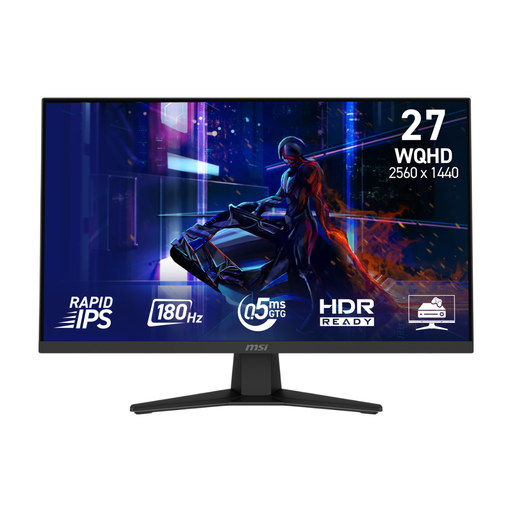
The 27-inch WQHD Rapid IPS display gives you another format to assess for desk-based testing. Its product name also lists a 180 Hz refresh rate, 0.5 ms response time and Adaptive Sync; check the stand and screen finish separately if positioning or glare control matters to you.
No. A monitor may make details easier to inspect, but accessibility depends on the interface being tested. W3C Web Accessibility Initiative guidance calls for a visible focus indicator and a focus order that preserves meaning; check both with keyboard-only navigation.
Choose a 27-inch QHD setup if you want room for a page, developer tools and notes without relying on very small interface scaling. Consider 4K if you also inspect fine UI details or screenshots, and check that your chosen scaling leaves controls and focus outlines easy to see.
Check that your laptop’s USB-C or Thunderbolt port supports video output and that the exact monitor variant provides the video function you need. Verify charging and hub functions separately if your desk setup depends on them; the connector alone does not establish those capabilities.