What matters when choosing?
Start with screen placement and window-light control, then assess focus visibility, usable workspace and laptop connections. Monitor specifications cannot establish how a particular screen will look in your room.
| Concern |
What to check |
Who this matters to |
| Reflections and glare |
Look for an anti-glare surface and useful stand adjustment; check whether you can angle the screen away from the window or control the light. |
If window reflections obscure the display, I need to change the screen position as well as assess its surface. Around 36% of consumers put glare control first. |
| Visible keyboard focus |
Keyboard-test representative controls in the room and browser you will use, including at your required zoom level. |
When I move through a page by keyboard, I need to identify the focused control without guessing. For around 29% of consumers, seeing focus clearly is the primary concern. |
| Workspace and detail |
Compare native resolution, screen size and aspect ratio, then assess the space left after your usual text scaling or browser zoom. |
I need the page, developer tools and test notes visible together without constant resizing; around 21% of consumers prioritise that workspace. |
| Laptop integration |
Check the monitor’s ports and stated USB-C power delivery against the laptop’s display-output and charging requirements. |
If I connect a test laptop at the desk each day, I want the display and charging arrangement to work with that device. Around 14% of consumers make laptop integration their main priority. |
Joybuy monitor options
These monitors cover different screen sizes and workspace layouts for keyboard-navigation testing. Compare their stated display features with your window position, testing tools and laptop before choosing.
 No image available
ASUS ProArt PA278CV IPS WQHD monitor
Consider this for a test desk where WQHD workspace is important. Check screen positioning beside the window and confirm USB-C charging compatibility with your laptop before relying on one cable.
View on Joybuy
 No image available
Dell P2425 24-inch monitor
Consider this for a compact desk when extra vertical space for a browser and test notes matters. Dell specifies a 1920 × 1200, 16:10 anti-glare display for the P2425. Confirm the refresh rate and any required laptop connections on the product page before buying.
View on Joybuy
 No image available
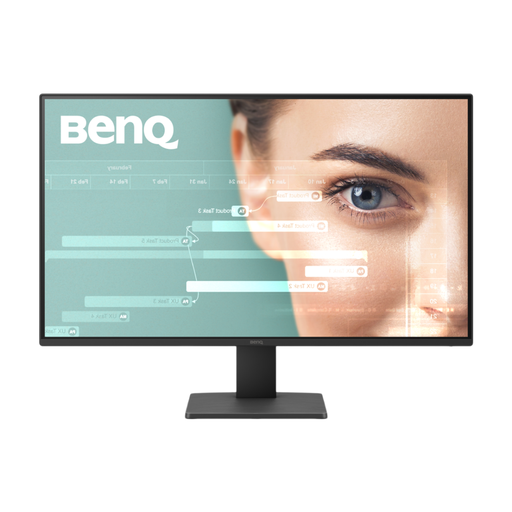
BenQ GW2791 27-inch IPS Full HD monitor
Consider this if you want a 27-inch screen and can work within a Full HD layout. The product name specifies an IPS display and 100 Hz refresh rate; check whether 1920 × 1080 gives your testing tools enough room and whether the available positioning suits your window-facing desk.
View on Joybuy
 No image available
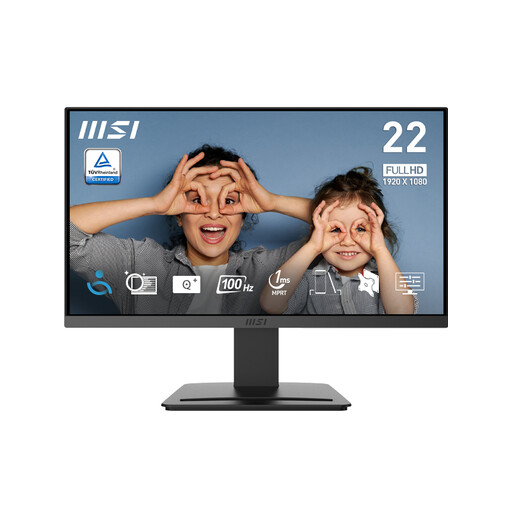
MSI PRO MP223 E2 21.45-inch Full HD monitor
Consider this for a smaller desk if your browser and testing tools fit on a compact screen. The product name specifies a 1920 × 1080 display, tilt adjustment, HDMI 1.4b and DisplayPort 1.2a. Check whether tilt alone lets you position it away from window reflections.
View on Joybuy
 No image available
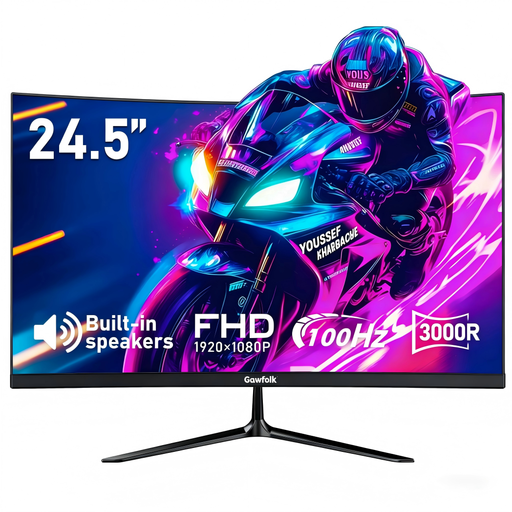
Gawfolk 24.5-inch curved Full HD monitor
Consider this only after checking whether a curved Full HD screen suits your text layout and viewing position. The product name specifies a 24.5-inch anti-glare display with 3000R curvature and HDMI connectivity. Assess screen placement and the brightness specification for your room before buying.
View on Joybuy
Frequently asked questions
Will a brighter monitor solve glare from a nearby window?
Not necessarily: brightness does not remove light reflected from the screen or entering your eyes directly. The Health and Safety Executive advises arranging the desk and screen to avoid glare and bright reflections, so check placement and window coverings as well as display features.
Can a monitor make a website’s keyboard focus accessible?
No: the website must provide a visible focus indicator. The W3C Web Accessibility Initiative describes that requirement for keyboard-operable interfaces; a monitor can affect viewing conditions, but it cannot replace the page’s focus styling.
What should I check before using one USB-C cable with a test laptop?
Check that the laptop supports the required USB-C display output and that the monitor’s stated power delivery meets its charging requirements. Dell and BenQ list up to 90 W USB-C power delivery for the P2425DE and RD280U respectively, but compatibility still depends on the connected laptop.
Does a full-day testing setup need a workplace assessment?
For employees who use display screen equipment daily as a normal part of work for continuous periods of an hour or more, the UK Health and Safety Executive says employers must carry out a workstation assessment. Consider the whole setup, including window light, furniture and the user’s needs, rather than assessing the monitor alone.


