What matters when choosing
Check screen position across the desk’s full travel before choosing a size or connection layout. Then decide which of the following needs most often determines how you arrange lesson resources.
| Concern | What to check | Who this matters to |
|---|
| Screen position |
Check the stand’s adjustment range at sitting and standing heights. For an arm, check the monitor mount and the desk and arm limits. |
I change desk height during lesson preparation and need the screen to stay in front of me without an awkward viewing position. Around 33% of consumers would put screen position first. |
| Space for several windows |
Compare resolution and aspect ratio, then measure the desk width and depth available for the display. |
When a plan, slides and browser resources must remain visible together, I value room to arrange them without losing desk space I still need. Around 27% of consumers would prioritise this workspace. |
| Laptop connection |
Confirm video-over-USB-C support, adequate monitor power delivery and a suitable cable; allow slack as the desk moves. |
I prepare lessons on a laptop and want fewer connections to manage when raising the desk. Roughly 20% of consumers would make laptop docking their primary concern. |
| Documents on a compact desk |
Compare screen dimensions and resolution, and check whether the stand can rotate if long documents are central to your work. |
I mainly read and edit lesson documents, but cannot devote a broad section of the desk to a monitor. About 20% of consumers would put compact, document-focused use first. |
Joybuy monitor choices
These monitors offer different screen formats for organising lesson resources. Check the position you can achieve at your desk and any laptop-connection requirements for the exact model before deciding.
 No image available
ASUS ProArt PA24ACRV IPS QHD monitor
Consider this QHD option for lesson plans and browser resources when you want a compact single-screen arrangement. Check the stand’s height range against your desk; if you plan to connect a laptop through USB-C, confirm its video and charging compatibility.
View on Joybuy
 No image available
BenQ MA320UP Nano Glossy 32-inch 4K USB-C monitor
The larger screen may suit a layout with several lesson resources visible together if your desk has sufficient width and depth. Its title specifies a height-adjustable stand; check the range you need, and confirm USB-C video and charging compatibility with your laptop.
View on Joybuy
 No image available
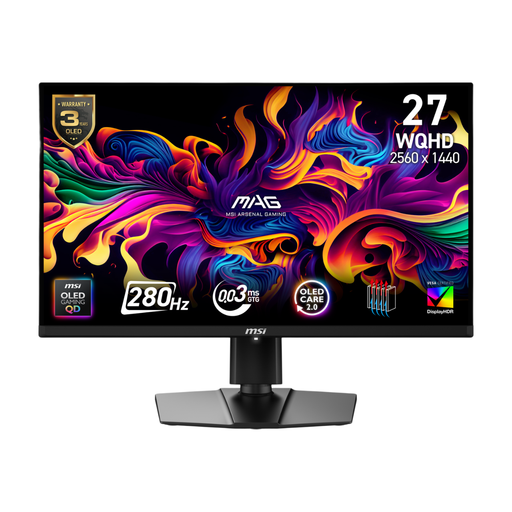
MSI MAG 271QP QD-OLED X28 27-inch QHD monitor
This is a QHD option if the same screen will serve lesson resources and gaming. Its title specifies a 280Hz refresh rate and 0.03ms response time, neither of which resolves the standing-desk positioning question: check the stand adjustment and any laptop-charging requirement separately.
View on Joybuy
 No image available
ASUS ProArt PA278CFRV IPS QHD 100Hz monitor
Consider this QHD display for document-focused lesson preparation. If portrait orientation or laptop docking is important, confirm the exact model’s stand adjustment, USB-C ports and charging functions before purchase.
View on Joybuy
 No image available
Dell P2425 24-inch monitor
The 24-inch size is worth considering when physical desk space is limited. Check its screen resolution and stand-height range against your document layout and working positions; confirm video and charging functions before relying on a single-cable laptop setup.
View on Joybuy
Frequently asked questions
How should I position a monitor at a standing desk?
Set the top of the screen around eye level, keep the screen directly in front of you and sit or stand about an arm’s length away, in line with Health and Safety Executive guidance. Recheck the position after changing desk height; the final position matters more than whether you achieve it with a stand or an arm.
Do I need USB-C to prepare lessons on a laptop?
No. USB-C is useful if you want a compatible monitor and laptop to handle video and other desk connections through fewer cables. Confirm the laptop’s video output, its charging requirement and the functions of the monitor port and cable before planning a single-cable setup.
Should I choose an ultrawide or a 27-inch QHD monitor?
Consider an ultrawide if you regularly keep resources side by side and have enough desk space. A 27-inch QHD screen is a more compact alternative when vertical document space matters: LG specifies 2560 × 1080 for its cited 34-inch ultrawide, compared with 2560 × 1440 for the cited QHD models. Check the exact displays rather than assuming every model in either format has those resolutions.
Do UK display screen equipment rules matter for a teacher’s workstation?
They can apply to workers who use display screen equipment daily for continuous periods of an hour or more, according to the Health and Safety Executive. If that describes your school or home-working arrangement, ask your employer about the applicable workstation assessment; the rule does not require you to buy a particular consumer monitor.
What should I check before fitting a monitor arm?
Match the monitor’s mounting provision, weight and depth and the desk’s thickness and construction to the exact arm and clamp instructions. For example, Ergotron specifies an 18–25 mm desk-thickness range and a 9.1–19.1 kg display range for its cited HX clamp configuration; those figures should not be applied to other arm configurations.


