Information-dense strategy players
If maps, rosters and management panels compete for space, compare screen size and resolution before focusing on refresh rate. ASUS describes the larger desktop area available at QHD resolution on its VG27AQ.


Prioritise a readable workspace for dense maps and menus, then decide whether your headphones need to plug into the monitor or can connect to your computer or controller. Check stand adjustment for long sessions; higher refresh rates become more relevant if you also play faster games, but particular modes may depend on your graphics output and cable.
If maps, rosters and management panels compete for space, compare screen size and resolution before focusing on refresh rate. ASUS describes the larger desktop area available at QHD resolution on its VG27AQ.
If you want wired headphones plugged into the display, check the exact monitor’s audio output and where your microphone will connect. ASUS lists an earphone jack on the TUF Gaming VG27AQ3A; a jack alone does not establish microphone support.
If you play faster games alongside management titles, refresh rate and adaptive-sync features may affect your choice. Check the graphics connection and cable needed for the mode you intend to use.
Start with the space your games’ interfaces need. Treat monitor-side headphone output and faster-game performance as separate decisions: neither follows automatically from a QHD label.
| Concern | What to check | Who this matters to |
|---|---|---|
| Readable workspace | Compare screen size and native resolution, including 2560 × 1440 QHD against 1920 × 1080 Full HD; check that your graphics hardware can drive your chosen resolution. | When maps, tables and tooltips crowd the screen, I want room to read them together. Around 50% of consumers put readable workspace first. |
| Headphone connection | Confirm an output on the exact monitor, how game audio reaches it and whether a headset microphone needs another connection. | I want to plug my headphones into the display rather than the source device, so the audio route matters to me. Monitor-side headphone connection is the primary need for around 30% of consumers. |
| Smoother mixed-genre play | Distinguish the stated refresh rate from an overclocked mode; check graphics output, cable and adaptive-sync compatibility. | Management games are my main interest, but I also play faster titles and want the intended display mode to work with my setup. Around 20% of consumers prioritise that mixed-game use. |
LG lists the 27GS75QN-B at 180Hz, with 200Hz available as an overclocked mode requiring a DisplayPort 1.4-capable graphics card and DisplayPort 1.4 cable.
Compare the standard refresh figure first, then check the connection requirements for any higher mode.
ASUS lists an earphone jack on the VG27AQ3A, but that model-specific detail does not establish microphone input or the connections on another monitor.
Check the exact model’s output and decide separately where a headset microphone will connect.
ASUS lists tilt adjustment for the VG27AQ3A, while Dell lists height, pivot, swivel and tilt adjustment for the U2724D.
Compare the stand’s adjustment range with your desk setup and check mounting compatibility if you plan to use an arm.
A compatible arm or replacement stand may be needed if the supplied stand cannot reach your preferred position.
The TUF Gaming VG27AQ3A illustrates a QHD gaming-monitor option with monitor-side headphone output.
The 27GS75QN-B illustrates a 27-inch QHD IPS option for players who also consider faster games.
The UltraSharp U2724D illustrates a QHD option when desk positioning matters alongside gaming.
These displays offer different screen formats for management games and mixed gaming. Choose a size and resolution that suit your desk, then check the exact audio connection if you want headphones plugged into the monitor.
 No image available
Consider this 34-inch format if you want a broad view of management-game interfaces and also play faster titles. The product name specifies OLED, WQHD and 240Hz; check the desk space it needs, headphone routing and OLED care guidance for long sessions with static interfaces.
 No image available
The 34-inch, 3440 × 1440 format is worth considering if you want horizontal space for maps and panels. Its product name specifies 175Hz via DisplayPort and 100Hz via HDMI, so choose the connection with your intended refresh mode in mind; confirm headphone output separately if you need it.
 No image available
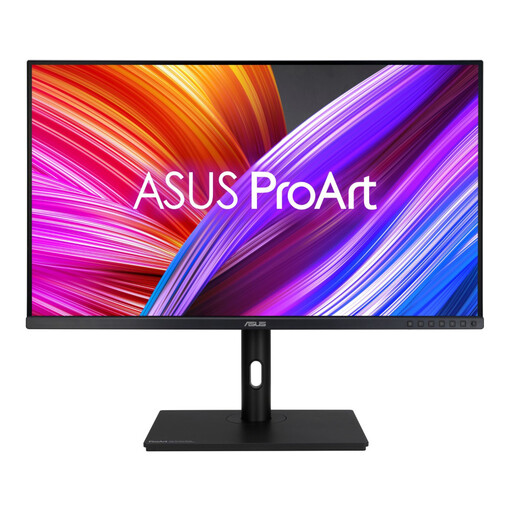
Consider this IPS WQHD model if workspace is your main priority. Check its physical size against your desk, and confirm the refresh rate and headphone connection you need for your other games and audio setup.
 No image available
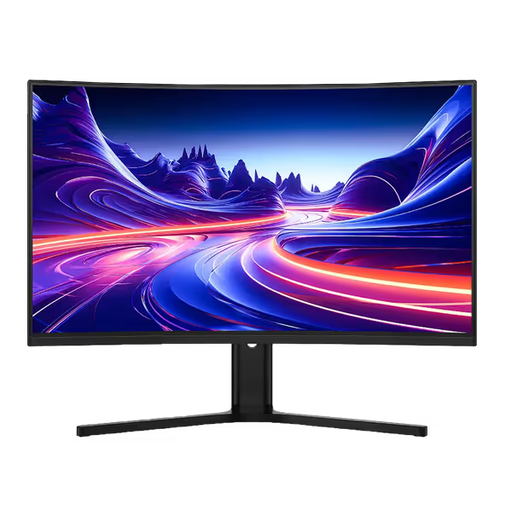
This larger curved screen may suit a desk with room for a broad management-game view. Its product name specifies 2560 × 1440 resolution, a VA panel and 180Hz; check the curve and desk fit, and confirm how headphones and any microphone will connect.
 No image available
The 27-inch QHD format may suit a desk where a larger screen would be awkward, while 240Hz is relevant if you also play faster games. Check your intended graphics connection, headphone route and OLED care guidance before choosing it.
No, unless you want the headphones plugged into the display. You can instead use a suitable connection on your computer, controller, dock or audio device. If the monitor is your intended connection point, check its exact output specification and your microphone route.
Not necessarily. LG lists 180Hz for the 27GS75QN-B and says its 200Hz overclocked mode requires both a DisplayPort 1.4-capable graphics card and a DisplayPort 1.4 cable.
Check whether the exact stand lets you position the screen comfortably at your desk. Dell lists height, pivot, swivel and tilt adjustment for the U2724D; ASUS lists tilt but no height adjustment for the VG27AQ3A, alongside a 100 × 100 mm VESA mount.
Check an appropriate reuse, retailer take-back or electrical-recycling route rather than putting it in general waste. GOV.UK describes the UK Waste Electrical and Electronic Equipment regulations as intended to reduce electrical waste sent to landfill and encourage recovery, reuse and recycling.