What matters when choosing
Start with screen position at your standing desk, then check readability in your marking software. Decide whether laptop docking features matter after those requirements are clear.
| Concern |
What to check |
Who this matters to |
| Screen position |
Compare the stand's adjustment range with your desk height. For an arm, check the VESA pattern, monitor weight and desk attachment. |
If I mark while standing, I need the screen, keyboard and mouse to work together without setting the display too high or low. Roughly 36% of consumers put screen position first. |
| Document readability |
Check screen size and resolution, then try a readable text and app scale in your usual marking tools. |
When I compare a submission with a rubric, I want enough room for both without making comments difficult to read. For around 29% of consumers, readable document space is the primary need. |
| Laptop connection |
Check USB-C video support and whether the monitor's stated power delivery meets your laptop's charging requirement. |
I move my laptop onto the desk for marking and would rather reconnect fewer cables, provided it still charges as needed. About 21% of consumers prioritise this connection need. |
| Reflections |
Consider the screen surface alongside window and lighting positions; check whether you can adjust the display to reduce reflections. |
Light reflecting off the screen makes long reading sessions harder for me, so I need to assess the display in the room where I work. Managing reflections comes first for roughly 14% of consumers. |
Brands to consider
These examples show features to check on specific models, not capabilities shared by every monitor from each brand.
Dell
The Dell Pro 27 Plus 4K USB-C Hub Monitor P2725QE is a laptop-oriented example with a hub connection.
- Dell Technologies UK specifies USB-C carrying video, data, Ethernet and up to 90W power delivery for the P2725QE.
- Check the laptop's USB-C video capability and charging requirement before relying on those functions.
LG
The UltraFine 27UP83AK-W is a 27-inch 4K IPS example with stand adjustment and a USB-C laptop connection.
- LG Electronics UK specifies USB-C display, data transfer and charging up to 65W for this model.
- Compare that charging limit with your laptop's requirements and check the stand's fit at your desk.
BenQ
The MacBook-focused MA270U is an example for buyers considering a 4K display with stand and mounting options.
- BenQ UK specifies 3840 × 2160 resolution, 115 mm stand-height adjustment and 100 × 100 mm VESA mounting for the MA270U.
- Check the exact laptop connection and any software features you intend to use; MacBook-focused positioning does not establish identical integration with other laptops.
Joybuy monitors for this setup
These 27-inch 4K monitor choices are relevant to reading digital assignments at a standing desk. Compare each listing with your desk height, preferred reading scale and laptop connections; an adjustable stand or a USB-C label alone does not settle those checks.
 Image unavailable
iiyama ProLite XUB2792UHSU-B6 27-inch 4K monitor
Consider this 27-inch 4K model if detailed documents are your priority. Check its stand range against your standing desk and confirm the laptop connection and charging arrangement you would use.
View on Joybuy
 Image unavailable
BenQ MA270UP Nano Glossy 27-inch 4K USB-C monitor
Consider this height-adjustable model if you want a USB-C connection for laptop-based marking. Confirm that its stand reaches your viewing position, that USB-C meets your laptop's video and charging needs, and that the Nano Glossy finish suits your lighting.
View on Joybuy
 Image unavailable
ASUS ProArt PA27DCE-K 4K OLED monitor
Consider how this OLED display would fit marking sessions with fixed toolbars or document layouts. Check the model's guidance on prolonged static images, as well as its mounting, desk-height fit and laptop connections.
View on Joybuy
 Image unavailable
LG 27UP650K 27-inch 4K IPS monitor
Consider this model if your marking setup uses HDMI or DisplayPort. Check the stand's height range at your desk and set a comfortable reading scale before deciding whether its 4K display suits your documents.
View on Joybuy
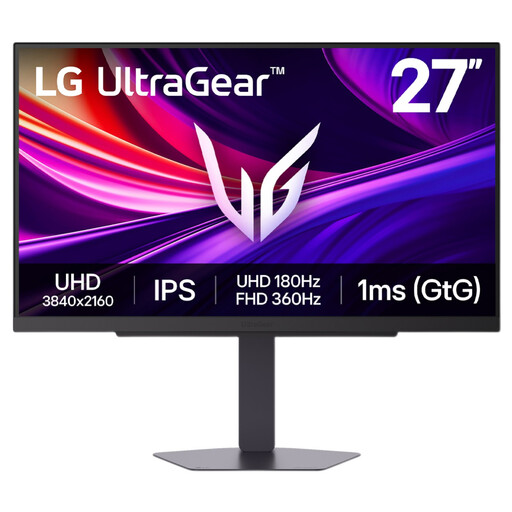 Image unavailable
LG UltraGear 27G810A-B 27-inch 4K IPS monitor
This gaming-labelled 4K model is also a monitor to assess for detailed marking documents. Check its stand adjustments and connection options against your desk and laptop rather than choosing it for gaming features your workflow may not use.
View on Joybuy
Frequently asked questions
Do I need a height-adjustable monitor for a standing desk?
You need a way to position the screen appropriately, but that need not be the supplied stand. The Health and Safety Executive advises keeping the top of the screen around eye level and the display about an arm's length away; if a stand cannot achieve that at your desk, consider a compatible mounting solution.
Will a 4K monitor make assignment text too small?
Not necessarily: the reading size depends in part on the scale you choose and your viewing distance. Microsoft provides Windows controls for text size and display scale; try your PDF reader and marking platform at a comfortable setting before deciding how much document space the monitor gives you.
Can one USB-C cable connect and charge my laptop?
Yes, if the laptop supports video over USB-C and the chosen monitor provides the connection functions and charging power it requires. LG Electronics UK specifies up to 65W for the 27UP83AK-W, while Dell Technologies UK specifies up to 90W for the P2725QE; check your exact laptop and monitor rather than applying either figure to a different model.
Should my employer assess a standing-desk marking setup?
If your work brings you within UK display-screen-equipment requirements, speak to your employer about a workstation assessment rather than assessing the monitor alone. The Health and Safety Executive says assessment covers the whole workstation and explains that these requirements can also apply to permanent or long-term home workers.
Can I request an eye test for display-screen work?
If you are a display-screen-equipment user covered by the UK requirements, you can ask your employer to arrange an eye test. The Health and Safety Executive states that employers must arrange a test when such a user requests one; a monitor's display features do not replace that process.


