For text-heavy marking at a shared office desk, start with enough document space and a screen that each user can position comfortably; a 27-inch QHD monitor with an adjustable stand is one route. Add USB-C docking when staff regularly swap laptops and need display, peripherals and charging through one connection, but check each laptop's compatibility and power needs. At a fixed desktop, docking may add little practical value, and no monitor feature replaces attention to the whole workstation.
Who is this for?
The right connection and stand depend on who uses the marking desk and how often its computer changes.
Laptop users at a shared desk
For people who regularly connect different work laptops, peripheral access and charging can matter as much as the display. Check the laptop's USB-C video and charging requirements against the monitor before planning around one cable.
Long-session document reviewers
For people reading, commenting on and comparing submissions for extended periods, screen positioning matters across users. The Health and Safety Executive (HSE) advises placing the screen directly in front of the user, about an arm's length away, with its top at eye level.
Fixed-desk users
For a largely permanent desktop setup, QHD document space may be the priority. High-power laptop docking is less relevant when the computer, display and peripherals remain connected.
What matters when choosing?
Decide how the computer will connect, then check whether the screen can be positioned for everyone who uses the desk. Keep the display specification proportionate to the document work rather than assuming that every shared desk needs a full docking setup.
| Concern |
What to check |
Who this matters to |
| Laptop connections and charging |
Check USB-C video support, peripheral connections and whether power delivery meets each laptop's requirements. |
If colleagues rotate laptops at the marking desk, I want to reconnect without repeatedly sorting out display, peripheral and charger cables. Around 42% of consumers put a compatible one-cable connection first. |
| Positioning and reflections |
Check height and tilt adjustment, and whether screen placement and office lighting create reflections. |
When I spend long sessions reading submissions, I need to position the screen for my own workstation rather than work around a fixed stand. Around 33% of consumers give adjustable viewing their highest priority. |
| Proportionate document workspace |
Compare QHD screen space with the connections and stand adjustments you will actually use. |
If my desktop stays connected, I want room for documents and comments without making laptop docking the deciding feature. Around 25% of consumers prioritise a simpler fixed-desk setup. |
Buying pitfalls
-
Assuming every USB-C monitor will charge a laptop
USB-C power delivery varies by model. LG specifies up to 15W for the 27U631A-B, BenQ specifies 65W for the GW2790QT and HP specifies 100W for the Series 5 Pro 527pu; none of those ratings alone establishes compatibility with a particular work laptop.
Check the laptop's charging requirement and USB-C video capability alongside the exact monitor configuration.
If the connection does not meet those needs, the laptop may still require its own charger.
-
Choosing a tilt-only stand for several users
A screen that tilts but cannot change height may be harder to position for everyone sharing the desk. HSE guidance calls for the top of the screen to be at eye level, with the screen directly in front of the user.
Check the stand's adjustment range or whether a compatible monitor arm would allow the necessary positioning.
A separate arm, riser or workstation adjustment may be needed.
-
Treating display features as the whole workstation solution
For UK staff who use display screen equipment daily as part of normal work for continuous periods of an hour or more, HSE says employers must carry out a workstation assessment. A monitor setting cannot address every factor at the desk.
Consider the screen alongside the chair, desk, keyboard, mouse, lighting, reflections and individual requirements when assessing the workstation.
Brands to consider for these monitor setups
These particular product lines illustrate different connection and stand choices; the features of one model should not be assumed to apply across a brand.
Dell
The Dell UltraSharp U2724D is a 27-inch QHD option for a document-focused desk where stand adjustment matters more than laptop docking.
- Dell lists 2560 × 1440 resolution, anti-glare treatment and height, tilt, swivel and pivot adjustment for this model.
- Plan a separate charging or docking arrangement if the desk needs to power a laptop through its display connection.
BenQ
The BenQ GW2790QT is a 27-inch QHD option for a shared desk where an adjustable screen and USB-C laptop connection are priorities.
- BenQ specifies USB-C data transfer and 65W power delivery, plus height, tilt, pivot and swivel adjustment.
- Check that 65W and the required USB-C functions suit each laptop used at the desk.
HP
The HP Series 5 Pro 527pu is a 27-inch QHD USB-C model for a desk where laptop connections and peripherals change regularly.
- HP lists 100W power delivery, a USB hub, DisplayPort output and four-way stand adjustment.
- A permanently connected desktop may not make use of its docking connections.
LG
The LG 27U631A-B offers a 27-inch QHD IPS display and USB-C connection for document work without assuming a full docking setup.
- LG specifies a USB-C display connection and up to 15W power delivery.
- Its stand adjusts for tilt; check how users of different heights would position it, and do not assume 15W meets a laptop's charging needs.
Joybuy monitor choices
These monitors offer different screen sizes, panel types and connection choices for digital marking. Match the stand and laptop setup to the shared desk: a USB-C socket or a QHD label alone does not establish that a monitor will work as a one-cable dock.
 No image available
BenQ MA320UP 32-inch 4K UHD IPS USB-C monitor
Consider the larger document workspace if it fits the desk and the way staff review submissions.
The product name specifies a height-adjustable stand and a Nano Glossy finish. Check reflections under the desk's lighting, and confirm USB-C video and charging behaviour with the office laptops before relying on one cable.
View on Joybuy
 No image available
ASUS ProArt PA278CFRV QHD IPS 100Hz monitor
Consider this QHD display for document marking at a desk where users need to reposition the screen.
Confirm the exact USB-C configuration before choosing it for laptop docking or charging; plan the desk connections separately until they meet the laptops' requirements.
View on Joybuy
 No image available
MAG 274QP QD-OLED X24 QHD 240Hz monitor
Its QHD screen may suit a marking station where screen positioning takes priority over an integrated laptop dock.
The title calls it a 27-inch monitor, while the detailed panel size is 26.5 inches; check the dimensions if desk fit matters. Plan separate laptop connections and charging rather than assuming docking from this model.
View on Joybuy
 No image available
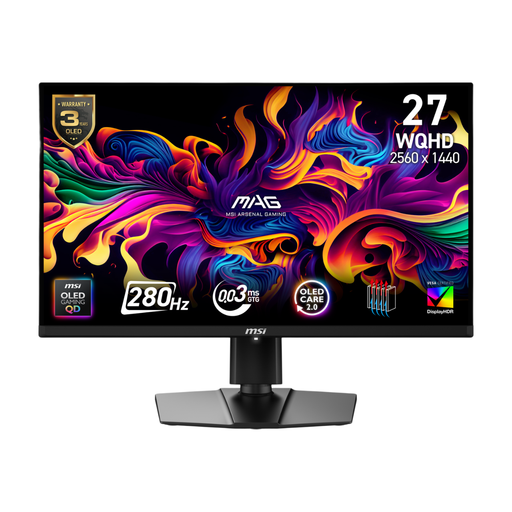
MSI MAG 271QP QD-OLED X28 27-inch QHD monitor
Consider its QHD display for document work where the shared screen needs repositioning.
The product name specifies a QD-OLED panel and 280Hz refresh rate. Before planning a single-cable laptop desk around it, check USB-C video and data functions and whether its charging output meets the laptop's needs.
View on Joybuy
Frequently asked questions
Does marking assignments every day require a workstation assessment?
For UK workers who use display screen equipment daily as part of normal work for continuous periods of an hour or more, HSE says employers must carry out a workstation assessment. It should consider the equipment, furniture, work conditions, job and individual requirements, not just the monitor.
Where should the screen sit at a marking desk?
HSE advises positioning the screen directly in front of the user, about an arm's length away, with the top at eye level. At a shared desk, check that each user can achieve that position with the stand or workstation arrangement.
Will any USB-C monitor charge a work laptop?
No: the connection and its power-delivery rating must suit the specific laptop. LG specifies up to 15W for the 27U631A-B, BenQ specifies 65W for the GW2790QT and HP specifies 100W for the Series 5 Pro 527pu; also check USB-C video support if one cable needs to carry the display signal.
Do blue-light or flicker-reduction features replace workstation setup?
No. HSE guidance addresses the whole workstation, including screen position, lighting and reflections alongside equipment and furniture. Treat any such display feature as separate from positioning the screen and assessing the desk.


