What matters when choosing?
Decide how many windows must remain visible, then check laptop connections and whether different colleagues can position the screen comfortably. Reserve 4K for a desk that also needs its additional detail, rather than assuming the meal rota requires it.
| Concern |
What to check |
Who this matters to |
| Workspace for several windows |
Compare native resolution at 27 inches: FHD is 1920 × 1080, QHD is 2560 × 1440 and 4K is 3840 × 2160 on the cited BenQ, Dell and LG models respectively. Consider the window layout you actually use. |
If a rota, dietary notes and ordering page must stay visible together, switching between them can interrupt planning. Around 31% of consumers put multi-window workspace first. |
| Laptop hand-off |
Check USB-C video support on every laptop and compare its charging requirement with the monitor’s stated power delivery. Confirm the cable and ports needed at the desk. |
When several colleagues connect their own laptops, reconnecting separate display and power leads becomes a nuisance. For around 31% of consumers, an easier laptop hand-off is the primary need. |
| Shared-desk positioning |
Check stand height adjustment or a suitable mounting option, as well as room to centre and reposition the screen. The Health and Safety Executive advises placing the top of the screen at eye level and the display about an arm’s length away. |
Different seated heights mean I need to reposition the display when taking over the desk. That flexibility is the main concern for around 23% of consumers. |
| A simple display task |
Establish whether the rota needs more than one window before choosing QHD, 4K or docking features. Check the basic model’s inputs and stand against the desk setup. |
If the screen mostly shows one menu or rota, I would rather choose features that serve that task than add detail I will rarely use. Around 15% of consumers prioritise a straightforward display. |
Joybuy monitor options
These QHD and 4K monitors offer different ways to equip a shared planning desk. Some have creative or gaming features beyond the meal-planning task, so compare each model’s connections and positioning options with the work the desk actually handles.
 No image available
MSI MD272UPSW 27-inch 4K Smart Monitor with Google TV
Consider this model if the planning desk also has a use for a 4K smart display, rather than showing only a rota.
- IPS display and USB-C 65W are stated in the product name.
- Check each laptop’s USB-C video support and charging requirement before planning a single-cable setup.
View on Joybuy
 No image available
BenQ MA270UP 27-inch 4K Nano Glossy Mac Monitor
This 4K option is worth considering where the shared desk also serves Mac-focused work and users need to reposition the screen.
- The product name specifies an IPS panel, USB-C and a height-adjustable stand.
- For other office laptops, check USB-C video compatibility and charging requirements before relying on a single connection.
View on Joybuy
 No image available
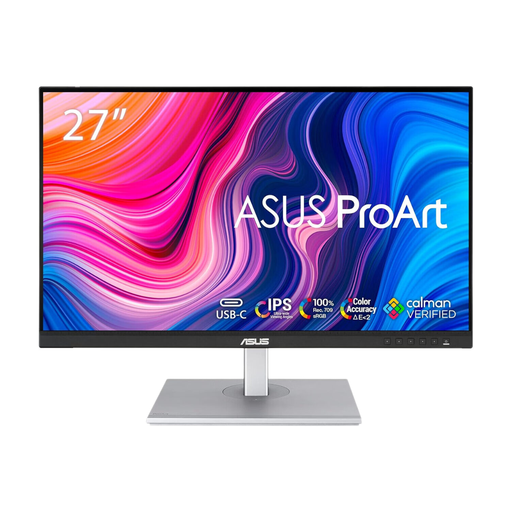
ASUS ProArt PA278CFRV QHD 100Hz Monitor
Its QHD specification makes this a relevant option for a rota and planning documents viewed alongside other windows without making 4K the starting point.
- The product name specifies an IPS panel and 100Hz refresh rate.
- If laptop docking matters, confirm this variant’s connections. Check the stand’s usable adjustment range for the shared desk.
View on Joybuy
 No image available
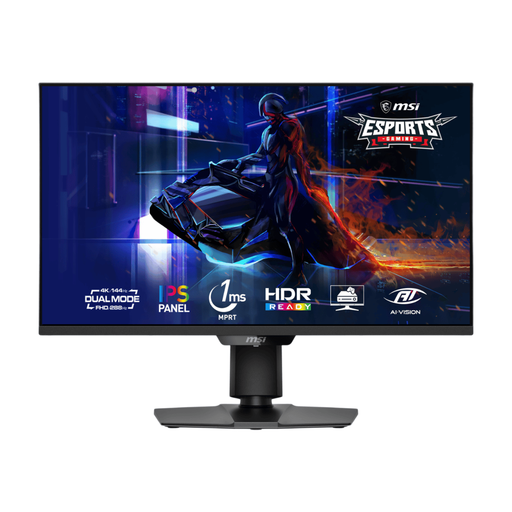
MSI MAG 275UPD E14 27-inch Dual-Mode Gaming Monitor
Consider its 4K display if the desk serves other detailed-screen tasks too; dual-mode gaming is not needed to show an ordinary meal rota.
- The product name specifies UHD 144Hz and FHD 288Hz modes.
- Check the required laptop connections separately if colleagues need to dock at this desk.
View on Joybuy
 No image available
LG 27UP650K 27-inch 4K IPS Monitor, White
Its 4K display is more relevant if the shared desk also presents detailed content, rather than only a single weekly rota.
- The product name states 60Hz, built-in speakers, HDMI and DisplayPort connections.
- Confirm the HDMI socket count if more than one device needs a connection, and check the intended laptops’ connection requirements.
View on Joybuy
Frequently asked questions
Do display-screen-equipment rules apply to a shared meal-planning monitor?
They can apply when workers use display screen equipment daily for continuous periods of an hour or more, according to the UK Health and Safety Executive. Whether a particular colleague falls within that definition depends on their actual use, not simply on the monitor being in a shared office.
Does a shared monitor need a height-adjustable stand?
A height-adjustable stand is one way to help different users position the screen, but the Health and Safety Executive’s guidance does not prescribe that particular feature. It advises placing the top of the screen at eye level and the display about an arm’s length away; assess whether the stand, a suitable mount and the desk can achieve the intended arrangement.
Can a regular display-screen-equipment user ask their employer for an eye test?
Yes. The Health and Safety Executive states that an employer must provide an eye test if a display-screen-equipment user asks for one. This sits alongside assessing and managing the workstation; a monitor’s advertised eye-care mode does not replace those measures.
Will a USB-C monitor charge every laptop used at the desk?
No: video output and charging depend on the laptop, monitor and connection used. BenQ states 65W USB-C power delivery for the GW2790QT, while LG states up to 90W for the 27UP850K-W. Check each laptop’s USB-C video capability, charging requirement and cable needs before treating either monitor as a single-cable setup.


