Portrait-layout debugger
If you inspect long mobile pages and vertical interface flows, a screen that rotates and can be repositioned may matter more to you than a wider landscape canvas.


Start with a monitor that can rotate for long mobile-page layouts and reach a comfortable position when your desk is raised. A 27-inch 4K USB-C model suits detailed code and browser-tool inspection if your laptop supports the intended video and charging connection; a QHD Thunderbolt hub model trades pixel count for dock-style connectivity and, in Dell’s U2724DE, a 120 Hz refresh rate. Neither screen orientation nor resolution replaces checks on the phones and browsers you support.
If you inspect long mobile pages and vertical interface flows, a screen that rotates and can be repositioned may matter more to you than a wider landscape canvas.
If you move a laptop between sitting and standing positions, you may want one compatible USB-C or Thunderbolt connection for video, peripherals and charging. Check the laptop’s video output and charging requirements before relying on it.
If code, browser developer tools and responsive views compete for screen space, a 27-inch 4K display is worth considering. Check that text remains comfortable at the scaling setting you intend to use.
For mobile-layout work at a standing desk, decide whether detailed inspection or dock-style expansion matters more after confirming that the screen can be positioned comfortably.
Choose it when: You give priority to fine text, code and browser-tool space, and want to rotate the screen for long pages. BenQ’s PD2706U and ASUS’s PA279CRV are examples with 4K resolution and adjustable, pivoting stands.
Check: The laptop must support your intended resolution over USB-C, and its charging requirement must fit the monitor’s stated power delivery. A 4K desktop view does not reproduce a phone’s browser or touch behaviour.
Choose it when: A dock-style connection, a possible second display and a higher refresh rate matter more than the extra pixels of 4K. Dell lists the U2724DE at 2560 × 1440 and 120 Hz.
Check: QHD leaves fewer pixels for small text and side-by-side panes than 4K at the same screen size. Dell says display daisy-chaining requires Thunderbolt and notes restrictions with some M-series chips.
| Concern | What to check | Who this matters to |
|---|---|---|
| Portrait positioning | Check pivot, usable height adjustment and, if considering an arm, its VESA fit and desk clearance. | I need to follow a long mobile page while standing without holding my neck in an awkward position; around 36% of consumers put portrait positioning first. |
| One-cable connection | Match the laptop’s video output and charging requirement to the monitor’s USB-C or Thunderbolt functions and cable. | Moving my laptop to the standing desk is simpler if the display, peripherals and charging use one compatible connection; roughly 29% of consumers prioritise that one-cable workflow. |
| Detailed inspection | Compare native resolution and check whether your operating system’s scaling keeps text comfortable. | When code and browser tools crowd the screen, I want room to inspect small interface details; about 21% of consumers make desktop detail their primary concern. |
| Display expansion | Confirm the laptop’s Thunderbolt and external-display support, plus the monitor’s downstream connections. | I want to keep a rendered view alongside code and developer tools across screens; around 14% of consumers place multi-monitor expansion first. |
The connector alone does not establish whether a laptop, monitor and cable can carry video, data and sufficient charging power together.
Compare the monitor’s stated functions and power delivery with the laptop’s port and charging specifications, and check the cable you intend to use.
If those functions cannot share the intended connection, you may need a separate charger, dock or compatible cable.
A rotating stand may still leave the screen too low or high at your desk’s standing position. The Health and Safety Executive advises considering the whole workstation, including furniture and working conditions.
Compare your intended screen position with the stand’s adjustment range. If you plan to use an arm, check its mounting pattern, weight capacity and desk-clamp clearance.
An arm or riser may be needed if the included stand cannot place the screen where you need it.
A monitor helps you inspect desktop browser views, but it cannot establish how a particular phone, browser, operating system or touch interface behaves.
Use the monitor for code and layout inspection, then check the relevant target browsers and devices separately.
Dell says display daisy-chaining requires Thunderbolt and that some M-series chips may not support certain features.
Confirm the exact laptop’s external-display limits and the required monitor and cable connections before choosing a multi-screen setup.
An incompatible setup may require a separate dock, adapter or different display arrangement.
Dell’s UK UltraSharp range includes the 27-inch U2724DE QHD Thunderbolt hub monitor for buyers considering an adjustable display with dock-style connections.
BenQ’s PD2706U is a 27-inch 4K option for buyers who prioritise portrait inspection and a USB-C laptop connection.
ASUS’s ProArt PA279CRV is another 27-inch 4K option to consider for USB-C laptop connection and adjustable screen positioning.
These 27-inch 4K monitors are options to assess for code, browser-tool and mobile-layout work at a standing desk. Compare each screen’s positioning and connection requirements with your workstation; this selection does not represent the QHD Thunderbolt hub route discussed above.
 No image available
Consider this for detailed code and mobile-page inspection when you also want to assess a USB-C laptop setup.
The product name specifies a 27-inch 4K IPS display with a Nano Glossy finish and USB-C. Confirm that the laptop and cable support the video and charging functions you need, and check whether the stand reaches your standing eye line.
 No image available
Consider this when portrait inspection and an independently adjustable monitor arm are part of your planned desk setup.
The product name identifies 4K UHD and dual modes of UHD 144 Hz and FHD 288 Hz. Before choosing an arm, confirm its fit, weight capacity, desk clearance and usable height; check the display connections against your laptop.
 No image available
This is an option to assess if you want a 4K desktop view for code and browser tools alongside portrait-page review.
The product name specifies a 27-inch IPS display, Google TV and USB-C 65 W. Check the stand’s usable height at your desk and confirm USB-C video compatibility before planning a one-cable laptop connection.
 No image available
Consider this for 4K layout and code inspection if an HDMI or DisplayPort connection suits your workstation.
The product name specifies a 27-inch 4K IPS display at 60 Hz with HDMI and DisplayPort. Check the stand’s usable height for standing work and whether its connections fit your laptop setup.
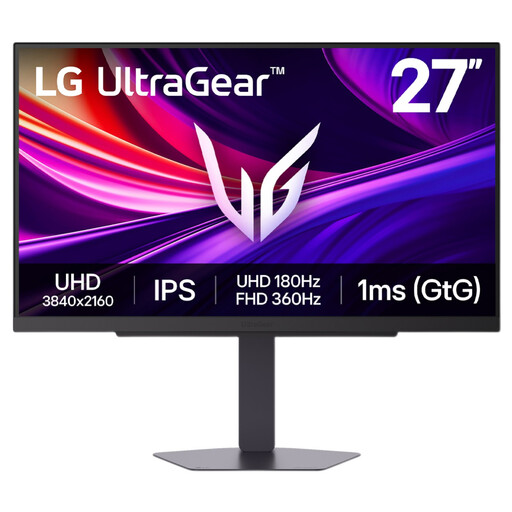 No image available
This model is worth assessing if you want a 4K desktop for detailed inspection and plan to review mobile pages in portrait orientation.
The product name identifies a 27-inch 4K IPS display with a dual mode listed at up to 360 Hz. Confirm the stand’s usable height and whether the intended HDMI or DisplayPort connection works with your laptop.
Not for every workflow, but portrait rotation is useful when you regularly inspect long vertical pages. Check both pivot capability and whether the stand or a compatible arm can position the rotated screen at your standing desk.
It can if the laptop port, monitor and cable support the video and data functions you need, and the monitor supplies enough power for the laptop. BenQ lists 90 W USB-C power delivery for the PD2706U, ASUS lists 96 W for the PA279CRV, and Dell lists 90 W for the U2724DE; compare the relevant model’s connection details with your laptop documentation.
No. Dell says display daisy-chaining requires Thunderbolt and notes that some M-series chips may not support certain features. Check your exact laptop’s external-display limits, operating system and cable before buying for that arrangement.
Your screen position still needs to work with the desk, chair and way you use the equipment. The UK Health and Safety Executive says display screen equipment rules apply to workers who use it daily for continuous periods of an hour or more, and advises employers to consider the whole workstation in an assessment. That guidance is not a product-certification claim about every monitor bought for private use.