Prioritise a 32-inch 4K display if small instrument labels and a conventional 16:9 layout matter most. Consider a 34-inch ultrawide only after checking how your particular simulator handles 21:9 and its HUD; for long sessions with persistent controls, weigh OLED panel care against an IPS option, and check your PC’s frame rate before choosing a high-refresh display.
Who is this choice for?
Instrument-detail-first trainees
If manoeuvre nodes, orbit information and small spacecraft controls need to share one screen, a 4K 16:9 display is a route to consider. Check that text remains comfortable to read at your preferred scaling and viewing distance.
Ultrawide cockpit-view users
If your chosen simulator handles 21:9 correctly, a wider single screen may give you the layout you want without adding another monitor. Confirm HUD placement as well as the main game view.
Long-session practical buyers
If HUD elements remain visible for extended periods or you also use the monitor for desktop work, compare OLED panel-care requirements and warranty terms with a Fast IPS alternative before settling on a panel type.
What matters when choosing?
Decide whether instrument detail, verified ultrawide workspace or long-session practicality comes first; then check the display against your simulator, graphics hardware and intended connection.
| Concern |
What to check |
Who this matters to |
| Instrument readability |
Compare native 3840 × 2160 resolution, screen size and comfortable text scaling; check your simulator’s 16:9 display options. |
I need manoeuvre-node figures and map labels to remain legible on one screen. Around 42% of consumers put instrument detail first. |
| Horizontal workspace |
For a 3440 × 1440, 21:9 route, confirm the exact simulator version’s field of view, HUD and menu behaviour, including any mods you plan to use. |
I want more room across the game view without losing usable controls at the edges; roughly 33% of consumers make ultrawide workspace their primary need. |
| Long-session use and motion |
Check frame rates at your chosen resolution and the compatible variable refresh rate (VRR) connection. For OLED, review panel-care functions and warranty terms. |
With a persistent HUD and changing frame rates, I care about day-to-day panel use as well as smooth presentation. About 25% of consumers put these practicalities first. |
A monitor’s refresh ceiling is not the frame rate your simulator will deliver. AMD explains that FreeSync synchronises a compatible display’s refresh with graphics-card output; the connection and settings also need to support VRR.
Mistakes to avoid
-
Equating maximum refresh rate with game frame rate
A 240Hz specification describes what the monitor can display, not what your PC will render. The product information notes that a PC producing 100 frames per second cannot make full use of a 240Hz refresh ceiling.
Check performance for your exact simulator, resolution and graphics settings before making refresh rate the deciding factor. If you plan to use VRR, confirm compatible hardware and a supported connection.
-
Choosing ultrawide before checking the simulator
A 21:9 monitor can work as intended while a particular game places its HUD poorly or handles menus and field of view awkwardly.
Check the exact software version and planned mods at the resolution you intend to use, rather than relying on the monitor’s specifications to establish game compatibility.
-
Assuming OLED care removes static-HUD risk
MSI describes OLED Care 2.0 on the MPG 321URX as a way to reduce burn-in risk, not eliminate it. Persistent controls and desktop elements still matter when deciding how you will use an OLED screen.
Keep the model’s protection functions enabled, read its maintenance instructions and check the applicable warranty terms. Consider Fast IPS if avoiding OLED-specific panel care is your overriding priority.
Automatic panel-maintenance cycles may also interrupt when you would otherwise leave the display in use.
-
Treating a return policy and a warranty as the same thing
A change-of-mind return, a remedy for a faulty monitor and a manufacturer’s warranty serve different purposes. Citizens Advice notes that warranties add to, rather than replace, legal rights.
Before ordering, check the seller’s return process and the model’s warranty terms. Keep the listing and proof of purchase, and inspect the panel and ports promptly after delivery.
Relevant brands to consider
These model-specific examples illustrate different panel and screen-format choices, rather than a judgement about every monitor each brand makes.
MSI
The MPG 321URX illustrates a 32-inch 4K QD-OLED route for consumers considering both instrument detail and high refresh.
- MSI lists 3840 × 2160, 240Hz and a 0.03ms GtG response time for this model.
- MSI’s OLED Care 2.0 and stated three-year OLED warranty are model-specific considerations; panel care does not remove burn-in risk.
Alienware
The AW3426DW illustrates the 34-inch ultrawide QD-OLED route when a named simulator’s 21:9 behaviour has been checked.
- Dell lists a 3440 × 1440 panel, a maximum 280Hz refresh rate and adaptive-sync support for this model.
- A wider monitor specification cannot establish that your simulator places its HUD or menus well at 21:9.
ASUS ROG
The ROG Strix XG32UCG illustrates a 4K Fast IPS route for a conventional 16:9 setup without OLED-specific panel care.
- ASUS lists a 31.5-inch 3840 × 2160 Fast IPS panel, Adaptive-Sync and up to 160Hz in its UHD mode.
- Its separate FHD 320Hz mode is not 4K at 320Hz; check which mode you would actually use for orbital practice.
Joybuy monitors for these needs
These choices include 34-inch ultrawide monitors and 32-inch 4K or UHD OLED monitors for a single-screen setup. Check each model’s format and your simulator’s behaviour before choosing between them.
 No image available
LG UltraGear 34GX900A-B 34-inch OLED WQHD, 240Hz
Consider this 34-inch display if an ultrawide view is your priority and your simulator handles that format well.
Its product title identifies an OLED panel, WQHD resolution and a 240Hz refresh ceiling. Check the game’s HUD placement and follow the model’s screen-protection guidance for persistent controls.
Joybuy
 No image available
Dahua 32-inch curved 4K OLED gaming monitor, 165Hz
Consider this 32-inch 4K OLED option if detailed instruments matter more to you than an ultrawide layout.
The product name specifies 3840 × 2160 resolution and 165Hz. If variable-frame synchronisation or persistent-HUD use matters, check this model’s adaptive-sync, panel-care and warranty documentation before ordering.
Joybuy
 No image available
Lenovo R34w-30 34-inch UWQHD gaming monitor
This is another 34-inch format to consider if you want a wider single-screen view.
The product title specifies UWQHD. Confirm the exact aspect ratio, your simulator’s HUD behaviour and the connection requirements for your PC before choosing it for orbital practice.
Joybuy
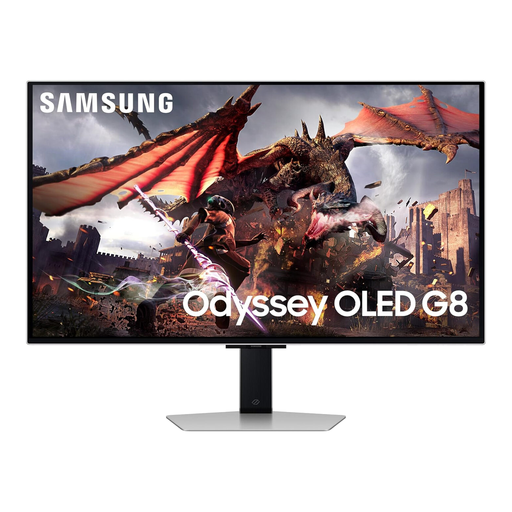 No image available
Samsung Odyssey OLED G8 LS32DG802SUXXU 32-inch UHD
Consider this 32-inch UHD OLED model if screen detail is central to your choice and you are comfortable assessing OLED care for long sessions.
Check the exact model’s aspect ratio, adaptive-sync support, panel-care instructions and warranty terms if those affect your setup.
Joybuy
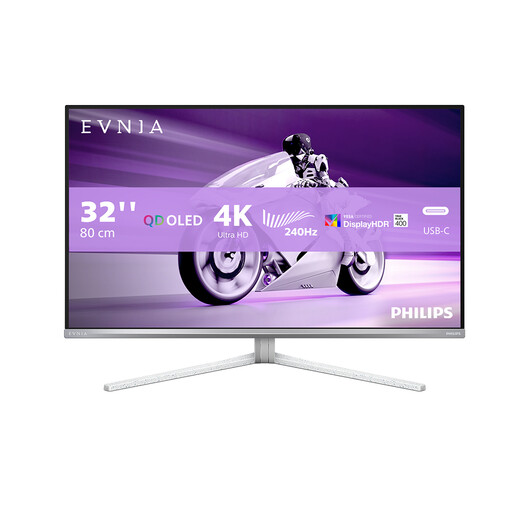 No image available
PHILIPS Evnia 32M2N8900 32-inch UHD OLED
This 32-inch UHD OLED model is relevant if you are comparing detailed single-screen displays with OLED panels.
Confirm the exact SKU’s refresh rate and response time before using either figure to decide: the product information gives conflicting figures. Check its panel-care and warranty terms for persistent-HUD use as well.
Joybuy
Frequently asked questions
Should I choose a 32-inch 4K monitor or a 34-inch ultrawide for orbital practice?
Choose the 32-inch 4K 16:9 route if reading fine instrument information in a conventional layout comes first. Choose a 34-inch ultrawide route only after checking your exact simulator version, mods and HUD at its intended resolution; a monitor’s specifications cannot establish software compatibility.
Is a 4K 240Hz monitor worthwhile if my simulator runs at a lower frame rate?
A 240Hz refresh ceiling alone will not make the simulator render at 240 frames per second. Check performance at 4K on your own hardware and consider compatible VRR for variable frame delivery; the product information notes that a PC producing 100 frames per second cannot fully use a 240Hz display.
What should I check before using OLED with a persistent HUD?
Follow the specific model’s panel-protection and maintenance instructions, and read its warranty terms before purchase. MSI says OLED Care 2.0 on the MPG 321URX reduces burn-in risk, but that model-specific claim does not mean static content is risk-free.
Are a seller’s returns policy and a monitor warranty interchangeable?
No. Check the seller’s process for change-of-mind returns separately from what to do if the monitor is faulty, damaged or misdescribed. Also read the warranty’s own terms: Citizens Advice explains that warranties add to legal rights rather than replacing them.


