Parallel-document formatters
If you compare translations, contracts, manuscripts or source and finished documents, you need both panes to remain readable while you edit.


For side-by-side text work, start by checking whether a 27-inch 4K screen gives you enough room for both documents at a comfortable text size; a 27-inch QHD screen is another option if you prefer larger text at its native resolution. Beside a bright window, an adjustable position and control of reflected light matter more than a brightness figure alone. Choose USB-C charging or colour-focused features only if your laptop or other work calls for them.
If you compare translations, contracts, manuscripts or source and finished documents, you need both panes to remain readable while you edit.
If daylight reflects in your screen, you need to consider where the monitor sits and how far you can adjust its angle. The Health and Safety Executive advises adjusting screens and lighting to avoid reflections and glare.
If you connect a laptop each day, USB-C video and charging may simplify the desk—but the laptop, monitor and cable must support the connection you intend to use.
Set a readable two-document layout first, then work out how to keep window reflections out of the screen. Treat laptop connectivity and colour features as requirements only if they serve your usual work.
| Concern | What to check | Who this matters to |
|---|---|---|
| Readable side-by-side workspace | Compare screen size and resolution, then try your two-document layout at a comfortable text scaling level. | If I keep both documents open while formatting, I need space for each pane without making the text too small. Around 36% of consumers put readable workspace first. |
| Reflection control and positioning | Check the screen finish and stand adjustment, and whether you can angle the display away from the window. | When window light falls across my desk, I need a screen position that keeps reflections out of the text. For around 29% of consumers, controlling glare and position is the primary concern. |
| Laptop connection | Check USB-C video compatibility, charging wattage and the cable needed for the intended connection. | If I dock a laptop repeatedly, I want the connection to handle the tasks I normally use it for. Around 21% of consumers chiefly prioritise a simpler laptop connection. |
| Colour-managed proofing | Check the named colour spaces and whether the picture mode you plan to use allows brightness adjustment. | If my parallel texts sit alongside artwork or colour-sensitive layouts, I need to assess those colours as well as the words. Colour proofing comes first for around 14% of consumers. |
A brighter display does not remove light reflected directly from its surface. The Health and Safety Executive recommends adjusting screens and lighting to avoid reflections and glare.
Position the screen so it does not reflect the window, refine its angle, then set a comfortable brightness and text size. Consider a matte or anti-glare finish where your room layout leaves limited positioning options.
USB-C describes the connector, not the video and charging functions available through a particular monitor-and-laptop combination.
Compare the laptop’s video support and charging requirement with the exact monitor specification, and check that the cable supports the intended connection.
You may still need a separate laptop charger or dock.
More pixels allow a denser layout, but text can look too small at default scaling. Reflections and a poorly positioned screen can also make a spacious layout awkward to use.
Try your usual pair of documents at the scaling and viewing distance you expect to use, and check the stand’s adjustment range before choosing a resolution.
Wide-gamut and calibration features serve colour-sensitive work rather than making plain text easier to compare. ASUS Support also notes that brightness adjustment is restricted in some ProArt sRGB modes; check the behaviour of the exact model and mode you intend to use.
If your work includes colour proofing, check the relevant colour space and picture-mode controls. Otherwise, prioritise your document layout and window-side positioning.
The BenQ PD2706U is a 27-inch 4K example for a desk where document layout and screen adjustment both matter.
Dell’s UltraSharp range includes different 27-inch options for productivity desks, so compare features by model rather than by range name.
ASUS ProArt includes 27-inch 4K options for people whose document work also involves colour-sensitive layouts or images.
These monitors offer 4K or WQHD screens for parallel-document work. Compare their exact size, screen finish, positioning options and laptop connections against your desk before choosing; a listed feature does not replace managing light from the window.
 No image available
Consider this 4K model if you want room for two document panes and are comparing an OLED option with other screen types. Check its screen finish, positioning adjustments and exact USB-C functions against your window-side desk and laptop.
 No image available
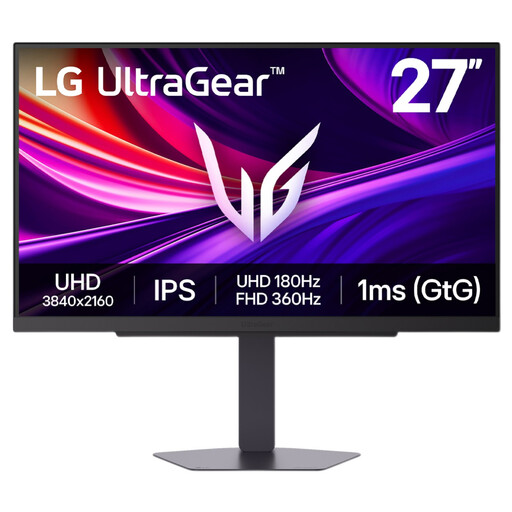
This IPS 4K model may suit a two-document layout if its physical size fits your desk. The product name says 27 inches, while other information for this item gives a larger size, so confirm the exact panel dimensions before ordering. Check the connections you need for your laptop separately.
 No image available
Consider its 27-inch 4K screen if you want to keep parallel texts visible and its USB-C connection if you regularly dock a laptop. The named 65 W power-delivery rating must be checked against your laptop’s charging requirement; also confirm USB-C video compatibility and the screen finish for your desk position.
 No image available
Consider this WQHD model if you prefer its text size and can fit your usual two-document layout on the screen. At the same screen size, WQHD has fewer pixels for open panes than 4K. Check the stand and screen finish for your window-side position, and confirm any USB-C video and charging functions you need.
 No image available
This 27-inch 4K model is worth comparing if your main task is keeping two texts open on a single screen. Its name lists HDMI and DisplayPort; confirm that either connection suits your computer. Check the screen finish and whether you can position the display away from window reflections.
Not if the window is reflected directly in the screen. The Health and Safety Executive advises adjusting screens and lighting to avoid reflections and glare; change the screen or light angle before fine-tuning brightness and text size.
No single monitor specification settles the whole setup. Health and Safety Executive display-screen guidance covers arranging desk space and adjusting screens and lighting, so consider the monitor’s position alongside your furniture and working routine.
Check the retailer’s electrical-equipment take-back arrangements and your local recycling options before replacing it. GOV.UK explains same-type take-back for retailers to whom that requirement applies; confirm how the particular retailer accepts an old monitor.
Check that the exact product and seller are identifiable and that the seller can give you clear support and product-safety information for your destination. Great Britain’s electrical-equipment guidance is published by the Office for Product Safety and Standards; do not assume that a model name or a seller’s general claim establishes the position for a particular item.