Parallel-text editors at standing desks
If you repeatedly compare and format two related documents while moving between sitting and standing, both a usable two-pane layout and screen positioning matter.


Start with a screen you can position comfortably at both sitting and standing heights, then choose a layout that fits the way you compare documents. A conventional 27-inch 4K display suits two side-by-side panes; a larger display with an articulated arm needs more desk clearance, while a tall 16:18 screen favours stacked documents. The Health and Safety Executive advises placing the top of the screen around eye level and the display about an arm’s length away.
If you repeatedly compare and format two related documents while moving between sitting and standing, both a usable two-pane layout and screen positioning matter.
If one laptop drives your workstation, a monitor connection that handles display output, peripherals and charging may simplify the desk setup. Check that your laptop supports the required USB-C or Thunderbolt functions.
If you keep source material, notes or formatting controls visible above and below your working document, consider vertical screen area as well as width. A tall display or arm-mounted setup also needs to fit your desk.
Decide whether your documents need to sit side by side or one above the other, then check that the screen can reach a suitable position at your standing desk. Treat laptop connectivity and extra workspace as separate requirements.
| Concern | What to check | Who this matters to |
|---|---|---|
| Standing-height positioning | Check the stand’s height range and, if using an arm, its mounting fit and desk clearance. The Health and Safety Executive advises a screen top around eye level and a viewing distance of about an arm’s length. | When I switch between sitting and standing, I need the screen to move with me rather than adjust my posture around it; around 33% of consumers put positioning first. |
| Parallel-text layout | Compare screen shape, native resolution and the space your applications need when tiled. A 3,840 × 2,160 display divides into two 1,920-pixel-wide panes at native resolution, although application controls take up some space. | I want both related texts visible while I check their formatting, without repeatedly hiding a window. Keeping the documents side by side is the primary concern for around 27% of consumers. |
| Laptop connection | Confirm your laptop’s video-output mode, charging requirement and cable compatibility before relying on a monitor’s USB-C or Thunderbolt connection. | If I connect a laptop each time I work, I want to know whether one cable can handle the connections I actually use; around 20% of consumers prioritise that simpler connection. |
| Larger workspace or colour requirements | Measure desk depth and the display’s footprint. If colour work accompanies document formatting, check the colour-space specification relevant to that work. | I may need more physical room for references or specified colour coverage alongside the text. Those workspace or colour needs come first for around 20% of consumers. |
A larger or higher-resolution screen does not, by itself, place it well at a standing desk. The Health and Safety Executive advises positioning the screen top around eye level and the display about an arm’s length away.
Measure the available desk space and check the screen’s height range at both sitting and standing positions before choosing a stand or arm.
If the supplied stand cannot reach a suitable position, an arm, riser or change to the desk setup may be needed.
A monitor’s USB-C socket or stated power-delivery rating does not establish that your laptop supports video over that connection or can charge adequately from it.
Compare the laptop’s video and charging requirements with the monitor’s stated functions, and check the cable specification.
Depending on the connection, you may still need a separate charger, dock or suitable cable.
A 16:18 panel provides a different workspace shape, not automatically more useful width for two adjacent documents. LG’s DualUp 28MQ780-B illustrates a layout intended to accommodate vertically arranged material.
Arrange your intended documents and application controls on paper before deciding whether adjacent or stacked panes suit your work.
LG UK marks the DualUp 28MQ780-B as discontinued, so its specifications should not be taken as a sign of current availability.
If considering a listing for that exact model, check its condition, regional variant, seller warranty and return terms before buying.
Dell UK lists 27-inch UltraSharp displays with adjustable stands and hub connections, including the U2725QE and U2724DE.
BenQ UK lists the PD3205UA as a 31.5-inch 4K monitor with an integrated ergonomic arm.
LG’s DualUp 28MQ780-B illustrates a tall 16:18 alternative for stacked documents and reference material.
These monitors offer conventional 4K screen choices for arranging parallel texts at a standing desk, including 27-inch and larger-format options. Check each model’s stand reach and laptop connections against your own workstation.
 No image available
Consider this larger-format screen if you want to arrange two documents on one display. Its product name specifies a height-adjustable stand; check its reach at your standing desk and confirm compatibility with your laptop.
 No image available
Its 27-inch 4K format is worth considering if you plan to place two document panes on a conventional-size screen. Check the stand’s adjustment range for your desk and confirm any laptop connection functions you need.
 No image available
Consider this 4K display if you are assessing an OLED option for your document workstation. For persistent document layouts, account for the stated OLED burn-in risk, and check the stand and laptop connections against your setup.
 No image available
This 27-inch 4K option may suit a laptop-based document desk. Its product name lists USB-C 65 W; confirm that your laptop supports the required video connection, that the charging arrangement meets its needs and that the stand reaches your intended screen position.
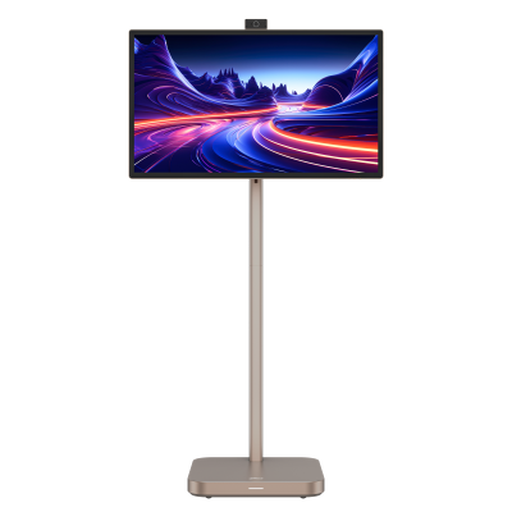 No image available
Consider its larger screen if your desk has room for a wider document workspace. The product name identifies a built-in battery; check how this portable setup fits your workstation and confirm any Type-C video or laptop-charging functions you require.
Aim to position the top of the screen around eye level and the display about an arm’s length away, following Health and Safety Executive guidance. Check that the stand or arm can achieve that position at your desk without making you twist to see the screen.
Not necessarily: the laptop must support the required video connection, and the monitor’s charging output must meet its needs. Dell and BenQ publish 90 W power-delivery specifications for the U2725QE and PD3205UA respectively, but you still need to check your laptop, cable and peripheral connections.
They do not prescribe a particular monitor model. The Health and Safety Executive says employers must assess workstations for workers who use display screen equipment daily for continuous periods of an hour or more, then reduce identified risks; an adjustable stand or arm may help where screen position is an issue.
Consider its tall 16:18 layout if stacked documents suit your work, but do not assume this exact model is a routine current purchase: LG UK marks the 28MQ780-B as discontinued. Check the condition, exact model and seller terms of any listing you consider.