Parallel-text proofreaders and translators
Students comparing source and target documents who need to inspect formatting and line breaks while keeping two text-heavy windows in view.


For formatting two parallel texts, a 27-inch QHD monitor is a starting point: it offers a 2560 × 1440 workspace without making 4K a requirement for ordinary writing. Consider 4K for denser layouts or detailed PDFs, but check that your applications remain readable at the scaling you prefer. Stand position matters on a small desk, and USB-C charging is useful only if both the laptop's video connection and its power needs match the monitor.
Students comparing source and target documents who need to inspect formatting and line breaks while keeping two text-heavy windows in view.
Students deciding whether an external screen, its stand and the necessary cables will fit alongside a laptop and keyboard.
Students who need room to position the screen and keyboard comfortably. The Health and Safety Executive's display-screen guidance makes workstation position relevant alongside monitor specifications.
Choose the workspace you need for your documents, then check whether the stand fits your desk and the connections suit your laptop. The three concerns below describe different primary needs; you may still care about more than one.
| Concern | What to check | Who this matters to |
|---|---|---|
| Text workspace | Compare the exact resolution and check how readable both documents and application controls are at your preferred scaling. | When source and target pages must stay visible together, I put usable document space ahead of extra connections; around 42% of consumers put text workspace first. |
| Desk fit and positioning | Measure desk depth and stand footprint; check height adjustment and pivot if you need a different screen position. | On a cramped desk, I need to place the screen without crowding my keyboard or reading material. Desk fit and positioning come first for roughly 33% of consumers. |
| Laptop connections | Check USB-C video support, the monitor's actual port functions and whether its stated charging output meets your laptop's requirements. | If I connect a laptop each day, reducing separate display and charging cables matters most to me; about 25% of consumers prioritise that connection need. |
USB-C can serve different functions. BenQ UK specifies Power Delivery for the GW2790QT, and LG UK specifies it for the 27UP850K-W; Dell UK describes the U2724D's upstream USB-C port as data-only.
Check the laptop's USB-C video support and power requirement against the exact monitor's port specification before planning a one-cable setup.
If the charging output does not meet your laptop's needs, you will still need its separate charger.
A 27-inch label does not tell you how many pixels are available for two documents. BenQ UK lists 1920 × 1080 for the GW2790 and 2560 × 1440 for the GW2790QT; LG UK lists 3840 × 2160 for the 27UP850K-W.
Compare resolution as well as size, then check whether text remains readable in the applications and scaling you use.
A monitor setting cannot fix an awkward screen position or troublesome room lighting. The Health and Safety Executive advises positioning the top of the screen around eye level and the display about an arm's length away.
Make room for a stable screen position, manage glare and take regular breaks during extended display work.
The Joybuy listing for Dell U2724D describes USB-C 90 W Power Delivery, while Dell UK describes the model's upstream USB-C port as data-only. That difference matters if monitor-to-laptop charging is part of your plan.
Before buying for that purpose, confirm the exact model and regional port functions against Dell's specification rather than assuming the listed USB-C functions are interchangeable.
BenQ UK positions the GW2790QT as a 27-inch QHD IPS monitor with an adjustable stand and USB-C connectivity.
LG UK presents the 27UP850K-W as a 27-inch 4K IPS monitor with USB-C display, data and charging functions.
Dell UK lists the UltraSharp U2724D as a 27-inch QHD monitor with an adjustable stand and USB connections.
These QHD and 4K monitor choices are relevant to arranging parallel documents on a student-room desk. Choose by readable workspace, physical fit and the connections your own laptop requires.
 No image available
Consider this model for detailed document layouts if its glossy screen suits your room lighting. Its name specifies a 27-inch 4K UHD IPS display, Nano Glossy finish, USB-C and a height-adjustable stand. Check your laptop's video and charging requirements before relying on a single cable, and test your usual application scaling for readability.
 No image available
For parallel documents, check whether its 4K workspace remains readable at your preferred scaling. The product name identifies a 27-inch IPS screen, Google TV and USB-C 65 W; confirm your laptop's USB-C video support and charging requirement before planning to use that connection for both display and power.
 No image available
Consider its QHD format if two text documents are your main task and you do not specifically need a 4K layout. The product name also specifies an IPS panel and 100 Hz refresh rate. If laptop charging through the monitor matters, confirm the exact variant's USB-C functions before buying.
 No image available
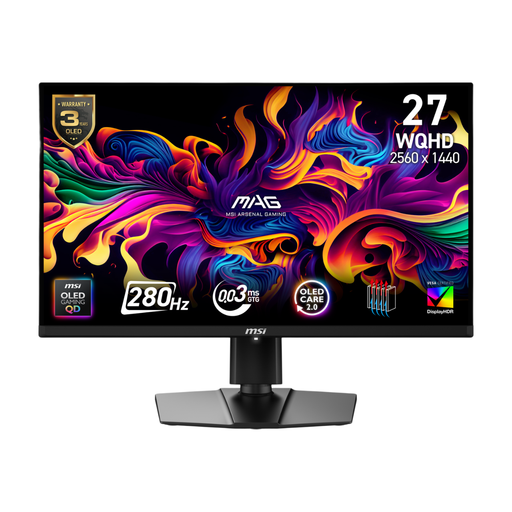
For document work, assess whether its QHD layout and the screen's physical fit meet your needs before giving weight to its gaming features. The product name specifies QD-OLED and 280 Hz. Check the exact USB-C power output against your laptop's requirements if you want to charge through the monitor.
 No image available
Its 27-inch 4K UHD format is worth considering if you work with detailed pages as well as parallel texts; check text and control sizes at your chosen scaling. The product name distinguishes UHD 144 Hz and Full HD 288 Hz modes. Confirm the exact connections separately if you need USB-C laptop charging.
QHD is a sensible starting point for two-document writing if both windows and their controls remain readable at your chosen size. BenQ UK specifies 2560 × 1440 and 109 PPI for the 27-inch GW2790QT; consider 4K instead when you need more native pixels for dense layouts or detailed PDFs, and check the resulting scaling.
Pivot is useful if you regularly read or edit long documents vertically, but it is not essential to a side-by-side landscape layout. BenQ UK, LG UK and Dell UK list pivot adjustment for the GW2790QT, 27UP850K-W and U2724D respectively; check that the rotated screen will fit your desk arrangement.
It can do so only when the laptop supports the required USB-C video connection and the monitor's Power Delivery output meets the laptop's needs. BenQ UK lists up to 65 W for the GW2790QT and LG UK lists up to 90 W for the 27UP850K-W; Dell UK describes the U2724D's upstream USB-C port as data-only.
Place it where you can view the screen without an awkward head or neck position. The Health and Safety Executive advises keeping the top of the screen around eye level and the display about an arm's length away; arrange the keyboard and lighting as part of the same workstation setup.
Check an appropriate electrical-waste collection or retailer take-back option rather than putting the monitor in general household waste. UK government guidance addresses electrical and electronic equipment under the WEEE framework; ask your local authority or retailer which collection service is available to you.