Colour-sensitive photo editors
If you retouch images or prepare them for output, compare the exact monitor’s colour modes, uniformity information and calibration options rather than choosing by workspace alone.


Choose a monitor around the part of your editing workflow that needs most attention, rather than screen size alone. Compare native resolution for detailed images and timelines, check video and charging compatibility for a laptop desk, and examine the exact model’s colour modes and calibration workflow when consistent colour judgement matters. Manufacturer feature claims are not, by themselves, proof of colour performance in your workspace.
If you retouch images or prepare them for output, compare the exact monitor’s colour modes, uniformity information and calibration options rather than choosing by workspace alone.
If inspecting fine detail and arranging editing panels are your priorities, assess native resolution alongside screen size, viewing distance and software scaling.
If your laptop moves between workspaces, check its video output against the monitor’s inputs, charging capability and cable requirements before planning a one-cable desk setup.
Decide which editing need comes first, then check the exact model and your computer together; a connection or colour feature named in a product range may not apply to every model.
| Concern | What to check | Who this matters to |
|---|---|---|
| Colour workflow | Check the exact model’s colour modes and uniformity information, plus whether its calibration options fit your workflow. | When I judge colour across repeated edits, I need display settings I can understand and maintain. Around 36% of consumers put a repeatable colour workflow first. |
| Detail and workspace | Compare native resolution with screen size and desk distance; check that your computer can output the intended resolution. | If I inspect fine image detail while keeping editing panels visible, resolution matters to my day-to-day layout. For around 29% of consumers, detail and workspace are the primary need. |
| Laptop connection | Match the laptop’s video output to the monitor’s USB-C or Thunderbolt functions, power delivery and cable requirements. | I want to connect my editing laptop without building a desk setup around incompatible ports or charging. That connection need comes first for around 21% of consumers. |
| Calibration over time | Confirm model-specific calibration support and compatibility with the required measurement device and software. | When I plan to check and adjust the display regularly, I need a calibration process I can carry out with my equipment. Around 14% of consumers prioritise that ongoing workflow. |
Video, data and charging capabilities differ between monitors and laptops; the connector alone does not establish what the combination can do.
Compare the laptop’s video-output specification with the monitor’s stated USB-C or Thunderbolt functions, power delivery and supplied cable.
A compatible cable, dock or charger may be needed if the planned connection cannot provide the required video and power functions.
A stated colour-space figure does not tell you how the selected mode, panel uniformity or calibration process will fit your editing conditions.
Use stated coverage as an initial filter, then examine the exact model’s modes, uniformity information and calibration options.
BenQ describes hardware calibration on selected SW and PV models, not across every monitor in its range. The feature is useful only when it fits the process you intend to maintain.
Confirm the exact model’s method and its compatibility with your computer, software and measurement device.
Using that workflow may require a compatible measurement device and time to calibrate and check the display.
An energy class letter alone gives less context than the consumption figure and usage mode shown with it.
Compare the displayed energy information for the monitors you are considering under like-for-like modes, and ask the retailer how an old monitor can be handed back.
A creator-oriented range with model-specific options for resolution, colour modes and laptop connectivity.
A range to examine when reflection control, uniformity information and a model-specific calibration process affect your photography or video work.
A reference point for comparing 4K resolution, laptop connections and built-in calibration hardware on specified models.
These monitors cover different editing setups: fixed high-resolution desks, laptop-connected workspaces, a portable display and a calibration-oriented workstation. Match the model’s stated features to the checks above rather than treating the choices as interchangeable.
 No image available
Consider this 4K display for a Mac-led editing desk where a larger screen and USB-C connection suit your layout.
The product name specifies a Nano Glossy IPS panel, HDR and a height-adjustable stand. Check your computer’s video output and the cable needed for your intended USB-C setup; assess the available colour modes for your work.
 No image available
For a fixed editing desk where image detail is the priority, compare this 27-inch 4K model with the screen size and scaling you prefer.
The product name specifies a 16:9 LED monitor. If colour consistency or a one-cable laptop connection is important, check the exact colour modes, USB-C functions and cable requirements before choosing it.
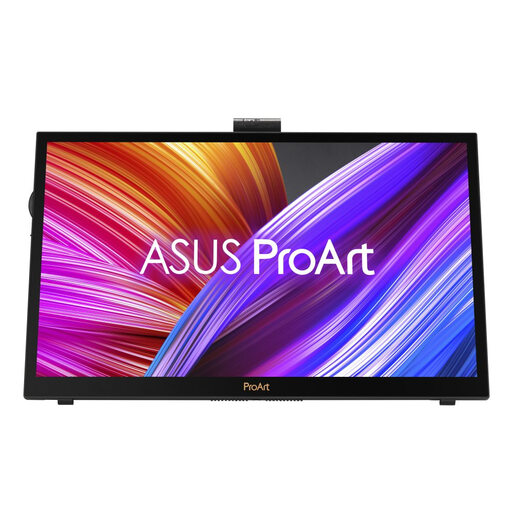 No image available
Consider this model if you need an external editing display for a setup that moves between workspaces.
Its product name specifies IPS and 4K UHD. Before relying on a portable connection or calibration-related feature, confirm the exact video, power, cable and tool requirements for your computer.
 No image available
For a fixed editing workstation, consider this model if you intend to use its stated hardware-calibration feature with a compatible workflow.
The product name specifies an IPS Mini LED panel, HDR and 120 Hz. Confirm calibration-tool compatibility and the exact connection and brightness specifications for this variant before planning the setup.
 No image available
Consider this desktop editing model when WQHD suits your preferred workspace and screen arrangement.
The product name specifies an IPS panel. Check the exact colour modes and uniformity information for your edits, and confirm USB-C power and cable requirements if you plan to connect a laptop.
Choose 4K if its native 3840 × 2160 resolution fits your screen size, viewing distance, software scaling and computer output. Resolution can help you plan detail and workspace, but it does not establish colour consistency.
Only if the laptop, monitor and cable support the required video and power functions. ASUS lists DisplayPort over USB-C and up to 96W power delivery for the PA279CRV, for example; check those functions afresh for any other model and your particular laptop.
Prioritise calibration features if you intend to measure and adjust the display as part of your editing workflow and have compatible equipment. BenQ says hardware calibration is available on selected SW and PV models, so confirm support on the exact model you are considering.
Compare the energy class and consumption figure shown for the same usage mode, rather than relying on the class letter alone. Energy Saving Trust explains the A-to-G display label; the figure may be expressed in kWh per 1,000 hours.