Photographers and print creators
If you judge retouching or prepare images for print, match colour-space coverage and calibration information to your output workflow. Screen specifications alone cannot establish how a particular print will look.


Choose an external monitor for the colour space in which your photos or video will be delivered, rather than treating a wide-gamut label as a requirement for every project. Before choosing a USB-C or Thunderbolt model, check your computer’s video output, cable and charging needs; screen dimensions and stand adjustment matter when desk space or long editing sessions constrain your setup.
If you judge retouching or prepare images for print, match colour-space coverage and calibration information to your output workflow. Screen specifications alone cannot establish how a particular print will look.
If you want one connection for a display, peripherals and charging, check that your laptop, monitor and cable support each required function. Which? notes that a USB-C connection carries DisplayPort video only where that capability is supported.
If timelines, tool panels and reference images compete for space, compare screen dimensions and resolution with your desk layout. Check the selected stand’s height, tilt, swivel or pivot range rather than relying on diagonal size alone.
Start with the colour space required by your output, then check how the monitor will connect to your computer and fit on your desk.
| Concern | What to check | Who this matters to |
|---|---|---|
| Colour and output | Match the required sRGB, Rec.709, Adobe RGB or P3 mode to your work; check the exact model’s coverage and calibration information. | When preparing images or video for a defined output, I need to judge colour in the space I will deliver. Around 42% of consumers put colour and output fit first. |
| Computer connection | Check your computer’s video output, the monitor input and cable capability; compare any stated charging output with the laptop’s needs. | If I move between laptop work and a desk setup, I need the display connection to carry the functions I plan to use. Connection is the primary concern for around 33% of consumers. |
| Workspace and adjustment | Compare resolution and physical dimensions with available desk space; check the stand’s adjustment range and the computer’s supported display mode. | With timelines and tools open for long sessions, I need room to work and a screen I can position comfortably. Around 25% of consumers prioritise workspace and adjustment. |
Adobe RGB, P3 and calibration figures describe a specified monitor under stated conditions; they do not establish how your editing settings or final output will behave.
Identify your delivery colour space, check the exact model’s modes and calibration information, and plan for a colour-managed workflow where output matching matters.
According to Which?, DisplayPort video over USB-C depends on the connection. Charging also depends on the monitor’s output and the laptop’s requirements.
Check the computer port, monitor input, cable specification and charging wattage before relying on one cable for video and power.
If those functions cannot work together, your setup may need a compatible cable, adapter, dock or separate charger.
A larger display still needs enough desk space and a stand that lets you place the screen appropriately for your work.
Measure the available width and depth, then check the selected configuration’s adjustment range and whether you need a compatible VESA mount.
A separate arm may be needed if the supplied stand cannot achieve the position you require.
Dell’s UK U2723QE listing describes its features but marks that model unavailable.
Use the specification as a reference, then check the availability and exact identity of any model you intend to order.
BenQ’s PhotoVue range includes the SW321C, a 32-inch 4K model aimed at photography and soft-proofing workflows.
The ProArt PA279CRV is a 27-inch 4K example for creators considering colour modes alongside USB-C connectivity.
The U2723QE illustrates an UltraSharp configuration combining 4K resolution, a USB-C hub and stand adjustment.
Studio Display is a 27-inch 5K option for buyers working with a compatible Mac or iPad.
LG’s UltraFine range includes the 32U990A-S for buyers assessing a higher-resolution desktop workspace.
These monitors cover colour-focused desktop editing, a larger USB-C workspace and a compact external-display option. Match each model’s stated features to your output, computer and desk setup.
 No image available
Consider this larger desktop format when photo or video work needs room on screen, provided it fits your desk. Its product title states 120 Hz; check the exact colour modes, connection options and whether your computer and cable can deliver the display mode you intend to use.
 No image available
For editing aimed at sRGB output, check this model’s colour modes and calibration information against your workflow. If you plan to connect a laptop over USB-C, confirm its video support and the monitor’s charging output before relying on that connection for both tasks.
 No image available
For a laptop-centred editing desk, check whether your computer can send video through its USB-C port and whether the monitor’s charging output meets your needs. The product title also identifies a Nano Glossy screen and an adjustable stand; consider the screen surface and the space this size requires.
 No image available
For desktop editing intended for sRGB output, compare the available colour modes and stand adjustment with your needs. Check calibration information if output matching is important, and confirm the required connections rather than assuming USB-C charging.
 No image available
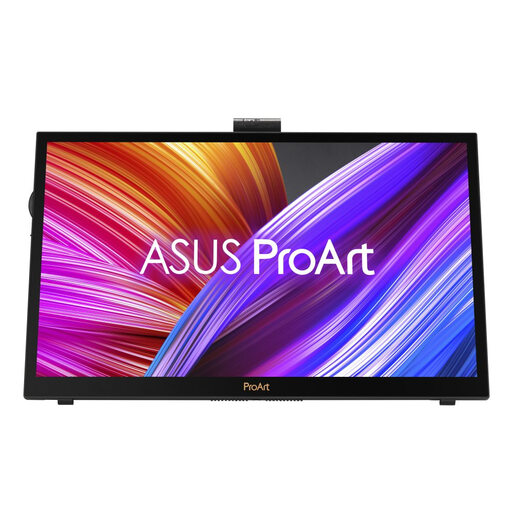
Consider this compact external-display option for creative work away from a fixed desktop setup, while allowing for less physical working area than a larger screen. Confirm its colour coverage and the exact connection and cable requirements for your computer.
Not for every workflow: choose colour-space coverage to match your intended output. sRGB and Rec.709 are relevant to common web and HD delivery, while Adobe RGB may matter for some print workflows and P3 for video-oriented work. Check the exact monitor’s modes and how you manage colour through editing and output.
No: the laptop’s USB-C port must support the video function you intend to use. Which? explains that DisplayPort video support depends on the connection, so check the laptop port, monitor input and cable specifications together.
It can serve those functions when the laptop, monitor and cable support the required video, data and charging connections. Compare the monitor’s stated power-delivery output with the laptop’s power needs, including how you use it during demanding work; a separate charger or dock may still be necessary.