Desk-based score editors
If you regularly enter and proofread piano notation at one desk, look for enough screen detail to inspect the score and a stand you can position to suit your workstation.


For desk-based piano-score notation, start by comparing 27-inch 4K monitors with height adjustment and a pivoting stand if you want to review pages in portrait. Consider a 31.5–32-inch display when you have room for a physically larger score view; prioritise USB-C connectivity when it suits your laptop and desk setup, rather than assuming it will make notation clearer.
If you regularly enter and proofread piano notation at one desk, look for enough screen detail to inspect the score and a stand you can position to suit your workstation.
If your notation computer is a USB-C laptop, a monitor connection may simplify your desk setup. Check the laptop’s video output and charging requirements before choosing a monitor for that purpose.
If you value a physically larger score image and have sufficient desk space, a 31.5–32-inch 4K display is worth considering alongside smaller models.
Settle the screen size and desk fit first, then consider positioning, lighting and whether your laptop needs a USB-C connection. A larger screen and laptop connectivity address different needs, so neither replaces those workstation checks.
| Concern | What to check | Who this matters to |
|---|---|---|
| Score detail and desk fit | Check for native 3840 × 2160 resolution and measure the space available for a 27-inch monitor and its stand. | I want room to read and edit dense notation without filling my study desk with a larger screen. Around 40% of consumers put compact 4K score detail first. |
| Positioning and reflections | Check the stand’s height, tilt and pivot adjustments, and how the screen finish works with your room lighting. | During long editing sessions, I need to position the screen comfortably and keep reflections from distracting me. For around 30% of consumers, workstation positioning is the primary concern. |
| Laptop connection | Confirm USB-C video support, the laptop’s charging requirement and the monitor’s stated power delivery if you want one cable. | I use a laptop for notation and want fewer separate connections on my desk. A simpler compatible laptop connection comes first for around 20% of consumers. |
| Physical page size | Measure desk depth and width before choosing a 31.5–32-inch display; allow room to position it at a comfortable distance. | I would rather see a larger physical image of the score than keep the monitor compact. Around 10% of consumers prioritise that larger page view. |
A 31.5–32-inch display gives the score a larger physical area but also needs more room for comfortable placement. The Health and Safety Executive advises positioning the top of a screen around eye level and the screen about an arm’s length away.
Measure desk depth, width and vertical clearance before deciding whether the larger display fits your study.
USB-C video and charging depend on the capabilities of both devices. For example, BenQ specifies DisplayPort Alt Mode, data and up to 65 W power delivery for the PD2705U; that rating does not establish compatibility with every laptop.
Check your laptop’s USB-C video mode and charging requirement, the monitor’s power-delivery rating and the cable you intend to use.
Display modes do not replace suitable screen position and lighting. Health and Safety Executive guidance also calls for avoiding reflections and glare and taking breaks or changing activity during display-screen work.
Arrange the desk and lighting, then adjust the screen’s height, angle and distance for your working position.
Dell’s S2725QS and U3225QE illustrate two different 4K desk setups: a 27-inch adjustable screen and a larger 31.5-inch hub display.
LG’s 27UP850K-W is a 27-inch 4K IPS option for a desk where USB Type-C connectivity and an adjustable stand are priorities.
BenQ’s PD2705U combines a 27-inch 4K display with portrait rotation and specified USB-C laptop connectivity.
These monitors offer 4K options for the compact-desk and larger-score-view setups discussed above. Compare the space each needs and check connections against your own computer before choosing.
 No image available
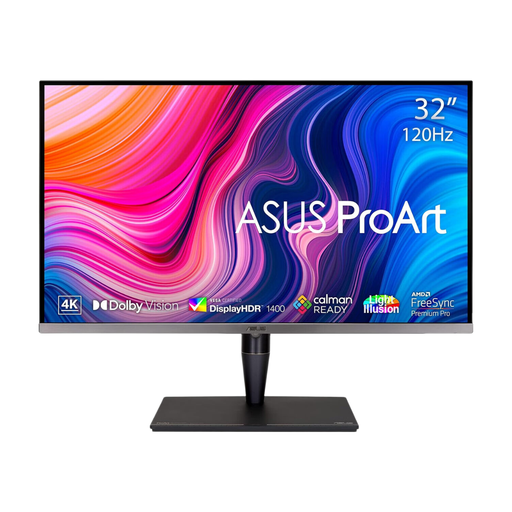
Consider this larger display if a physically bigger score view is your priority and your desk has room for it.
The product name specifies Thunderbolt 3 and a 120 Hz display. Check the required connections and screen positioning for your setup.
 No image available
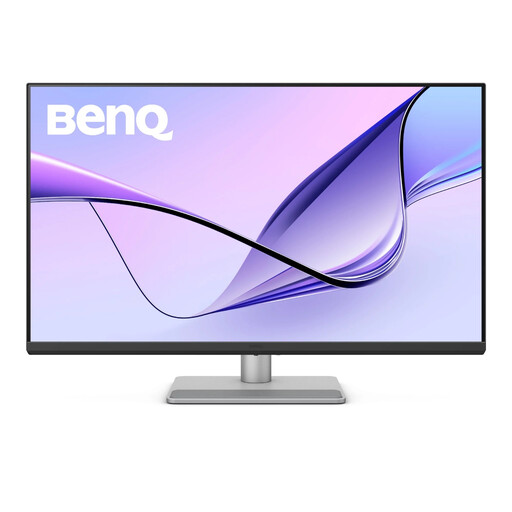
This is another larger-screen option if you have space for a bigger physical score view and want to consider a USB-C connection.
Its name specifies a height-adjustable stand and Nano Glossy finish. Check how that finish looks under your study lighting, and confirm laptop video and charging compatibility separately.
 No image available
Consider the 27-inch format if you want a 4K notation screen without moving to a larger desk display.
The product name specifies an IPS panel and USB-C with 65 W power delivery. Check whether your laptop supports the required video connection and whether that charging level meets its needs.
 No image available
The 27-inch 4K format is relevant if a conventional desk-sized score display is your starting point.
Check the stand’s adjustment range if portrait page review matters to you, and confirm the available connections for your computer.
 No image available
Consider this 27-inch option when you want a 4K screen for notation at a conventional study desk.
The product name specifies HDMI and DisplayPort connections. Check that one suits your computer and assess the screen finish if reflections are a concern.
Start by comparing 27-inch 4K monitors if you want a 3840 × 2160 workspace without choosing a larger screen. Consider 31.5–32 inches when your desk can accommodate it and a bigger physical image of the score matters more to you.
Portrait orientation can help when you want a page-shaped score view, provided the stand or chosen mount rotates and your desk has enough vertical clearance. Dell lists pivot adjustment for the S2725QS, LG for the 27UP850K-W and BenQ for the PD2705U; check that your computer is set up to rotate the display too.
Place the top of the screen around eye level and the display about an arm’s length away, in line with Health and Safety Executive guidance. Arrange the lighting to avoid glare and take breaks or change activity during extended display-screen work.
Check which product marking and documentation apply to the monitor you are considering. The Department for Business and Trade’s August 2026 guidance says Great Britain continues to recognise CE marking alongside or instead of UKCA marking where the relevant product requirements are met; do not assume that the same rules apply in Northern Ireland.