Choose a monitor setup that lets you position the screen at both your seated and standing desk heights before deciding on resolution. An adjustable stand may be enough; if it cannot reach the positions you need, consider a desk-mounted stand or a compatible monitor arm. Then check the space you need for documents, your laptop’s video and charging capabilities, and reflections in the room.
Who needs this setup?
Frequent sit-stand feedback writers
Teachers and education staff who write feedback in both seated and standing positions need to check whether the screen can reach a suitable height each time the desk moves. An adjustable stand or a compatible monitor arm can provide that movement.
Laptop-led marking users
Anyone writing feedback on a school or personal laptop needs to match the monitor connection to that laptop’s actual video output. If a single USB-C cable is the aim, video support and charging requirements both matter.
Document workers dealing with glare
People reading and editing pupil work under changing classroom, home or shared-space lighting need room to reposition the display. The Health and Safety Executive advises adjusting screens and lighting to avoid reflections and glare.
What matters when choosing a monitor?
Start with the way the screen will reach a comfortable position at both desk heights. The mounting choice affects what else you need to check before comparing displays and connections.
Desk-mounted adjustable stand
Consider it when: You change desk height frequently and your desk can accept the specified clamp or grommet fitting.
Trade-off: Check desk thickness, underside clearance and where the clamp and cables would sit. LG lists extension and height movement for its 27QP88D-BS, but those adjustments are specific to that model.
Conventional adjustable stand
Consider it when: You want to adjust screen height without attaching hardware to the desk.
Trade-off: Confirm that the stand’s actual adjustment range reaches your seated and standing positions. Dell lists 130 mm of height adjustment for the S2725QC; that figure applies to this model, not conventional stands generally.
VESA monitor with a separate arm or riser
Consider it when: You already have suitable mounting hardware or can select it alongside the screen.
Trade-off: A VESA pattern alone does not establish arm or desk compatibility. BenQ specifies 100 × 100 mm VESA mounting for the GW2791P, while its supplied stand adjusts for tilt only.
| Concern |
What to check |
Who this matters to |
| Screen positioning |
Check the stand or arm’s height range at both desk heights, plus its tilt and mounting requirements. The Health and Safety Executive advises placing the top of the screen level with your eyes, about an arm’s length away. |
If I move between sitting and standing to write feedback, I need the display to remain properly positioned rather than moving the desk alone. Around 33% of consumers put screen positioning first. |
| Readable workspace |
Consider screen size and native resolution together with desk depth and viewing distance. Check whether portrait rotation would help with your documents. |
When I am reading pupil work alongside a feedback form, I want enough visible space to work without losing comfortable text sizing. For around 27% of consumers, readable workspace is the primary concern. |
| Laptop connections |
Match the laptop’s video output to the monitor input. For USB-C, check video mode, charging requirements and any cable or multi-display conditions. |
If my feedback lives on a laptop, I need a connection that works with that particular machine; a USB-C socket by itself does not settle video or charging compatibility. Around 20% of consumers prioritise the connection workflow. |
| Reflections and lighting |
Look at window and overhead-light positions, then check whether the screen can be tilted or moved to reduce reflections. |
Under changing room lighting, I need to keep reflections off the text I am reading and editing. Glare management comes first for around 20% of consumers. |
Buying pitfalls
-
Choosing screen size without checking stand height
A standing desk does not automatically put a monitor at a suitable viewing height. The Health and Safety Executive advises positioning the top of the screen level with your eyes; BenQ’s GW2791P, for example, has a tilt-only supplied stand.
Check the screen position at both desk heights. If the stand cannot reach it, select a suitable riser or arm and confirm that it fits the monitor and desk.
-
Assuming any USB-C socket will handle video and charging
A matching connector shape does not establish that a laptop outputs video through the port or that a monitor can meet its charging needs.
Check the laptop’s USB-C video capability, charging requirement, cable needs and any multi-display restrictions against the monitor’s stated functions.
If the intended single-cable connection is unsuitable, an adapter, dock or separate charger may be needed.
-
Relying on an eye-comfort label to deal with glare
Reflections can still interfere with document work. The Health and Safety Executive advises adjusting the screen and lighting to avoid glare.
Assess windows and overhead lights where you work, then position and tilt the display before comparing model-specific viewing features.
-
Treating VESA mounting as proof that an arm will fit
A monitor’s VESA pattern identifies its mounting interface, not an arm’s load rating or whether its clamp will fit beneath your desk.
Match the monitor and arm specifications, then check desk thickness, underside clearance and movement at both working heights.
Relevant brands to consider
LG
LG’s 27QP88D-BS illustrates a monitor with an integrated desk-mounted stand rather than a conventional base.
- LG lists clamp or grommet mounting, 150 mm height adjustment, 210 mm extension and retraction, and swivel and pivot movement for this model.
- Check that the mounting hardware suits your desk. These adjustments should not be assumed for other LG monitors.
Dell
Dell’s S2725QC illustrates a conventional adjustable-stand option with USB-C connectivity for a compatible laptop.
- Dell specifies a 27-inch 4K screen, 130 mm height adjustment, tilt, swivel, pivot and USB-C power delivery up to 65 W for this model.
- Check the laptop’s video and charging requirements and confirm current availability before choosing this particular model.
BenQ
BenQ’s GW2791P illustrates a monitor that can be considered with separately selected mounting hardware.
- BenQ specifies a 27-inch Full HD IPS screen, HDMI, DisplayPort and a 100 × 100 mm VESA mounting pattern for the GW2791P.
- Its supplied stand adjusts for tilt only. Check a suitable riser or compatible arm if screen height must change with the desk.
Joybuy monitors for these setups
These monitors offer two ways to approach the screen-height decision: a conventional stand to assess against your seated and standing positions, or a VESA-mountable display to consider with suitable separate hardware. Compare their stated display options and your laptop’s connections before choosing.
 No image available
ASUS ProArt PA278CV IPS WQHD
For feedback work across documents, consider this WQHD display if its stand can place the screen correctly at both desk heights.
The product name specifies an IPS panel and WQHD resolution. Before relying on USB-C for a laptop, check the laptop’s video and charging requirements against the listing.
View on Joybuy
 No image available
ASUS ProArt PA248CRV IPS WUXGA
For laptop-led feedback writing, assess whether this model’s stand reaches your preferred seated and standing screen positions.
The product name specifies an IPS panel and WUXGA resolution. Check the laptop’s USB-C video support and charging needs before planning a single-cable setup.
View on Joybuy
 No image available
iiyama ProLite XUB2792UHSU-B6 27-inch 4K UHD
If detailed documents are a priority, compare this 27-inch display with the space available on your standing desk.
The product name specifies 4K UHD resolution and a 16:9 format. Check the stand’s usable position at both desk heights and confirm any intended USB-C video or charging arrangement with your laptop.
View on Joybuy
 No image available
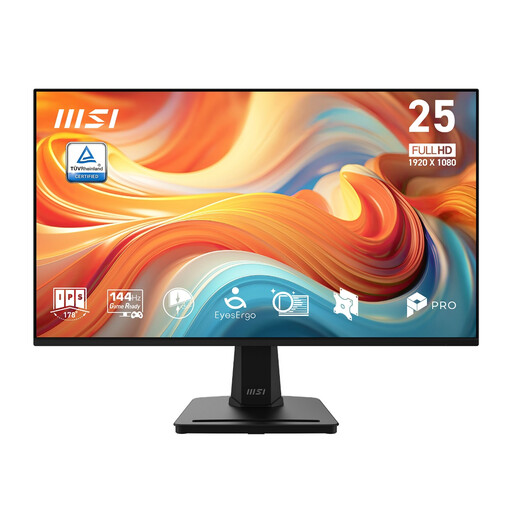
MSI PRO MP251 E14L 24.5-inch FHD 144 Hz IPS
Consider this monitor for pupil feedback if you can establish a suitable way to position it at both desk heights.
The product name specifies a 24.5-inch, 1920 × 1080 IPS display and 144 Hz refresh rate. Check whether a compatible arm or riser is needed and whether your laptop has an appropriate video connection.
View on Joybuy
 No image available
ASUS Eye Care VY27UQ 4K UHD 60 Hz
For reading and writing detailed feedback, assess this 4K display alongside the mounting arrangement needed for your desk.
The product name specifies 4K UHD resolution and a 60 Hz refresh rate. Confirm how you would position the screen at both working heights and which video connection your computer can use.
View on Joybuy
Common questions
Where should the monitor sit when I use a standing desk?
Aim to place the top of the screen level with your eyes, about an arm’s length away, as the Health and Safety Executive advises. Check whether the stand, riser or arm can achieve a suitable position when the desk is both seated and standing height.
Does a teacher need a special monitor under UK display-screen guidance?
The Health and Safety Executive’s guidance does not prescribe a particular monitor type. It says employers must assess workstations where workers use display screen equipment daily as part of their normal work for continuous periods of an hour or more; the assessment considers the whole workstation, the job and individual requirements.
Will a USB-C monitor display my laptop screen and charge it?
Only if the laptop and monitor support the required functions. Check that the laptop outputs video through its USB-C port and compare its charging requirement with the monitor’s stated power delivery; also check the cable and any multi-display requirements.
Can eye-comfort features replace adjustments to screen position and lighting?
No. Compare those features as model-specific characteristics, while also arranging the workstation to manage posture, reflections and glare. The Health and Safety Executive advises adjusting screens and lighting rather than relying on a monitor feature alone.


