For long sessions writing pupil feedback, start with a monitor you can position comfortably, then choose the display format around your documents and desk. A compact 16:10 screen gives more vertical room than standard Full HD, while a similarly sized QHD screen offers a higher pixel count; a larger panel is worth considering if it fits your viewing distance. Treat display comfort modes and USB-C charging as features to check alongside lighting, stand adjustment and laptop compatibility, not as substitutes for them.
Who is this setup for?
Document-heavy feedback writers
If you read pupil work while writing comments and checking rubrics, vertical document space and legible text may matter more than a larger screen diagonal. Dell specifies its P2425 as a 16:10 display, while its P2425DE provides QHD resolution at a similar physical size.
Small-desk student-room workers
A monitor sharing space with a laptop, books and stationery needs to fit the desk as well as the work. Check the screen and stand footprint, the available viewing distance and whether you can position it away from reflections.
Single-cable laptop users
A USB-C monitor may simplify a crowded desk if the laptop supports video through its port and can use the monitor’s charging output. Check those capabilities, the cable and the exact monitor variant before relying on one connection.
What matters when choosing?
Decide whether document space, workstation positioning or fewer laptop cables is your main priority; then check the exact model against the space and equipment you use.
| Concern |
What to check |
Who this matters to |
| Document space and text detail |
Compare aspect ratio, resolution and screen size. Dell lists the P2425 at 1920 × 1200 in 16:10 and the 23.8-inch P2425DE at 2560 × 1440. |
When pupil work, rubrics and comments compete for screen room, I want a format that suits the documents I keep open. For around 37% of consumers, document space or text detail would be the primary concern. |
| Positioning and reflections |
Check height and tilt adjustment, then assess where the screen will sit relative to the chair and room lighting. The Health and Safety Executive advises attention to the whole workstation and to glare. |
If I spend long stretches writing feedback, I need to position the screen without adapting my posture to a fixed stand. Positioning would come first for around 36% of consumers. |
| Laptop connection |
Check the laptop’s USB-C video and charging support against the monitor’s stated capabilities and cable requirements. Dell specifies up to 90W power delivery for the P2425HE; LG specifies up to 65W for the 27BA750-B. |
On a crowded desk, I want to connect my laptop without relying on a cable arrangement it cannot support. Around 27% of consumers would make connection simplicity their main priority. |
Buying pitfalls to avoid
-
Choosing a fixed stand without planning the screen position
A screen that sits at the wrong height can be difficult to accommodate at a shared or compact desk. The Health and Safety Executive advises looking at the workstation as a whole; stand adjustments vary by model.
Check the exact stand’s height and tilt range before ordering, and measure the desk if you intend to use a separate mount.
A suitable monitor arm or riser may be needed if the supplied stand cannot put the screen where you need it.
-
Assuming a USB-C socket guarantees one-cable use
A charging rating does not establish that a particular laptop can send video through its USB-C port or use that level of power. Dell lists up to 90W for the P2425HE, whereas LG lists up to 65W for the 27BA750-B.
Compare the laptop and monitor specifications for video, charging and cable requirements before depending on a single connection.
A different cable, charger or dock may be necessary if the intended connection is incompatible.
-
Using eye-care branding instead of arranging the desk
Reading and flicker-related settings are model features, not a remedy for reflections or an unsuitable workstation. The Health and Safety Executive advises adjusting screens and lighting to avoid glare.
Position the monitor away from bright reflections, set it at a comfortable height and change activity or take breaks during long writing sessions.
-
Equating a larger screen with more text detail
LG specifies its 27BA750-B at 27 inches and 1920 × 1080, while Dell lists the smaller P2425DE at 23.8 inches and 2560 × 1440. Physical size and pixel count answer different needs.
If detailed text is the priority, compare resolution as well as diagonal size. Check that any larger screen fits the available desk depth and viewing distance.
Relevant brands to consider
Dell
Dell’s cited 24-inch-class models offer distinct routes for document work: a 16:10 display, a Full HD USB-C hub model and a QHD USB-C hub model.
- Dell lists height, tilt, swivel and pivot adjustment for the P2425, a 24.07-inch 1920 × 1200 model. Its P2425DE is a separate 23.8-inch QHD model.
- Check the full model number before comparing connections or resolution: similarly named variants do not share every specification.
BenQ
The GW2490T is a 23.8-inch Full HD option for buyers who want an adjustable stand and reading-oriented display settings.
- BenQ lists height, tilt, swivel and pivot adjustment for the GW2490T.
- BenQ’s low-blue-light, flicker-related and ePaper features are display settings; they do not replace attention to lighting, screen position and breaks.
LG
LG’s 27BA750-B is a larger Full HD office-monitor option with an adjustable stand and USB-C connectivity.
- LG specifies a 27-inch 1920 × 1080 IPS panel, height, tilt, swivel and pivot adjustment, USB-C power delivery up to 65W and an RJ45 connection.
- Its larger panel does not add pixels over another 1920 × 1080 display. Check desk fit and laptop charging requirements before choosing it for those features.
Joybuy monitors for this setup
These monitors cover compact document-work formats, a placement-focused option and larger screens. Choose by the display format your feedback work calls for, then check how the exact screen and connection will fit your desk and laptop.
 No image available
ASUS ProArt PA248CNV IPS WUXGA
Consider this WUXGA option if long documents and rubrics drive your choice. Check the stand position against your desk and confirm laptop video and charging compatibility before planning a one-cable setup.
View on Joybuy
 No image available
ASUS ProArt PA24ACRV IPS QHD
This QHD option is worth comparing when text detail matters on a compact desk. If a hub-style laptop connection is important, confirm the exact variant’s functions, supplied cable and your laptop’s USB-C capabilities.
View on Joybuy
 No image available
ASUS ZenScreen MB249C IPS USB-C
Consider this USB-C model if where the screen can sit is as important as the documents it displays. Confirm the mounting arrangement supplied with this variant and whether its positioning range suits your desk; check laptop video and charging support separately.
View on Joybuy
 No image available
ASUS Eye Care VY27UQ 4K UHD 60Hz
Compare this 4K UHD model if a larger, detailed display is the priority. Measure the desk and viewing distance, and check whether the stand’s positioning range will work for sustained feedback writing.
View on Joybuy
 No image available
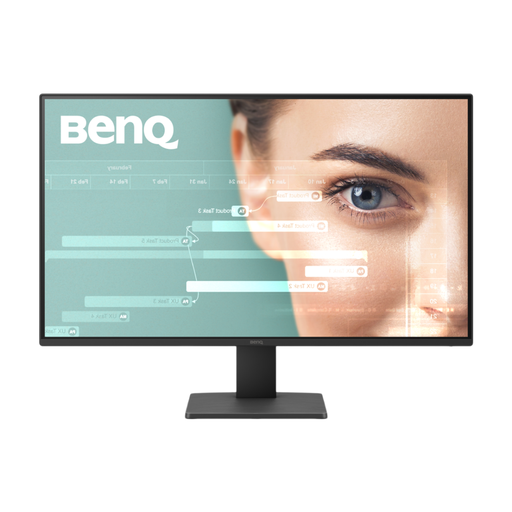
BenQ GW2791 27-inch IPS Full HD 100Hz
This 27-inch Full HD model suits a preference for a physically larger view, provided the desk has room for it. Full HD is not a higher-resolution choice merely because the panel is larger; check the stand adjustments if screen height matters to your setup.
View on Joybuy
Questions about monitor choice
Should I choose 16:10 or QHD for pupil feedback?
Choose according to whether vertical document room or a higher pixel count matters more to your work. Dell specifies its P2425 at 1920 × 1200 in 16:10 and its similarly sized P2425DE at 2560 × 1440; compare how your documents appear at a comfortable viewing distance and scaling setting.
Will low-blue-light or flicker-related settings prevent eye strain?
Do not rely on those settings alone to address discomfort. BenQ and LG describe such features on specific models, while the Health and Safety Executive advises considering screen position, lighting, reflections and the wider workstation.
Can one USB-C cable connect the screen and charge my laptop?
It can if the laptop, monitor and cable support the required video and charging functions. Dell specifies power delivery up to 90W for the P2425HE and LG up to 65W for the 27BA750-B; compare the exact laptop requirements with the monitor and cable specifications before relying on either arrangement.
Do UK display screen equipment rules apply to feedback writing in a student room?
They can apply to an employee’s work, rather than to every personal monitor purchase. The Health and Safety Executive says employers must assess workstations when workers use display screen equipment daily as part of normal work for continuous periods of an hour or more; its guidance also addresses permanent or long-term home working.


