For arranging a string quartet at a standing desk, start with a screen you can position comfortably and a score that remains readable at your chosen display scaling. A height-adjustable 27-inch 4K monitor is one route, but USB-C docking is worth choosing only if it suits your laptop, while colour-management features matter chiefly if you also produce colour-sensitive artwork or video. The Health and Safety Executive advises placing the top of the screen around eye level and the screen about an arm’s length away.
Who this setup suits
Standing-desk score editor
If you enter notes and revise several staves while alternating between sitting and standing, screen placement matters as much as the panel specification. The Health and Safety Executive advises positioning the top of the screen around eye level and the display about an arm’s length away.
Laptop-based arranger
If you connect a laptop to your desk display, USB-C video, charging and peripheral connections may simplify the setup. Check your laptop’s video and power requirements against the particular monitor rather than assuming every USB-C port performs the same functions.
Notation-and-design creator
If your quartet arrangements also involve coloured covers, teaching graphics or video, stated colour coverage and calibration features may be relevant. They do not replace checking whether notes and editing controls remain readable at your preferred scaling.
What to check when choosing
Set your viewing position and test score legibility before deciding whether laptop docking or colour-work features deserve a place in your setup.
| Concern |
What to check |
Who this matters to |
| Readable notation |
Check screen size and resolution, then assess the score and editing controls at your intended display scaling. |
When several quartet staves and editing panels share the screen, I need the notes to remain readable without constant rearranging. Roughly 36% of consumers put notation space first. |
| Standing-desk position |
Check the stand’s height range and tilt, or the monitor’s mounting pattern if you plan to use an arm. |
Changing between seated and standing work means I need to reposition the screen without straining to see it. Around 36% of consumers prioritise screen positioning. |
| Laptop connections |
Compare laptop video support and charging needs with the monitor’s stated USB-C functions. |
If I move my laptop on and off the desk, I want fewer connections to manage, provided video and charging work with my computer. Approximately 21% of consumers put laptop connectivity first. |
| Colour-sensitive work |
Consider stated colour coverage and calibration only if your workflow includes coloured artwork or video. |
Alongside arranging, I may need to prepare colour-sensitive covers or other visuals, so those features become a primary concern for roughly 7% of consumers. |
Buying pitfalls
-
Choosing the panel without checking its stand
A sharp display can still be awkward at a standing desk if it cannot reach a comfortable viewing position. The Health and Safety Executive advises placing the screen top around eye level, about an arm’s length away.
Check the stand’s adjustment range. If you plan to use an arm, confirm the mounting pattern, monitor weight, arm capacity and desk-clamp fit.
A separate arm or riser may be needed if the included stand cannot reach your standing eye height.
-
Assuming USB-C means one-cable docking
USB-C monitors differ in their video, charging and peripheral functions; a USB-C socket alone does not establish that your laptop will use all three.
Check your laptop’s USB-C video capability and charging requirements against the exact monitor’s connections and power-delivery rating.
An incompatible setup may still require a separate charger, cable, adapter or dock.
-
Prioritising colour features for notation alone
Colour-coverage and calibration specifications are relevant to colour-managed visual work, but they do not establish that black-and-white notation will be easier to read.
If your work is chiefly score editing, assess scaling, screen position and the connections you use before treating colour features as a deciding factor.
-
Confusing similarly named monitor variants
A shared brand or product-line name is not enough to establish that two listings describe the same monitor configuration.
Match the full model identifier and check the listed stand, ports and other features against the configuration you intend to buy.
Relevant monitor lines
These manufacturer lines illustrate different features to assess for quartet arranging; the specifications below concern the named models, not every monitor in each line.
BenQ
The PD creative-monitor line is relevant if you want an adjustable display for notation alongside colour-related work.
- BenQ specifies a 27-inch 3840 × 2160 IPS panel, 110 mm height adjustment, 100 × 100 mm VESA mounting and USB-C DisplayPort Alt Mode with 65 W power delivery for the PD2705U.
- Its stated 99% sRGB and Rec.709 coverage and calibration report do not establish an advantage for notation editing or compatibility with every laptop.
ASUS ProArt
ProArt is relevant when quartet arranging sits alongside colour-sensitive design work.
- ASUS describes the PA279CRV as a 27-inch 4K IPS display with an adjustable stand, USB-C power delivery up to 96 W and factory calibration.
- Its stated 99% DCI-P3 and Adobe RGB coverage should be considered in the context of your colour workflow, not taken as a measure of score legibility.
ViewSonic
The VG docking-monitor line is relevant to laptop-based arrangers who want to connect desk peripherals through their display.
- ViewSonic specifies a 27-inch 4K panel, USB-C, Ethernet, laptop charging up to 90 W and an adjustable stand for the VG2756-4K.
- Check whether your laptop can use the required video and charging functions and whether you need the docking connections.
Dell UltraSharp
UltraSharp offers a mixed-use desktop route if you also value the U2725QE’s stated contrast and ambient-light features.
- Dell specifies a 27-inch 4K display with an enhanced IPS Black panel, a stated 3000:1 contrast ratio, an ambient-light sensor and 120 Hz refresh rate for the U2725QE.
- Those specifications do not establish that 120 Hz is necessary for arranging notation; check workstation fit and computer connections separately.
LG UltraFine
The 27UP850K-W is a mixed-use option to examine if you want a 4K IPS display with USB-C and an adjustable stand.
- LG lists a 27-inch 4K IPS panel, USB Type-C connection and height, pivot and tilt adjustments for this model.
- Its stated DCI-P3 95% typical coverage does not by itself establish better notation readability or a match for your colour workflow.
Joybuy monitors for this setup
These monitors offer 27-inch 4K options for arranging at a standing desk, with different panel, stand and connection features. Check each model against your viewing position, computer and any work beyond notation.
 No image available
BenQ MA270UP 27-inch 4K IPS monitor
Consider this model if you want an adjustable screen for notation and also use a Mac for visual work. Its title specifies a Nano Glossy IPS panel, USB-C and a height-adjustable stand; check which Mac-specific controls work with your computer and whether its USB-C functions suit your laptop.
Joybuy
 No image available
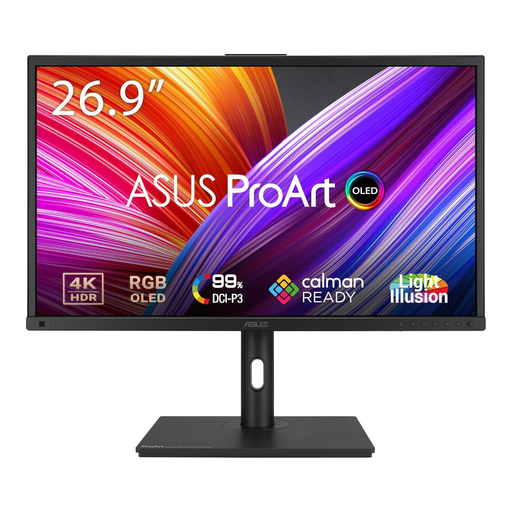
ASUS ProArt PA27DCE-K 4K OLED monitor
Consider this OLED model if your arranging setup also serves visual work, but weigh its use with score pages left on screen for long periods. Prolonged static images at high brightness can increase OLED burn-in risk; check the stand and USB-C video and charging functions against your setup.
Joybuy
 No image available
iiyama ProLite XUB2792UHSU-B6 27-inch 4K monitor
This is a 27-inch 4K option to assess for score pages and editing controls at a standing desk. Check that its stand reaches your preferred screen position, and confirm USB-C video and charging compatibility if you want to connect a laptop with one cable.
Joybuy
 No image available
MSI MD272UPSW 27-inch 4K Smart Monitor
Consider this model if you would use its smart-display features as well as a screen for notation. Its title specifies IPS, Google TV and USB-C 65 W charging; confirm USB-C video compatibility and that the stand reaches your preferred standing position.
Joybuy
 No image available
LG 27UP650K 27-inch 4K IPS monitor
Consider this model if you plan to connect through HDMI or DisplayPort and want a 4K screen for notation. Its title also specifies 60 Hz, DCI-P3 95% and DisplayHDR 400; check stand positioning and score readability at your preferred scaling rather than treating those visual specifications as a substitute.
Joybuy
Questions about this setup
Do I need 4K to arrange a string quartet?
Not necessarily: choose by how readable the score and controls are at your viewing distance and preferred display scaling. The cited 27-inch 4K models offer 3840 × 2160 resolution, but resolution alone does not determine whether notation feels comfortable to edit.
Which monitor adjustment matters most at a standing desk?
Enough height adjustment to place the screen comfortably is the starting point; a compatible arm is another route. The Health and Safety Executive advises keeping the top of the screen around eye level and the display about an arm’s length away.
Will a USB-C monitor carry video and charge my laptop through one cable?
Only if the laptop and monitor support compatible video and power-delivery functions. Check the laptop’s USB-C video capability and charging requirement against the exact monitor: BenQ specifies DisplayPort Alt Mode and 65 W for the PD2705U, while ASUS states up to 96 W for the PA279CRV and ViewSonic up to 90 W for the VG2756-4K.
Does using a standing desk change the UK workplace guidance?
The Health and Safety Executive’s screen-position guidance still matters when you stand: place the screen top around eye level and the display about an arm’s length away. The HSE also says display screen equipment regulations can apply to permanent or long-term home workers; if arranging is part of your work, ask your employer about its workstation-assessment process.


