Who this suits

Small-desk map and menu players

If routes, labels and management panels are your main concern, a compact QHD screen is worth considering once you have checked your computer's output and the monitor's physical fit. Dell UK's 23.8-inch P2425D is one example of this screen class.

Players who also enjoy faster games

If you want one compact screen for railway management and motion-heavy games, you may put more weight on refresh rate. LG UK lists its 23.8-inch 24GS65F-B at Full HD and up to 180Hz, a different balance from compact QHD.

Laptop and constrained-desk users

Check both placement and video output before choosing a screen. A USB-C socket does not by itself establish that a laptop can send video through it; ASUS ROG specifies DisplayPort Alt Mode support for USB-C video on the XG27ACS.

What to check when buying

Compact QHD

Consider it when: You want more pixels for maps and menus without moving to a 27-inch screen; Dell UK specifies a 23.8-inch, 2560 × 1440 P2425D at 100Hz.

Trade-off: Check that your computer can output the intended resolution and refresh rate; this example does not offer the 180Hz maximum specified for LG UK's compact Full HD alternative.

Compact Full HD, high refresh

Consider it when: You also play faster games and want to keep to a 23.8-inch screen; LG UK specifies up to 180Hz for the 24GS65F-B.

Trade-off: Its 1920 × 1080 native resolution has fewer pixels than the compact QHD example, and its listed base offers tilt adjustment rather than the range of adjustments Dell UK lists for the P2425D.

27-inch QHD, high refresh

Consider it when: Your measured setup can accommodate a larger screen and you want both QHD and high refresh; ASUS ROG specifies 2560 × 1440 and up to 180Hz for the XG27ACS.

Trade-off: Its 27-inch size needs a separate fit check. ASUS ROG specifies different refresh-rate limits by input, and USB-C video requires a source with DisplayPort Alt Mode.

ConcernWhat to checkWho this matters to
Space for maps and menus Compare native Full HD and QHD resolution, then check the resolution your computer can output. If I keep routes, labels and controls open together, I want more room for detail without choosing a larger screen. Around 36% of consumers would put compact interface space first.
Smoother mixed gaming Check the refresh rate available through your intended input and whether your system supports the monitor's adaptive-sync option. I play faster games as well as railway management games, so refresh rate can take priority over extra QHD pixels. For around 29% of consumers, compact high-refresh gaming would be the main concern.
Comfortable placement Measure usable desk depth and the stand footprint; check the adjustments or mounting arrangement you need. On a shallow desk, I need to place the screen at a workable height and distance rather than judge fit by diagonal size alone. Placement would come first for around 21% of consumers.
Connection compatibility Match the computer's video output, cable and monitor input to the intended resolution and refresh rate. If I connect a laptop or want a particular high-refresh mode, I need the chosen port to carry that signal. Around 14% of consumers would make connection certainty their primary concern.

Buying pitfalls

  • Judging desk fit by diagonal size alone

    Two similarly sized screens can offer different positioning options. Dell UK lists height, tilt, swivel and pivot adjustment for the P2425D, while LG UK describes a tilt-adjustable base for the 24GS65F-B.

    Measure usable desk width and depth, allow for the stand or monitor-arm clamp, and decide which adjustments you need before comparing refresh rates.

  • Assuming every input delivers the maximum refresh rate

    ASUS ROG specifies up to 180Hz through DisplayPort and USB-C on the XG27ACS, but up to 144Hz through HDMI. Its USB-C video connection also requires DisplayPort Alt Mode on the source device.

    Identify your computer's output and check the specified resolution and refresh rate for the exact connection you plan to use.

  • Expecting a gaming feature to fix an awkward workstation

    The Health and Safety Executive advises placing a display directly in front of you, with its top around eye level and the screen about an arm's length away. Monitor specifications alone cannot establish whether that position works on your desk.

    Consider the screen, chair and input devices together, particularly if you also use the desk for prolonged work.

    If the stand cannot provide the placement you need, an appropriate monitor arm, cable or other workstation change may be necessary.

  • Overlooking the old monitor when replacing it

    UK government guidance on waste electrical and electronic equipment aims to reduce electrical waste sent to landfill or incineration. A working screen may also have further use.

    Consider repair, donation or resale where appropriate; otherwise check your retailer's take-back arrangements or a local electrical-recycling option.

Relevant brands for reference

Dell

Dell UK's P2425D illustrates the compact QHD route: a 23.8-inch screen specified at 2560 × 1440 and 100Hz.

  • Dell UK lists height, tilt, swivel and pivot adjustment for the P2425D.
  • Its stated 100Hz refresh rate differs from the 180Hz maximum of the LG UK gaming example; choose according to which requirement matters more to you.

LG

LG UK's 24GS65F-B illustrates a compact Full HD gaming route with a 23.8-inch IPS screen and 180Hz maximum refresh rate.

  • LG UK lists a high refresh rate and adaptive-sync features for this model.
  • Its native 1920 × 1080 resolution has fewer pixels than QHD; check stand adjustment separately if tilt alone will not suit your setup.

ASUS ROG

ASUS ROG's XG27ACS illustrates the 27-inch QHD high-refresh route, subject to enough space for the larger screen.

  • ASUS ROG specifies 2560 × 1440, up to 180Hz, and DisplayPort, HDMI and USB-C video inputs for this model.
  • Check desk fit and the intended input: ASUS ROG specifies up to 144Hz through HDMI, and USB-C video requires DisplayPort Alt Mode support from the source.

Joybuy products to consider

These compact-screen choices cover different priorities for a small-desk railway-game setup, from QHD or WUXGA workspace to Full HD models with stated higher refresh rates. Check each stand's footprint and your computer's connection before choosing.
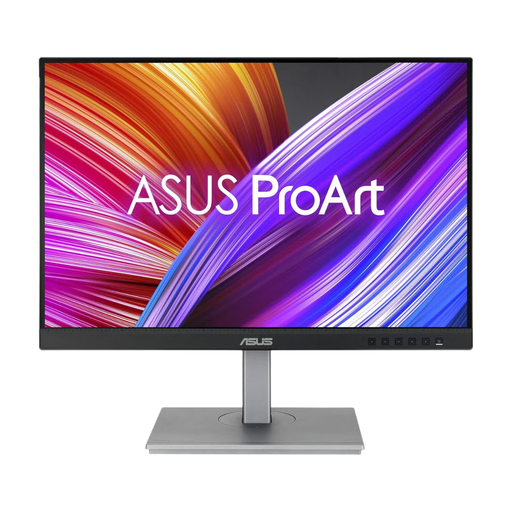
ASUS ProArt PA248CNV monitor

ASUS ProArt PA248CNV IPS WUXGA

Consider this WUXGA model if a compact screen for maps and menus matters more to you than a gaming-led specification. Check the stand footprint and your computer's intended video output against your desk setup.

View on Joybuy
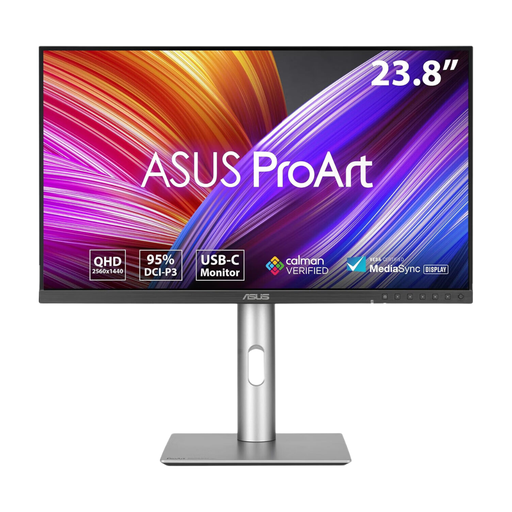
ASUS ProArt PA24ACRV monitor

ASUS ProArt PA24ACRV IPS QHD

Consider this QHD model if interface detail is your main reason to choose a compact screen. Confirm its refresh rate, stand footprint and the QHD output available from your computer before ordering.

View on Joybuy
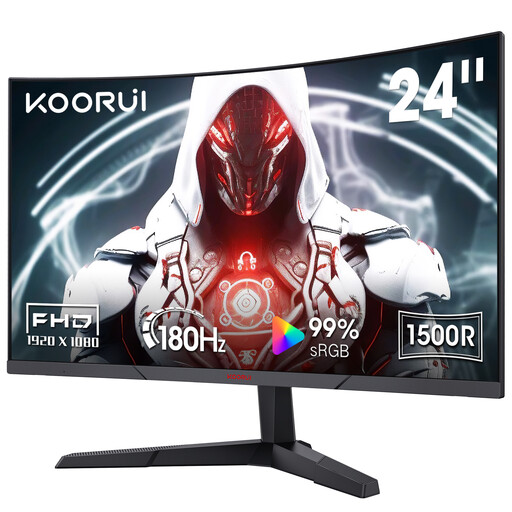
KOORUI MG24A12FV2 curved gaming monitor

KOORUI MG24A12FV2 24-inch curved FHD gaming monitor

This is a compact Full HD option to consider if you also play faster games, rather than prioritising QHD workspace for dense menus. Its title specifies a 180Hz, 1080p VA display with 1500R curvature, HDMI and DisplayPort; check which input supports the refresh rate you intend to use.

View on Joybuy
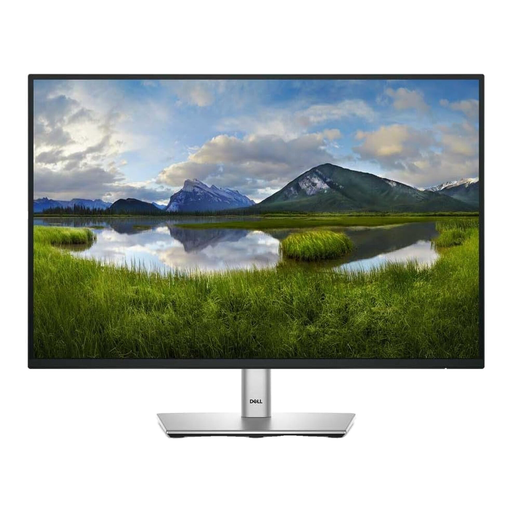
Dell P2425 24-inch monitor

Dell P2425 24-inch monitor

Consider the P2425 if you want a 24-inch screen for a constrained desk. This is the P2425, not the QHD P2425D discussed above; confirm this model's applicable refresh rate, included stand adjustments and footprint before buying.

View on Joybuy
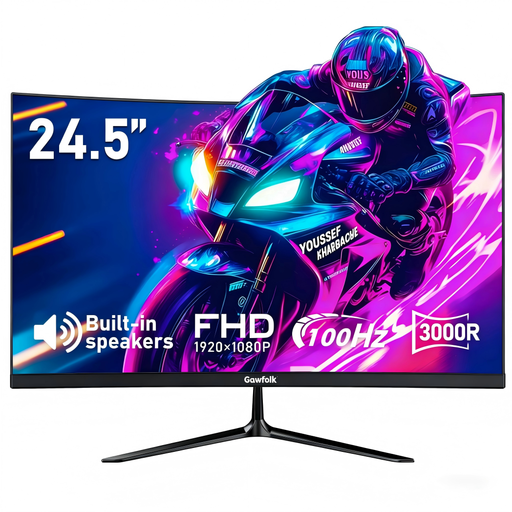
Gawfolk 24.5-inch curved Full HD monitor

Gawfolk 24.5-inch curved FHD 100Hz monitor

Consider this curved Full HD screen if that format suits your desk and you do not need QHD workspace for maps and menus. Its title specifies 3000R curvature and a 75 × 75 mm VESA mount; check the stand footprint or your mounting arrangement, as well as the refresh rate available through your chosen connection.

View on Joybuy

Common questions

Should I choose 24 or 27 inches for railway management games on a small desk?

Start with a 23.8–24-inch screen if space is tight, and consider compact QHD if map and menu detail matters most. Move to 27-inch QHD only after measuring the available space and checking that you can position the screen comfortably; the Health and Safety Executive advises a viewing distance of about an arm's length.

Do railway management games need a 180Hz monitor?

A 180Hz maximum is not the default priority for this choice; it becomes more relevant if you also play faster games. For a management-focused setup, compare native resolution, physical fit and stand adjustment, then check that your computer supports the mode you intend to use.

Can I connect a high-refresh monitor through USB-C?

You can use USB-C video only when the connected device and cable support the required signal. For the XG27ACS, ASUS ROG requires DisplayPort Alt Mode on the USB-C source and specifies up to 180Hz through USB-C or DisplayPort, compared with up to 144Hz through HDMI.

What should I check when replacing an old monitor?

Check the seller's return and warranty terms for the exact model before ordering, and plan what to do with the old screen. If it still works, consider repair, donation or resale; otherwise, check the retailer's take-back arrangements or a local electrical-recycling option.