Who is this monitor choice for?

Text-heavy list editors

If you spend long sessions checking titles, citations, notes and reading order, prioritise text that remains easy to read at a comfortable seated distance. The Health and Safety Executive advises choosing on-screen text large enough to read easily in a normal, comfortable working position.

Laptop-based researchers

If you edit from a USB-C laptop and want fewer desk cables, check video output, hub functions and charging power separately. A USB-C socket does not establish that all three functions are available.

Space-constrained desk users

If screen placement or clear desk space matters most, compare the supplied stand with a clamp-mounted or compatible monitor-arm arrangement. Check the mount and your desk before relying on either option.

What matters when choosing a monitor?

Decide whether readable document space, laptop connectivity or screen positioning is your main priority, then check the other two against your desk setup.

Concern What to check Who this matters to
Readable text and document space Compare screen size, native resolution and text size at your usual operating-system scaling. Dell and BenQ list 2560 × 1440 resolution for the 27-inch U2724D and GW2790QT. If I keep titles, notes and reference material open together, I want enough space without making the text difficult to read. Around 40% of consumers put readable text and workspace first.
One-cable laptop connection Check that the laptop outputs video over USB-C and that the monitor specifies video input and suitable power delivery. BenQ lists DisplayPort Alt Mode and 65 W power delivery for the GW2790QT. When I move my laptop on and off the desk, I want fewer connections to manage. For around 30% of consumers, laptop connectivity is the primary concern.
Screen position and desk fit Check the supplied stand’s height range and pivot function; for a clamp stand, check the desk and mounting requirements. The Health and Safety Executive advises placing the screen directly ahead, about an arm’s length away, with its top level with your eyes. With limited desk space or a need to change screen orientation, I care most about where the display can sit. Screen positioning comes first for around 30% of consumers.

Buying pitfalls to avoid

  • Assuming USB-C means video and laptop charging

    Dell describes the U2724D’s USB-C upstream port as data-only, while BenQ specifies DisplayPort Alt Mode and 65 W power delivery for the GW2790QT. The same connector shape does not mean the ports do the same job.

    Match the exact monitor’s USB-C functions and wattage to your laptop’s video-output and charging requirements.

    A separate display cable, charger or dock may be needed if the intended USB-C connection cannot provide those functions.

  • Choosing an adjustable stand without checking its range

    A list of stand adjustments does not tell you whether the screen will reach the right position on your particular desk. The Health and Safety Executive advises placing it directly ahead, around an arm’s length away, with its top level with your eyes.

    Check your seated eye height, desk dimensions and the exact stand’s height and pivot adjustments. If you might use an arm, check mount compatibility.

    If the supplied stand cannot reach the position you need, a separate riser or monitor arm may be necessary.

  • Using a discontinued model as a current shopping choice

    LG UK marks the 27QN880 as discontinued. Its published clamp-stand features can help you identify what to look for, but they do not establish current availability.

    For a clamp-mounted option, confirm the current model, the stand supplied and its fit with your desk before ordering.

  • Relying on a conflicting retailer specification

    A Joybuy U2724D listing claims USB-C 90 W power delivery, whereas Dell’s official specification describes the U2724D upstream USB-C port as data-only. That difference matters if you plan to connect and charge a laptop through one cable.

    Use Dell’s exact-model technical specification as the starting point and ask the retailer to confirm the functions of the unit being sold before relying on the listing’s USB-C claim.

Relevant monitor brands

Dell

Dell’s UltraSharp U2724D is an example of an adjustable 27-inch QHD desktop monitor for text work.

  • Dell lists 2560 × 1440 resolution and height, tilt, swivel and pivot adjustment for the U2724D.
  • Dell describes this model’s USB-C upstream port as data-only. Do not select it on the assumption that the port carries laptop video or charging power.

BenQ

BenQ’s GW2790QT combines a 27-inch QHD screen and adjustable stand with specified USB-C laptop functions.

  • BenQ lists DisplayPort Alt Mode, data and 65 W power delivery over USB-C, alongside 110 mm height adjustment and a 90-degree pivot.
  • Check that your laptop supports USB-C video and that 65 W meets its charging requirements.

LG

LG’s 27QN880 illustrates a clamp-mounted approach where flexible placement matters more than a conventional monitor base.

  • LG UK documents a C-clamp stand with extend, retract, height, tilt, swivel and pivot adjustments for the 27QN880.
  • LG UK labels this model discontinued. Check a currently sold model and its supplied stand rather than treating the 27QN880 page as a purchase option.

Joybuy monitors for a wider workspace

This ultrawide option is relevant if you want a reading list and reference material alongside each other on a desktop. Check text size and screen positioning separately; its USB-C laptop functions and supplied stand adjustments also need confirmation before they become part of your setup plan.
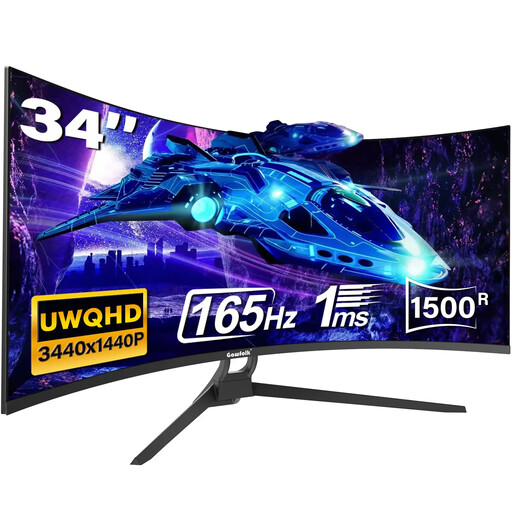
Gawfolk 34-inch UWQHD 165 Hz 1500R curved monitor

Gawfolk 34-inch UWQHD 165 Hz 1500R curved monitor

Consider this ultrawide format if you want to keep a reading list and reference material visible together on a desktop.

The product title lists a 34-inch, 21:9 curved screen, UWQHD resolution, 165 Hz refresh rate, HDMI 2.1 and DP 1.4 connections. Check whether text is comfortable at your preferred scaling.

Although the title mentions Type-C, confirm its video, data and charging functions before planning a laptop connection. Check the supplied stand’s adjustments and fit with your desk as well.

View on Joybuy

Frequently asked questions

Do I need a 4K monitor to edit a reading list?

Not necessarily: the documented 27-inch QHD options offer an adjustable route for this text-heavy task. Check titles and notes in your usual application at your preferred scaling; the Health and Safety Executive advises using text large enough to read easily from a comfortable seated position.

Will any USB-C monitor display video and charge my laptop?

No: those functions depend on the exact monitor port and your laptop. BenQ specifies DisplayPort Alt Mode, data and 65 W power delivery for the GW2790QT, while Dell describes the U2724D’s USB-C upstream port as data-only.

How should I position a monitor for sustained document editing?

Place the screen directly in front of you, around an arm’s length away, with its top level with your eyes, as the Health and Safety Executive advises. Check whether the supplied stand, your chair and your desk let you achieve that position; portrait rotation is optional, not a substitute for positioning the screen comfortably.

What should I do with an old monitor?

Check your local authority’s electrical-waste arrangements or an available retailer collection route rather than treating an old monitor as ordinary household rubbish. UK government guidance describes waste electrical and electronic equipment regulations as intended to reduce electronic waste sent to landfill or incineration.