Who needs to consider what?

Window-side record administrators

If daylight reaches your desk while you enter or review membership records, start with a screen position that avoids bright reflections. The Health and Safety Executive advises arranging desks and screens to avoid glare, rather than placing a screen directly facing a window or bright light. An adjustable stand and a matte or anti-glare surface are then useful features to compare.

Laptop-based membership coordinators

If you move between a membership system, email and spreadsheets, a USB-C monitor may help organise the desk. Check that your laptop can send video through its chosen port and that the monitor’s stated power delivery meets its charging requirements; a USB-C connector alone does not establish either point.

High-density document multitaskers

If you keep member lists, correspondence and reference files open together, compare usable screen area as well as resolution. A 27-inch or larger 4K display may be relevant, provided your desk has room for it and your computer supports the resolution at a comfortable display scale.

What matters when choosing?

Set the screen where window reflections are manageable, then decide how much room your records need on screen. Check laptop video and charging compatibility before treating USB-C as a one-cable solution.

Concern What to check Who this matters to
Daylight glare and placement Check the screen surface and stand adjustment, and whether the desk allows a position away from direct window reflections. The Health and Safety Executive advises avoiding glare when arranging the workstation. If daylight reflects across my records, I need to move or angle the screen before a brighter specification will help. Around 36% of consumers put glare control first.
Text and working space Compare 27-inch QHD with 27-inch or larger 4K against your desk space, computer output and preferred text scaling. When I review long lists alongside forms or correspondence, I need enough readable space for the windows I use together. For around 36% of consumers, record clarity and workspace are the primary concern.
Laptop connection Confirm video support on the laptop and monitor USB-C ports, then compare the monitor’s power-delivery rating with the laptop’s charging requirement. If I connect a laptop each day, I want the display and charging arrangement to work without an awkward collection of cables. Laptop integration comes first for around 28% of consumers.

What should you avoid overlooking?

  • Relying on brightness to overcome window reflections

    A stated brightness figure does not tell you whether a bright window will appear as a reflection across the screen. Poor placement can undermine an otherwise suitable monitor.

    Follow the Health and Safety Executive’s advice to arrange the screen away from glare. Check the available screen angles and use window coverings where needed before comparing brightness specifications.

  • Assuming any USB-C connection handles video and charging

    USB-C power-delivery ratings differ between monitors, and the connector alone does not establish whether your laptop can output video through it or receive sufficient power.

    Check the laptop port’s video capability, its charging requirement and the monitor’s stated USB-C display and power-delivery functions.

  • Choosing a large screen or clamp stand without measuring

    A larger display needs enough desk width and depth. A clamp-mounted stand also needs a desk edge it can grip, as illustrated by the mounting arrangement on LG’s 32UN880K-B.

    Measure the usable desk area and inspect the edge before choosing a clamp-mounted monitor.

    An unsuitable edge may mean changing the stand arrangement or repositioning the workstation.

  • Choosing colour-production features for routine records

    Calibration and specialist colour features address different work from entering membership details, reading forms and handling email.

    Consider those features when your work genuinely includes colour-critical tasks; for a records desk, settle screen placement, readable workspace and connections first.

Relevant brands to consider

Dell

Dell’s UltraSharp U2724DE is a 27-inch QHD IPS Black monitor to consider for an adjustable, laptop-based workstation.

  • Dell lists an anti-glare surface, an ambient-light sensor, height adjustment and Thunderbolt 4 connectivity for the U2724DE.
  • Its QHD resolution is not 4K; compare the amount of detail you need on screen before choosing it for dense records.

LG

LG’s 27U730A-B and 32UN880K-B illustrate different 4K sizes for a records workstation.

  • LG lists anti-glare treatment and 90W USB-C power delivery for the 27-inch 27U730A-B. Its 31.5-inch 32UN880K-B has a movable C-clamp stand and 60W USB-C power delivery.
  • Check laptop charging needs for either model and desk-edge compatibility for the 32UN880K-B clamp. Neither arrangement removes the need to manage direct reflections.

BenQ

BenQ’s GW2790QT is a 27-inch QHD office-oriented option for buyers comparing matte screens and laptop connectivity.

  • BenQ lists a matte coating, 350-nit typical brightness, stand adjustment and 65W USB-C power delivery for the GW2790QT.
  • The GW2790QT is QHD rather than 4K, and its stated brightness cannot establish how it will handle a direct window reflection at your desk.

ASUS

ASUS’s ProArt PA27UCGE is a specialist 27-inch 4K option when record administration is combined with work requiring colour and calibration features.

  • ASUS lists a low-reflection panel, 600-nit typical brightness, ambient-light functions, calibration features and 96W USB-C power delivery for the PA27UCGE.
  • Those specialist functions may have little bearing on routine lists, forms and email. Direct reflections still call for attention to workstation placement.

Joybuy monitor choices

These monitors offer different sizes and resolutions for organising membership records. Compare the space you need for documents with the screen position, surface and laptop connections required at your window-side desk.

ASUS ProArt PA278CV IPS WQHD monitor

ASUS ProArt PA278CV IPS WQHD

Consider this WQHD model if that resolution gives you enough room for membership records without moving to 4K.

For a window-side laptop desk, confirm the screen surface, stand movement and USB-C charging suitability against your own setup.

View on Joybuy

iiyama ProLite XUB2792UHSU-B6 27-inch 4K monitor

iiyama ProLite XUB2792UHSU-B6 27-inch 4K UHD

The 27-inch 4K format is worth considering if detailed records are your priority but a larger screen will not fit your desk.

Check the screen-surface treatment for your window position and confirm any USB-C video or charging functions you need.

View on Joybuy

ASUS ZenScreen MB249C IPS USB-C monitor

ASUS ZenScreen MB249C IPS USB-C

Consider this USB-C model if flexible screen placement matters more to you than a large area for side-by-side records.

Check that its display size and resolution suit your documents, and match its video and charging functions to your laptop.

View on Joybuy
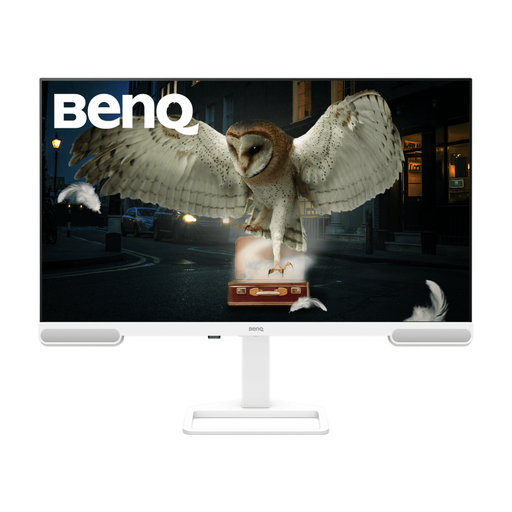
BenQ EW3290U 31.2-inch 4K UHD white monitor

BenQ EW3290U 31.2-inch 4K UHD, White

This larger 4K option is relevant if you keep records and reference documents open together and have room for the screen.

Measure desk width and depth, then check the available stand adjustment before deciding where it can sit without direct window reflections.

View on Joybuy
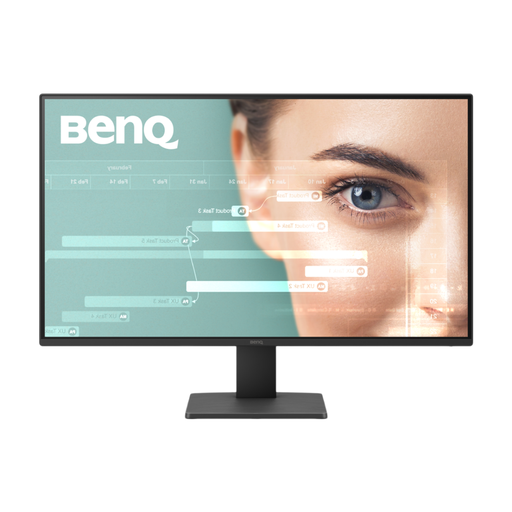
BenQ GW2791 27-inch Full HD 100Hz monitor

BenQ GW2791 27-inch Full HD 100Hz

This Full HD model may suit straightforward record entry when you do not need the extra detail of QHD or 4K.

Check whether its screen position will work beside your window and whether its connections meet your laptop needs.

View on Joybuy

Frequently asked questions

Will a brighter monitor solve glare from a window?

Not if the screen still catches a direct reflection. The Health and Safety Executive advises arranging the desk and screen to avoid glare or bright reflections, so check the screen position and window coverings before relying on a brightness specification.

Is a 27-inch QHD monitor enough for membership records?

It can be enough for database, spreadsheet and email work when its usable screen area suits the way you arrange your windows. If detailed forms or several documents must stay visible side by side, compare a 4K option with your desk space and preferred text scaling.

What should I check before using one USB-C cable?

Confirm that your laptop port outputs video, the monitor accepts video through USB-C and its stated power delivery meets the laptop’s charging requirement. A USB-C connector on its own does not establish that all three will work together.

When does UK display-screen equipment guidance matter for work?

The Health and Safety Executive says the Display Screen Equipment Regulations apply to workers who use display-screen equipment daily for continuous periods of an hour or more. If that describes your records work, include the workstation layout—not just the monitor specification—when assessing glare and screen placement.