What matters when choosing?
Check the space available for the screen and the computer driving it, then decide whether colour work, laptop changes or physical adjustment will have the greatest effect on daily use.
| Concern |
What to check |
Who this matters to |
| Diagram detail and workspace |
Check native resolution, screen size and comfortable software scaling. Confirm that the computer can drive the chosen resolution. |
If I work with small labels and several reference windows, I need room to arrange them without making text difficult to read. Around 29% of consumers put diagram detail and workspace first. |
| Colour consistency |
Compare specifications for the exact model, including relevant colour spaces and calibration claims, with the software and final output you use. |
When colour distinguishes parts of a publication figure, I need to check how the finished work will appear beyond my own screen. Colour consistency comes first for around 21% of consumers. |
| Shared-desk connections |
Confirm each laptop’s video output and charging requirements against the monitor’s ports, power delivery and cable. |
Switching between colleagues’ laptops should not mean rebuilding the desk connection each time. Around 29% of consumers make connectivity their primary concern. |
| Position and desk fit |
Measure usable desk space and check stand or arm adjustment, mounting compatibility and reflections from windows or lights. |
If different people use the workstation, I need a screen that each person can position without crowding the keyboard and mouse. For around 21% of consumers, desk fit and adjustment take priority. |
Brands to consider
These product lines illustrate different specifications to compare; a feature stated for one model should not be assumed across its brand’s monitors.
BenQ
BenQ Creative Pro models are relevant when diagram preparation overlaps with colour-managed illustration work.
- BenQ UK states that the PD3205U covers 99% sRGB and 99% Rec.709; its PD2706U page states 100% coverage of both spaces. Compare the specification for the exact model and size you are considering.
- A stated colour space does not make specialist colour features necessary for every scientific diagram or establish how the final output will look elsewhere.
ASUS
The ProArt PA329CRV is a model to examine when a 4K workspace, documented calibration and laptop connection all matter.
- ASUS describes the PA329CRV as factory pre-calibrated to Delta E < 2 and specifies USB-C power delivery up to 96W.
- These are model-specific manufacturer specifications. Confirm laptop compatibility and whether the diagram workflow calls for its colour features.
LG
The LG Ergo line is relevant where people sharing a desk need to reposition the screen.
- LG UK specifies a C-clamp stand with height, swivel, pivot, tilt, extension and retraction adjustment for the 32UN880K-B.
- Check whether the desk accepts the mounting arrangement and whether that model’s stated USB-C power delivery of up to 60W meets the laptop’s needs.
Dell
The UltraSharp U4323QE is relevant to a fixed shared workstation where simultaneous views from several computers are useful.
- Dell UK specifies multi-PC connectivity, wired Ethernet and four FHD partitions for the 42.5-inch U4323QE.
- Its large format calls for a desk and viewing position suited to the screen; multiple inputs alone are not a reason to choose that size.
Joybuy monitor choices
These 27-inch and 32-inch 4K monitors offer options for preparing detailed diagrams at a shared desk. Compare each model’s connections, adjustment and colour specifications against the computers and output workflow you actually use.
 No image available
BenQ MA270UP Nano Glossy 27-inch 4K monitor
Consider this model for detailed diagrams if its 27-inch format fits the shared desk. Its name specifies a 4K IPS screen, USB-C and a height-adjustable stand; check computer compatibility and whether the Nano Glossy finish reflects the office lighting.
View on Joybuy
 No image available
iiyama ProLite XUB2792UHSU-B6 27-inch 4K monitor
The 27-inch 4K format is relevant to diagrams with small labels on a shared desk. Check the stand’s adjustment range for each user, and confirm USB-C video, charging and calibration requirements before relying on this model for those tasks.
View on Joybuy
 No image available
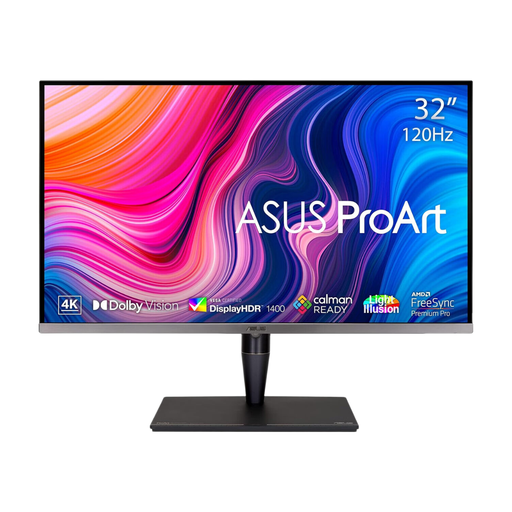
ASUS ProArt Display PA32UCG-K 32-inch 4K monitor
Consider this 32-inch model when detailed figures and a colour-dependent output workflow justify checking specialist display features. Its name specifies an IPS Mini LED panel and a Delta E < 1 claim; treat colour accuracy as a model-specific claim, and check desk depth and laptop charging requirements.
View on Joybuy
 No image available
LG 27UP650K 27-inch 4K IPS monitor
The 27-inch 4K screen is an option for inspecting labelled diagrams where desk space is limited. The name specifies 95% DCI-P3 coverage, HDMI and DisplayPort; check how laptops will connect and whether the stand can be positioned for everyone using the desk.
View on Joybuy
 No image available
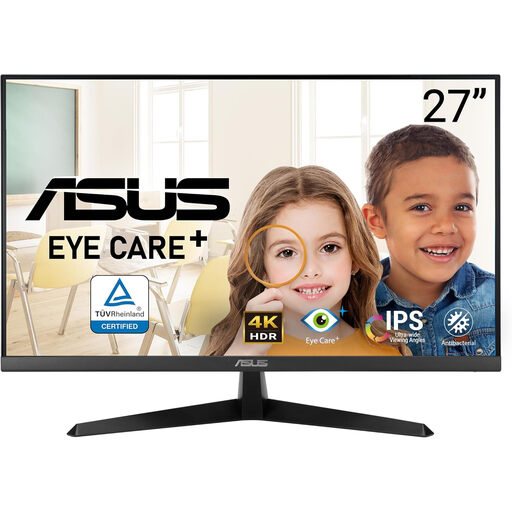
ASUS Eye Care VY27UQ 4K UHD monitor
Its stated 4K UHD resolution makes this model worth comparing for fine diagram detail. If several people share the desk, check the stand adjustment and laptop connections needed for their setup rather than choosing on resolution alone.
View on Joybuy
Frequently asked questions
Does a shared-office monitor need an adjustable stand?
Not necessarily, but each regular user needs a suitable screen position. The Health and Safety Executive advises placing the top of the screen around eye level and the screen roughly an arm’s length away. An adjustable stand or compatible arm can help colleagues achieve that at the same desk; the employer’s workstation assessment should consider the wider setup where applicable.
Will one USB-C cable display video and charge every laptop?
No. The laptop must support video over the relevant USB-C or Thunderbolt connection, and the monitor’s power delivery must meet its charging needs. For comparison, LG UK states up to 60W for the 32UN880K-B, ASUS states up to 96W for the PA329CRV, and Dell UK states 90W for the U4323QE; check the exact laptop, monitor port and cable.
Should colour accuracy take priority for scientific diagrams?
Prioritise relevant, model-specific colour specifications when colour conveys information in figures intended for publication or other colour-dependent output. For mainly monochrome or internal diagrams, comfortable scaling, connections and screen position may matter more. Manufacturer gamut and calibration claims do not replace checking the final deliverable in its intended workflow.
Is CE marking accepted for a monitor supplied in Great Britain?
CE marking can be accepted in Great Britain where the relevant product-regulation requirements are met. Department for Business and Trade guidance dated 31 March 2026 says CE marking continues to be recognised alongside or in place of UKCA marking for applicable products in England, Scotland and Wales. Northern Ireland follows different processes, so check the requirements for that supply arrangement separately.


