What to prioritise
Start with the monitor position you can achieve at both desk heights, then decide how much screen space and colour control your diagrams need. Treat laptop docking as a separate compatibility check rather than an automatic benefit of a USB-C socket.
| Concern |
What to check |
Who this matters to |
| Screen placement |
Compare the stand or mount adjustment with both desk heights and the available viewing distance. The Health and Safety Executive advises positioning the screen directly ahead, with its top about eye level and the screen roughly an arm's length away. |
If changing desk height leaves me leaning towards the screen or turning to see it, I need to get its position right before choosing extra features. Around 42% of consumers put screen placement first. |
| Diagram detail and colour |
Compare physical size and 4K resolution; if colour consistency matters, check the stated colour modes against your intended output workflow. |
When fine labels, reference panels and colour-coded figures share my screen, I need enough usable space and settings relevant to the finished work. Diagram detail and colour are the primary concern for around 33% of consumers. |
| Laptop docking |
Confirm that the laptop supports the required USB-C video mode and that the monitor, cable and available charging power meet its needs. |
If I move my laptop between workstations, I want to reconnect it without rebuilding my cable setup each time. Around 25% of consumers prioritise laptop docking. |
Joybuy monitors for diagram work
These 4K monitors offer different screen sizes and features to consider for detailed diagrams. Check physical fit at both desk heights before choosing; a USB-C or Type-C label does not, by itself, settle laptop compatibility.
 No image available
BenQ MA320UP 32-inch 4K USB-C monitor
Consider this larger screen if your desk has room for it during diagram work. Its product name specifies a Nano Glossy IPS panel and height-adjustable stand; check the stand's fit at both desk heights and compatibility with your intended computer before relying on its Mac-oriented features.
View on Joybuy
 No image available
BenQ MA270UP 27-inch 4K USB-C monitor
Consider the 27-inch format when you need space for diagrams but have less room for the screen. The product name specifies a Nano Glossy IPS panel and height-adjustable stand; check its positioning range and compatibility with your intended computer before relying on Mac-oriented features.
View on Joybuy
 No image available
ASUS ProArt Display PA32UCG-K 32-inch 4K monitor
Consider this 32-inch option if you need room for diagrams and colour-oriented settings. Its product name specifies an IPS Mini LED panel, HDR, hardware calibration and Thunderbolt 3; confirm the colour workflow, connection functions and physical adjustment range you need.
View on Joybuy
 No image available
Dahua 32-inch 4K 165 Hz curved OLED monitor
Consider the curved screen only after checking that its shape and size suit your desk depth and viewing position. The product name specifies Type-C 65 W and a USB hub; confirm the exact video and charging functions your laptop needs.
View on Joybuy
 No image available
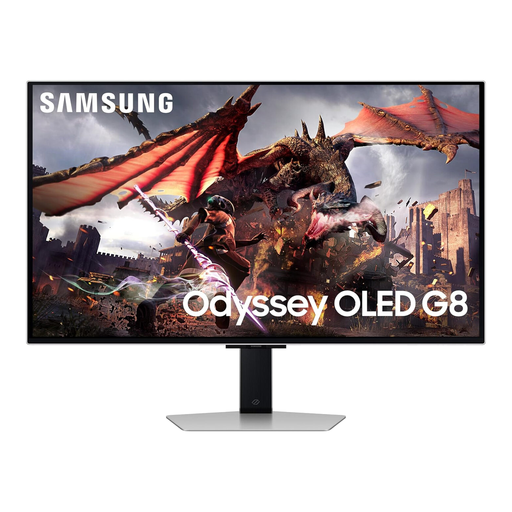
Samsung Odyssey OLED G8 LS32DG802SUXXU 32-inch Ultra HD monitor
Consider this OLED screen if its 32-inch format fits your diagramming workspace. Check the stand's adjustment range at both desk heights, along with any colour or laptop-connection functions your work requires.
View on Joybuy
Common questions
How should I position a monitor when using a standing desk?
Keep the screen directly in front of you, with its top about eye level and the display roughly an arm's length away, following Health and Safety Executive guidance. Recheck the position when you change desk height; an adjustable stand helps only if its range suits your workstation.
Does UK display screen equipment guidance require a particular monitor size?
No particular monitor model or size is prescribed in the cited Health and Safety Executive guidance. For workers using display screen equipment daily for continuous periods of an hour or more, employers must assess and reduce workstation risks, considering the equipment, furniture, working conditions and task together.
Is a fixed hourly screen break a legal requirement?
No: the Health and Safety Executive says there is no legal guidance specifying exactly how long or how often display screen equipment breaks must be. Plan changes of activity that suit the work rather than treating one suggested schedule as a rule.
Can USB-C replace both my laptop charger and display cable?
It can when the laptop, monitor and cable support the required video and charging functions. For example, LG lists 4K display, data and up to 90 W charging for its 27UP85ZK-W using the included USB-C cable; compare those conditions with your laptop before relying on one connection.


