What should you check before buying?
Start with your usual script-and-notes layout, then check whether the screen can sit comfortably at your desk and connect to your computer as intended.
| Concern |
What to check |
Who this matters to |
| Readable script text |
Compare screen size and native resolution, then try text scaling in your screenplay application at your normal viewing distance. |
If I spend hours reviewing formatted pages, I want dialogue and revisions to remain comfortable to read. Roughly 31% of consumers put text readability first. |
| Room for supporting material |
Decide whether you need one script, two windows side by side or several persistent panes; check the screen shape against your desk width. |
When an outline or research needs to stay beside my script, switching between windows interrupts the layout I rely on. For around 25% of consumers, workspace is the primary concern. |
| Screen positioning |
Check height adjustment and whether tilt, swivel or pivot would help at your desk. Consider the full workstation rather than an eye-care label alone. |
If I write for long stretches, I need to place the screen appropriately for my chair and desk. Positioning comes first for roughly 25% of consumers. |
| Laptop connection |
Confirm USB-C video support, the laptop’s charging requirement and the monitor’s stated functions; check what cable you will use. |
When I reconnect a laptop after writing elsewhere, I want the display and any needed peripherals to work together. Around 19% of consumers chiefly prioritise a simpler laptop setup. |
Joybuy monitors for screenplay writing
These choices focus on 27-inch 4K screens for a script alongside reference material, with one compact Full HD option for a more document-focused desk. Check text scaling, screen position and computer connections against your own setup.
 No image available
BenQ MA270UP 27-inch 4K Nano Glossy IPS USB-C monitor
Consider this 27-inch 4K format if you want room for a script and supporting windows. Its Nano Glossy finish makes reflections worth checking in your intended lighting.
USB-C and a height-adjustable stand are listed; confirm the video and charging functions you need with your computer.
Joybuy
 No image available
MSI MD272UPSW 27-inch 4K IPS Smart Monitor
The 27-inch 4K screen offers a format for arranging screenplay pages beside notes. The product name lists USB-C with 65 W power delivery and Google TV.
Check whether your laptop supports the required USB-C video and charging functions. The smart-TV features are a separate consideration from writing workspace.
Joybuy
 No image available
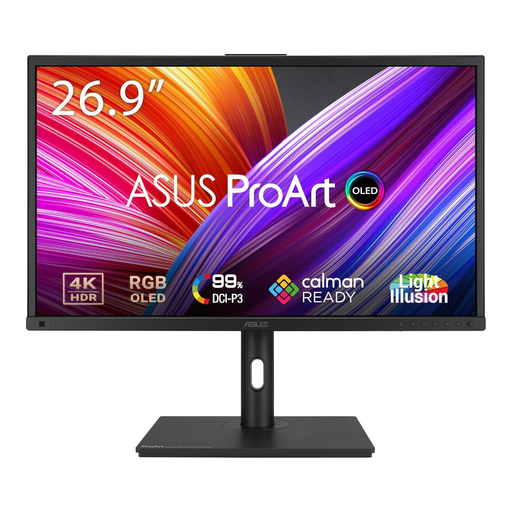
ASUS ProArt PA27DCE-K 4K OLED monitor
This 4K OLED model is relevant if your desk is used for screenplay writing and other creative work. Check text scaling in your writing application before choosing it for long drafting sessions.
The product description advises against prolonged static images at high brightness to reduce burn-in risk, a consideration for a screenplay application left on screen. If laptop charging through the monitor matters, confirm its USB-C power output and compatibility.
Joybuy
 No image available
LG 27UP650K 27-inch 4K IPS monitor
Consider this flat 27-inch 4K screen if you want to arrange a screenplay alongside reference windows. Check that your computer and screenplay application give you a comfortable text size at your usual viewing distance.
HDMI and DisplayPort are named in the product title; confirm that your intended connection works with your computer.
Joybuy
 No image available
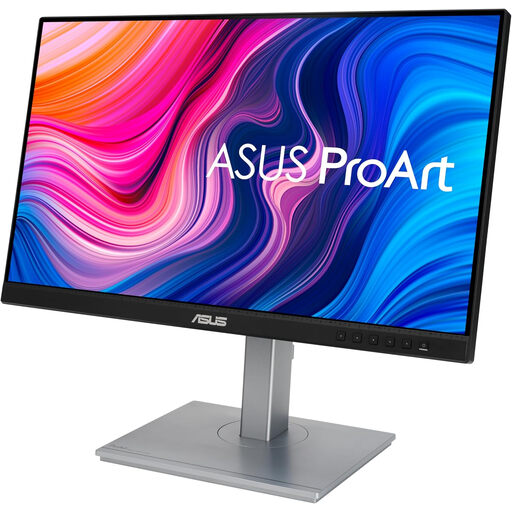
ASUS ProArt PA247CV Full HD IPS monitor
This Full HD option suits a desk where one screenplay is the main document. Check whether its available screen space also fits the notes you usually keep visible.
If you plan to use USB-C for a laptop connection, confirm its supported video mode and charging needs against the monitor’s functions.
Joybuy
Screenplay monitor questions
Do I need a 4K monitor to write a screenplay?
No: a compact Full HD monitor can suit drafting mainly in one document. Consider QHD or 4K if you want more room for simultaneous windows or finer text detail, and check scaling at your normal viewing distance before deciding.
Should I choose an ultrawide or a smaller monitor?
Choose according to the windows you regularly keep visible and the space on your desk. An ultrawide can accommodate several persistent windows, while a smaller adjustable monitor may be sufficient when your screenplay is usually the only open document.
Which stand adjustments matter for screenplay writing?
Start with whether you can position the screen appropriately at your desk; height adjustment is useful for that check. Tilt, swivel and pivot may help with your particular layout, while the Health and Safety Executive’s display-screen-equipment guidance addresses the wider workstation rather than prescribing a monitor model.
Can one USB-C cable run the display and charge my laptop?
It can when the laptop and monitor support compatible USB-C video and charging functions at the power your laptop requires. For example, Dell lists up to 90 W power delivery for its U2424HE; check your own laptop’s display and charging specifications rather than relying on the connector shape.
Does UK workplace guidance require a particular screenplay monitor?
The Health and Safety Executive’s display-screen-equipment guidance addresses workstation risks rather than prescribing a screenwriting monitor size or brand. For work-related use, check which duties apply to your role and actual workstation, including a fixed, home-based or mobile setup.


