Dense-log readers
If you scan long logs, timestamps and side-by-side terminal output, usable desktop space and a comfortable text size matter more to this task than gaming-focused specifications.


For reading dense server logs, choose a screen that gives you enough room for your panes at a text size you find comfortable. A 27-inch QHD monitor is worth considering if that workspace is sufficient; a 27-inch 4K monitor offers more native pixels, but you may need to adjust text scaling. For longer sessions, consider screen positioning and the whole workstation, and check laptop video and charging compatibility before choosing USB-C connectivity.
If you scan long logs, timestamps and side-by-side terminal output, usable desktop space and a comfortable text size matter more to this task than gaming-focused specifications.
If log inspection keeps you at a study desk for extended periods, consider monitor positioning alongside lighting, furniture and the rest of your workstation, as advised by the Health and Safety Executive.
If you connect a work laptop at the desk, a compatible USB-C monitor may combine display, data and charging connections. Check the laptop’s video output and power needs before relying on one cable.
Start with the text size and workspace you need for logs, then consider screen positioning and whether your laptop can use the monitor’s connections.
| Concern | Buying checks | Who this matters to |
|---|---|---|
| Log workspace and text size | Compare QHD and 4K at your preferred text scaling; check how many log panes you need to view together. | When I read timestamps across several panes, I need enough room without making the text too small. Around 33% of consumers would put log workspace and readability first. |
| Positioning for long sessions | Check the stand’s height, tilt and pivot adjustments against your desk position, and consider reflections from the study lighting. | If I spend long periods inspecting logs, I want to position the screen comfortably as part of my desk setup. For around 42% of consumers, that would be the primary concern. |
| Laptop connection | Confirm the laptop’s external-display support and charging requirement, then check the monitor’s USB-C capability and the cable. | With a work laptop on my study desk, I would prefer fewer separate connections if one cable can do the job. Laptop connectivity would come first for around 25% of consumers. |
More native pixels give you room to arrange log panes, but they do not guarantee that text will look comfortable at your chosen size and viewing distance.
Compare QHD and 4K using the text scaling and window layout you expect to use, rather than assuming that 4K will always be easier to read.
Height and pivot adjustments help you position a display, but lighting, furniture and working conditions also affect the setup. The Health and Safety Executive advises considering the whole workstation.
Set the monitor’s position alongside your chair, desk layout and room lighting; adjust brightness and contrast to suit the room.
Monitor charging ratings differ, and a USB-C connector alone does not establish that a laptop can send video through it or receive enough power for your use.
Check the laptop’s external-display support and charging requirement, the monitor’s power-delivery rating and the cable you intend to use.
Dell’s UltraSharp U2725QE is a 27-inch 4K hub-monitor option for a laptop-based desk where connectivity and screen positioning matter.
BenQ’s GW2790QT provides a 27-inch QHD route with an adjustable stand and USB-C connectivity.
LG’s 27UP850K-W is a 27-inch 4K IPS option for someone who wants an adjustable display and a compatible USB-C laptop connection.
ASUS’s ProArt PA279CRV is a 27-inch 4K option when USB-C power delivery, a USB hub and extensive stand adjustment are useful.
These 27-inch QHD and 4K monitors offer different approaches to log workspace and desk positioning. Check the exact connections and screen finish that matter to your study setup rather than assuming that every model supports a one-cable laptop arrangement.
 Image unavailable
Consider this model if you want a 4K screen for arranging log panes and also want USB-C connectivity at your study desk.
The product name specifies an IPS display and 65 W USB-C capability. Check that your laptop supports the intended video connection and that its charging needs fit; confirm the screen finish if reflections concern you.
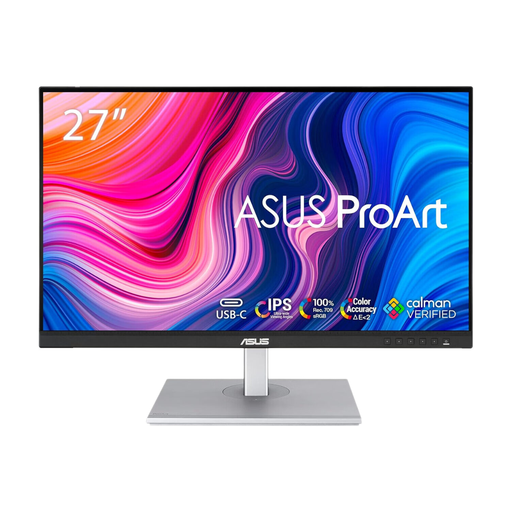 Image unavailable
Consider this QHD model if its workspace suits your log layout and you do not need the additional native pixels of 4K.
Its product name specifies IPS, QHD and 100 Hz. If you need a one-cable laptop connection, confirm the ports and charging capability of the exact unit before buying.
 Image unavailable
Consider this model if you want a 4K desktop and USB-C connectivity for a compatible laptop.
The product name specifies a Nano Glossy IPS display and a height-adjustable stand. Consider how its glossy finish will look with your study lighting, and confirm the laptop and cable requirements for the USB-C arrangement you intend to use.
 Image unavailable
Consider this model if you want 4K workspace for log panes and can set the text size to suit your viewing position.
The product name specifies HDMI, DisplayPort and built-in speakers. Check the screen finish if reflections matter, and confirm the available connections if you want to connect and charge a laptop through one cable.
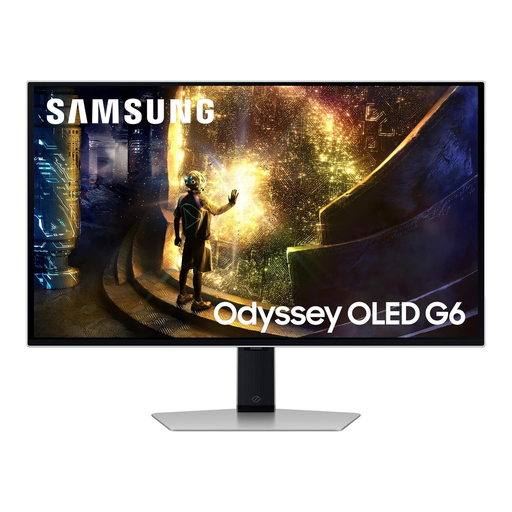 Image unavailable
Consider this QHD model if that resolution gives you enough room for the log panes you use; its gaming-focused specifications need not drive a log-reading decision.
The product name specifies OLED and a 240 Hz refresh rate. Check whether QHD gives you enough workspace and confirm connectivity separately if you need a one-cable laptop setup.
No: a 27-inch QHD monitor can be sufficient if it fits your log panes at a comfortable text size. A 27-inch 4K screen offers more native pixels, but check the scaling and font size you would actually use.
Yes, if the laptop, monitor and cable support the intended display and charging functions. Check the laptop’s external-display capability and power requirement against the specific monitor: BenQ lists 65 W for the GW2790QT, LG lists up to 90 W for the 27UP850K-W, and ASUS lists 96 W for the PA279CRV.
Start with text size or display scaling, screen position, and brightness and contrast suited to the room. The Health and Safety Executive advises adjusting brightness and contrast for the lighting conditions; a monitor feature alone is not a substitute for considering the whole workstation.
The Health and Safety Executive’s guidance focuses on assessing the workstation rather than selecting a particular monitor model. Where display screen equipment rules apply to a worker’s home-working arrangement, the assessment considers equipment, furniture and working conditions together.