For a personal second screen at a library-event desk, choose a laptop-powered USB-C portable monitor only after confirming that the laptop can send video through its USB-C port. For a screen several people need to see, a larger transportable monitor may suit the desk better, but its placement, weight and power supply need more planning. Extra extension sockets do not replace checks on electrical load, venue rules and cable routes.
Who is choosing the monitor?
Organisers setting up individual desks
If staff need a second screen for check-in, schedules or presenter notes, a compact monitor can keep each workstation simple. Check the laptop’s USB-C video output before planning around one cable; ASUS identifies this as a condition for its laptop-powered ZenScreen MB16FC.
Organisers setting up a shared screen
An information desk or small demonstration calls for a screen that nearby people can see and that fits the available surface or mount. ASUS presents its larger ZenScreen MB229CF as an option for small-group demonstrations, but its placement and power arrangement still need checking.
Organisers responsible for the venue setup
When visitors may pass temporary equipment, the monitor choice is also a cable and electrical-planning decision. The Health and Safety Executive advises routing event cables to minimise trips and damage; confirm the library’s equipment rules as well.
What matters when choosing?
Decide whether the screen is for one worker or a small group, then test the intended laptop and map out power and cable routes at the actual desk.
Laptop-powered USB-C monitor
Choose when: One person needs a portable second screen and the laptop supports USB-C video output. ASUS documents laptop-powered, one-cable use for the ZenScreen MB16FC.
Trade-off: That arrangement depends on the laptop and monitor working together; running the screen from the laptop also makes battery runtime worth testing.
Larger transportable monitor
Choose when: Several people need to view the same information at a staffed desk or demonstration point.
Trade-off: A larger screen needs a suitable position and a confirmed power arrangement; ASUS lists its 21.5-inch MB229CF at 2.2 kg.
| Concern |
What to check |
Who this matters to |
| A separate monitor socket |
Confirm that the monitor can take video and power from the intended laptop, and that its USB-C port supports video output. |
At a check-in desk, I want a second screen without another plug and need the laptop to keep it running. Around 50% of consumers making this choice put avoiding a dedicated monitor socket first. |
| Shared visibility |
Check screen size and whether the stand or mount fits the desk or partition. |
For a small demonstration, I need visitors nearby to see one screen without crowding a personal workstation. Around 30% of consumers put shared viewing first. |
| Temporary setup safety |
Check equipment ratings and the library’s rules; plan a cable route away from public movement. |
If visitors will pass the desk, I need leads and equipment positioned so the setup remains manageable. Around 20% of consumers place this concern first. |
Mistakes to avoid
-
Assuming any USB-C port will drive a monitor
A USB-C connector does not, by itself, establish video support. ASUS says plug-and-play use of its portable monitors requires the computer’s USB-C connection to support video.
Check the laptop’s port specification and test the exact laptop, monitor and cable before the event. Plan an HDMI-and-power alternative only if the chosen monitor supports one.
An alternative connection may require a separate cable or power lead.
-
Daisy-chaining extension leads to gain sockets
Electrical Safety First warns against plugging one extension lead into another and notes the overheating risk from overloaded extension equipment.
Ask what the library permits, check the connected equipment’s ratings and use an appropriately rated extension device only where the venue allows it. Do not chain extensions.
-
Choosing a shared screen before choosing its position
A larger monitor needs a suitable desk, clamp point or partition as well as a protected cable route. ASUS lists mounting options for its MB229CF, while the Health and Safety Executive advises minimising trip hazards and cable damage at events.
Measure the intended position, check the mounting surface and identify where visitors and staff will walk before settling on the screen.
-
Relying on a PAT label as the only equipment check
The Health and Safety Executive says visual examination remains important because some electrical defects cannot be detected by testing alone.
Check monitors, chargers, plugs and leads for visible damage before setup, and follow the library’s procedure for equipment brought into the venue.
Relevant brands to consider
ASUS ZenScreen
The ZenScreen range includes both individual portable screens and larger transportable displays. ASUS documents laptop-powered use for the 16-inch MB16FC and small-group demonstration use for the 21.5-inch MB229CF.
- The MB16FC can carry video and power over one USB-C cable when the host supports the required USB-C video function.
- Without compatible USB-C video output, its documented HDMI alternative needs separate USB-C power; the larger MB229CF also needs a suitable position and power plan.
Lenovo ThinkVision
Lenovo lists the ThinkVision M14t Gen 2 as a 14-inch touch monitor with two USB-C ports, 65 W power pass-through and a weight of 700 g.
- Its compact format is relevant to a staff workstation that needs to move between event spaces.
- Check the intended laptop’s USB-C display output and charging requirements before relying on one connection for the workstation.
Dell
Dell lists the Pro 14 Plus Portable Monitor P1425 as a 14-inch, 1920 × 1200 display. Its dock-based equipment offers a different approach for workstations where connections, rather than the fewest monitor plugs, are the priority.
- The P1425 offers a compact screen option for a staff-facing desk.
- A dock can organise laptop connections but does not remove the mains requirement of a conventional mains-powered monitor.
Joybuy product choices
These choices include portable screens for individual event workstations and a larger monitor to assess for a shared desk. Before relying on any of them to save a socket, confirm the exact laptop, monitor and power arrangement you intend to use.
 No image available
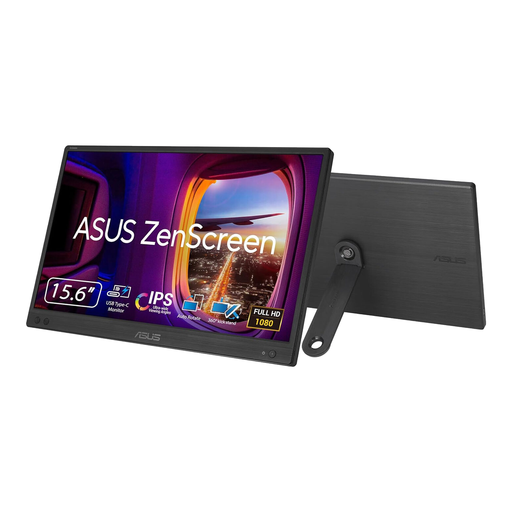
ASUS ZenScreen MB166CR FHD
Consider this FHD screen for a personal event workstation where a portable second display is needed.
Test its connection with the intended laptop, including USB-C video support, and check how the complete setup will be powered for the event.
View on Joybuy
 No image available
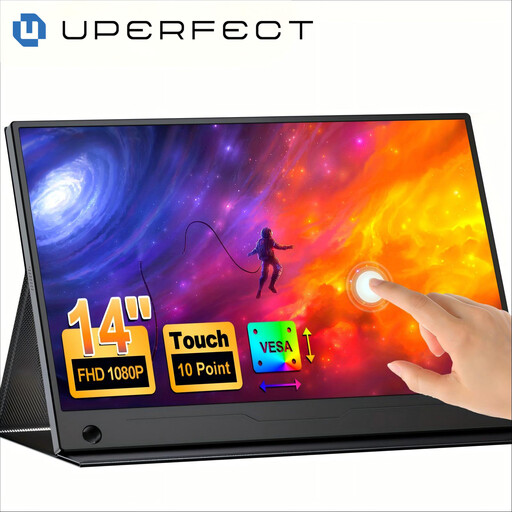
UPERFECT 14-inch 60 Hz touchscreen monitor
This compact touchscreen is a choice to assess for an individual staff desk.
Its title specifies VESA compatibility and a 180° adjustable stand. Check the intended connection and power supply together before planning a one-cable setup.
View on Joybuy
 No image available
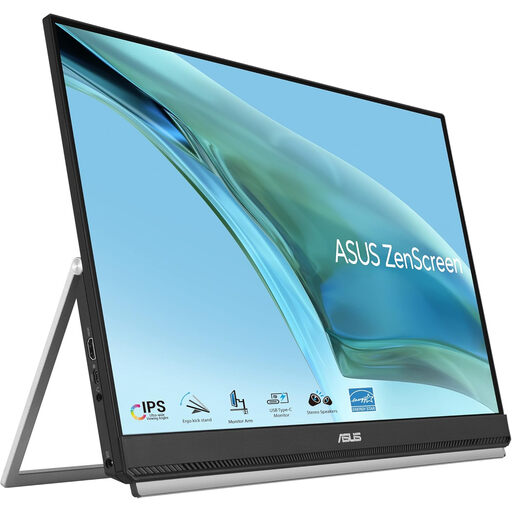
ASUS ZenScreen MB249C IPS USB-C
Assess this model for a shared information desk where the screen’s position matters alongside the available sockets.
It is identified as an IPS USB-C model. Confirm its required power supply, mounting fit and transport weight before deciding whether it works at the planned desk.
View on Joybuy
Common questions
Can a USB-C portable monitor run through one cable?
Yes, when that monitor supports video and power over USB-C and the laptop can send video through its USB-C port. ASUS documents this arrangement for the ZenScreen MB16FC; check the port specification and test the actual laptop, monitor and cable before the event.
Does a portable monitor always free up a wall socket?
No. A laptop-powered monitor may avoid its own mains connection, but the laptop still needs enough battery runtime or a suitable charging arrangement. Test the planned setup for the event’s duration rather than assuming that a USB-C connector guarantees socket-free use.
Does every device at a library event need an annual PAT test?
The Health and Safety Executive does not prescribe an annual portable appliance test for every device. Equipment that could cause injury must be kept safe, and the library may have its own inspection or equipment-admission rules, so confirm those before bringing monitors, chargers or extension equipment.
How should monitor cables be managed around visitors?
Plan the desk and cable route before setup, keeping leads away from visitor movement where practicable. The Health and Safety Executive advises routing event cables to minimise trips and mechanical damage, even when a USB-C setup uses fewer leads.


