Shared-desk catalogue editors
People who take over a workstation and need to reset screen height, alignment and viewing distance. The Health and Safety Executive’s display-screen guidance is relevant to this shared-desk setup.


Start with a monitor that each desk user can reposition comfortably; a 27-inch QHD display is a practical route for routine catalogue editing, while a 27-inch 4K display offers more pixels when close review of product images matters. If different laptops and peripherals share the desk, check video output, charging requirements and switching features for the exact equipment rather than assuming USB-C provides a complete one-cable setup. The Health and Safety Executive’s guidance also makes clear that screen positioning is part of the wider workstation setup.
People who take over a workstation and need to reset screen height, alignment and viewing distance. The Health and Safety Executive’s display-screen guidance is relevant to this shared-desk setup.
People who check crops, product photographs and web assets as well as catalogue text. A higher-resolution screen and model-specific colour specifications may matter more to them; BenQ lists both for its PD2705U.
People who reconnect compatible laptops or share a keyboard and mouse. USB-C video, charging and KVM switching are separate capabilities to check against the computers in use.
Settle how the screen will be repositioned and connected at each handover before deciding whether QHD or 4K better suits the catalogue work.
| Concern | What to check | Who this matters to |
|---|---|---|
| Resetting screen position | Check height and tilt adjustment, plus swivel or pivot if the desk layout calls for them. Allow room for the stand. | If I inherit a screen set for someone else, I need to bring it into a comfortable position before working. Around 31% of consumers put that reset first. |
| Laptop and peripheral handover | Match the laptop’s video output and charging needs to the monitor’s ports and power delivery; check how any KVM switch works. | Changing laptops is disruptive if I also have to reconnect the keyboard and mouse each time. Around 25% of consumers prioritise a workable connection and switching setup. |
| Image detail and colour | Compare native resolution and the exact model’s stated colour-space coverage for the assets you review. | When I inspect product photographs and web assets closely, readable detail and relevant colour specifications matter more to me than extra connection features. Roughly 25% of consumers make image review their primary concern. |
| Fit on the shared desk | Measure the available width and depth; for a clamp arm, check the desk edge and whether mounting is permitted. | I need to leave space for the laptop, keyboard and the next desk user, so the monitor’s physical setup comes first. Around 19% of consumers share that priority. |
A movable screen cannot correct an unsuitable chair, desk layout, lighting or work routine. The Health and Safety Executive says a display-screen-equipment assessment considers the whole workstation and working conditions.
Where staff use display screen equipment daily for continuous periods of an hour or more, arrange the appropriate workstation assessment and use screen adjustment as one part of the response.
USB-C alone does not establish video support, sufficient laptop charging or keyboard-and-mouse switching. BenQ specifies DisplayPort Alt Mode video and 65 W power delivery for the PD2705U, but the connected laptop must be compatible.
Check the laptop port, charging requirement, video mode, cable and intended peripheral-switching arrangement before relying on one cable.
A separate charger, suitable cable, dock or adapter may be needed if the intended connection cannot handle every task.
LG’s DualUp 28MQ780-B attaches with a C-clamp, which needs a suitable desk edge and permission to use it. LG marks this model’s UK listing as discontinued.
Check the desk edge, mounting rules and current availability before committing to that layout.
A larger panel changes the space needed at a shared desk. Dell lists its U4323QE as a 42.5-inch monitor with height, swivel and tilt adjustment, but not pivot.
Measure desk depth and establish whether simultaneous multi-window viewing justifies that format before choosing it over a smaller, easier-to-position screen.
The E27u G5 represents a conventional 27-inch QHD route for shared-desk catalogue work.
The PD2705U is a 27-inch 4K option for reviewing catalogue images and sharing peripherals between compatible computers.
The UltraSharp U2725QE is a 27-inch 4K hub-monitor option where compatible laptop connectivity is a priority.
The DualUp 28MQ780-B illustrates a taller 16:18 workspace for long pages or stacked applications where a clamp mount is suitable.
These monitors offer QHD or 4K viewing options for catalogue editing and image review. Check each model’s connection and stand arrangements against the laptops and shared desk it will serve.
 No image available
A 4K option for reviewing detailed catalogue images. Its product name specifies USB-C and an adjustable stand; if the desk uses non-Mac laptops or shared peripherals, confirm host compatibility and the intended switching arrangement before buying.
 No image available
A QHD option for routine catalogue text, grids and image checks. If one-cable laptop use or peripheral handover matters, confirm USB-C video support, charging power and switching behaviour for the planned equipment.
 No image available
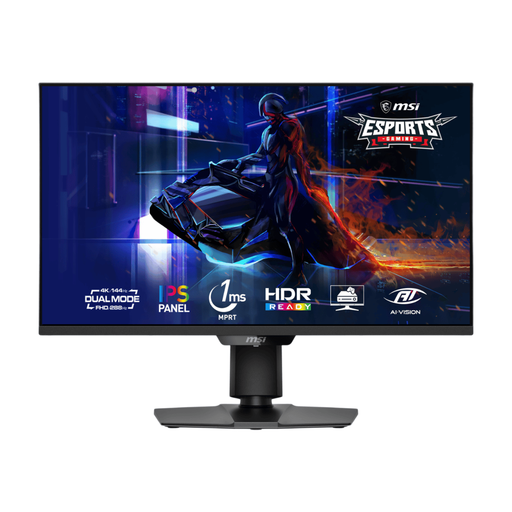
A 4K screen for consumers who also want the gaming modes named for this variant: UHD at 144 Hz or FHD at 288 Hz. Those refresh modes are not a requirement for catalogue editing; check laptop connections and peripheral handover separately.
 No image available
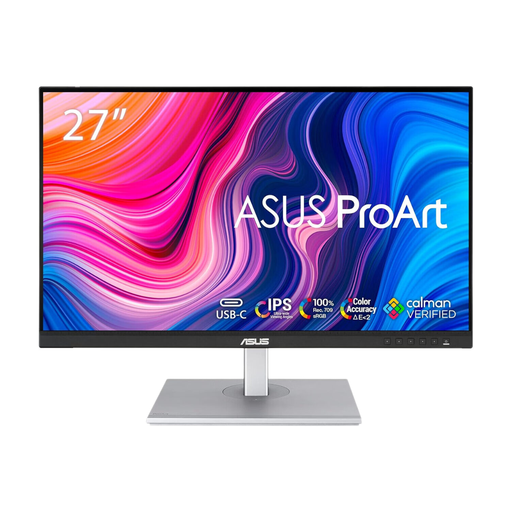
A QHD option for catalogue editing where users need to consider screen positioning between shifts. USB-C configuration varies by region for this model, so confirm the exact connection, charging and peripheral-switching arrangements needed at this desk.
 No image available
A 4K option for close inspection of catalogue images, with DCI-P3 95% stated in the product name. HDMI and DisplayPort are named as inputs; check the stand movement and how each laptop and its peripherals will connect at handover.
The Health and Safety Executive’s cited display-screen guidance does not prescribe a particular monitor size. For employees who use display screen equipment daily for continuous periods of an hour or more, its workstation-assessment guidance addresses the whole setup, including equipment, furniture and working conditions.
Yes, the Health and Safety Executive says its display-screen guidance can apply to hot-desking. It advises workers who regularly change desks to carry out a basic risk assessment; the applicable employer duties depend on how the equipment is used, including whether use is daily for continuous periods of an hour or more.
No: the laptop, monitor and cable must support the functions you intend to use. For example, BenQ specifies DisplayPort Alt Mode for USB-C video and 65 W power delivery on the PD2705U, so check the laptop’s video capability and charging requirement before relying on that connection.
Place the screen directly in front of you, with its top approximately at eye level and the screen about an arm’s length away, in line with Health and Safety Executive guidance. Adjust the rest of the workstation as needed rather than moving only the monitor.