What matters when choosing?
Decide how the desk will be shared before paying for docking or switching features. Then compare screen space, stand adjustment and the connections your computers can use.
| Concern |
What to check |
Who this matters to |
| Switching computers |
Check the video inputs and whether a stated KVM feature also switches the keyboard and mouse between your two computers. |
If I change computers often, I want the handover to interrupt my work as little as possible. Around 36% of consumers put switching convenience first. |
| Document workspace |
Compare 27-inch 4K and QHD screens for your window layout; check desk space before choosing a wider display. |
Keeping listings, maps and comparison tables in view matters more to me than avoiding every window change; around 27% of consumers prioritise document workspace. |
| Adjusting for each user |
Look for stated height and tilt adjustment, and check whether the stand or a compatible mount can position the screen for both users. |
When someone else takes over the desk, I need to reset the screen position for my seating height. Adjustment comes first for around 19% of consumers. |
| Reducing cables |
Check USB-C video support, the monitor’s power-delivery output and the cable required by your laptop. |
I want to reconnect my laptop without handling separate display and charging leads each time. Around 18% of consumers make a compatible single-cable setup their primary concern. |
Monitor choices on Joybuy
These displays offer 4K options for move-planning documents, including 27-inch models and a larger BenQ model. Compare their stated stand and connection features against the way your desk is shared; a USB-C label or a second video input alone does not establish the switching workflow you need.
 No image available
BenQ MA270UP Nano Glossy 27-inch 4K Mac monitor
Consider this for move-planning documents if a 27-inch 4K screen and an adjustable stand suit the shared desk.
The product name specifies an IPS panel, USB-C, a Nano Glossy finish and a height-adjustable stand. Check the intended laptop’s USB-C video and charging compatibility; check two-computer peripheral switching separately if you need it.
View on Joybuy
 No image available
MSI MD272UPSW 27-inch 4K smart monitor with Google TV
Consider this for a shared desk where document space matters and you want to investigate its Multi-Control feature for two devices.
The product name specifies an IPS panel and USB-C 65 W. Confirm how Multi-Control changes video sources and keyboard-and-mouse control for your devices, as well as your laptop’s USB-C video and charging requirements.
View on Joybuy
 No image available
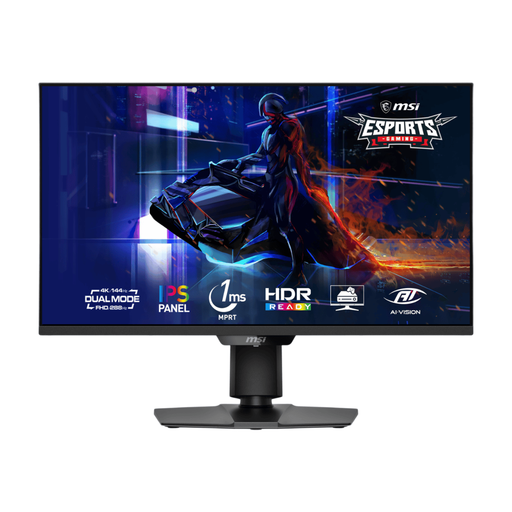
MSI MAG 275UPD E14 27-inch 4K gaming monitor
Consider this if a 27-inch 4K display suits your planning documents and you intend to check the computer connections separately.
The product name specifies a dual mode of UHD 144 Hz and FHD 288 Hz. Check the inputs and stand adjustment against your shared-desk arrangement before deciding how users will change computers.
View on Joybuy
 No image available
LG 27UP650K white 27-inch 4K IPS monitor
Consider this for move-planning documents if HDMI or DisplayPort connections suit the computers using the desk.
The product name specifies a 60 Hz panel, built-in speakers, HDMI and DisplayPort. Check the stand’s adjustment and how you will change sources if two computers use the monitor.
View on Joybuy
 No image available
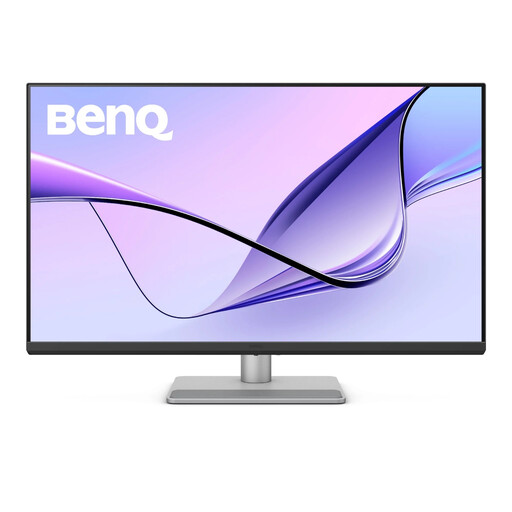
BenQ MA320UP Nano Glossy 32-inch 4K Mac monitor
Consider this larger screen if the shared desk has room for it and you want to arrange several move-planning windows.
The product name specifies an IPS panel, USB-C, a Nano Glossy finish and a height-adjustable stand. Check the available desk space, laptop compatibility and any two-computer switching requirement.
View on Joybuy
Frequently asked questions
Do two people sharing a desk need a KVM monitor?
Not necessarily: KVM is worth considering when two computers regularly share one screen and keyboard-and-mouse set. If people only take turns using one computer, check whether ordinary input switching meets your needs instead. Philips lists Smart KVM on certain business models, but you should confirm the precise peripheral-switching steps for the model you choose.
Will any USB-C laptop work with a USB-C monitor?
No: the laptop must support the video connection you intend to use, and its charging needs must match the monitor’s USB Power Delivery capability. Check the laptop manual and cable specifications; Dell lists up to 65 W for the S2725QC, while LG lists up to 90 W for the 27U730A-B.
How should two people position a shared screen?
Reposition the screen for whoever is using it rather than leaving it at one fixed setting. The Health and Safety Executive advises placing the display directly in front of the user, about an arm’s length away, with its top around eye level; check that the stand can accommodate both seated positions.
What should we consider if the shared desk is used for work?
Consider the whole workstation, not just the monitor. The Health and Safety Executive’s display-screen-equipment guidance includes home working and hot-desking, and its positioning advice should be considered alongside the chair, keyboard, mouse and desk arrangement for each user.


