For a volunteer-hours desk used by different people, prioritise a screen that can be repositioned and connected without rebuilding the setup each time. Choose USB-C docking if the laptops support its video and charging functions; prioritise QHD or a taller 16:10 display if records and schedules need more visible space. The monitor is only one part of the workstation: chair position, desk layout and lighting matter too, as the Health and Safety Executive’s workstation guidance makes clear.
Who is the desk for?
Shared-desk coordinators
You organise a desk used by several volunteers and need a screen that people can reposition and connect without a lengthy changeover. The Health and Safety Executive advises considering the whole workstation when desks are shared.
Roster and spreadsheet users
You spend longer sessions checking hour logs, schedules and browser records, so readable text and room for the windows you use matter more than entertainment features.
Laptop-based volunteer teams
You rotate laptops through the desk and want to reduce the connections handled at each handover. A USB-C monitor is worth considering if those laptops support the required display and charging functions.
What should you check?
Start with how people reset the desk, then choose the screen space and connections that suit the work and the laptops actually used.
| Concern | What to check | Who this matters to |
|---|
| Resetting the desk |
Check stand adjustment, desk depth and the connections used at each changeover. Follow the Health and Safety Executive’s advice to consider the whole workstation, not just the screen. |
When different volunteers take turns, I need to reposition the display without disrupting the desk. Around 40% of consumers put an easier shared-desk reset first. |
| Records workspace |
Compare native resolution, aspect ratio and text scaling using the hour logs and schedules that will be displayed. |
If I review detailed records for longer sessions, I want enough readable space for the windows I use. Roughly 30% of consumers place records workspace first. |
| Laptop connections |
Confirm USB-C video support, laptop charging requirements, the monitor’s power-delivery rating and any needed peripheral ports. |
With laptops changing at the desk, I want fewer connection steps, provided each device is compatible. About 30% of consumers make laptop docking their primary concern. |
Mistakes to avoid
-
Assuming an adjustable monitor fixes the whole workstation
A movable screen cannot correct an unsuitable chair, awkward keyboard position or reflections. The Health and Safety Executive says workstation assessments should consider equipment, furniture, working conditions and the job.
Make resetting the chair, screen, keyboard and mouse part of the desk handover, and check the lighting before work starts.
-
Choosing USB-C by the connector alone
USB-C monitors and laptops differ in video, charging and peripheral capabilities. Dell and LG specify up to 90 W power delivery for the cited P2425HE and 27BA850-B, while BenQ specifies 65 W for the GW2790QT; those ratings do not establish compatibility with a particular laptop.
List the laptops that will use the desk and check their video output, charging needs, cable requirements and any network or USB peripherals.
-
Choosing screen size without checking the workspace
A larger diagonal does not tell you how much native detail is available. Dell specifies QHD for its 23.8-inch P2425D, while Lenovo’s 16:10 ThinkVision T24d-30 provides a taller 1920 × 1200 workspace than FHD 16:9.
Compare resolution and aspect ratio with a representative hours spreadsheet, then check text scaling and whether the screen fits the desk.
Relevant brands to consider
Dell
Dell’s P2425HE and P2425D illustrate two compact office-monitor approaches: a 23.8-inch FHD USB-C hub model and a 23.8-inch QHD model, according to Dell Technologies UK.
- Both cited models have adjustable stands; the P2425HE specifies up to 90 W USB-C power delivery.
- Check the exact model and laptop connections before choosing between docking convenience and QHD detail.
LG
LG UK lists the 27BA850-B as a 27-inch FHD monitor with a built-in webcam, microphone and speakers, alongside USB-C power delivery and LAN.
- Integrated call equipment is relevant if the shared desk also hosts remote check-ins.
- For detailed spreadsheets, compare its FHD resolution with the workspace you need rather than choosing by size alone.
BenQ
BenQ lists the GW2790QT as a 27-inch QHD USB-C monitor with an adjustable stand and 65 W power delivery.
- The cited model brings QHD workspace and USB-C connection features together.
- Confirm that its stated power delivery and video connection suit each laptop using the desk.
Lenovo ThinkVision
Lenovo lists the ThinkVision T24d-30 as a 24-inch, 16:10 WUXGA office monitor with height, tilt, swivel and pivot adjustment.
- Its 1920 × 1200 format gives records users more vertical pixels than FHD 16:9.
- Lenovo lists HDMI, DisplayPort and VGA connections for this model rather than USB-C laptop charging.
Joybuy monitor options
These monitors offer different screen formats for records work at a shared desk. Check physical fit and laptop connections against your setup; a display feature alone does not make a model suitable for every volunteer.
 No image available
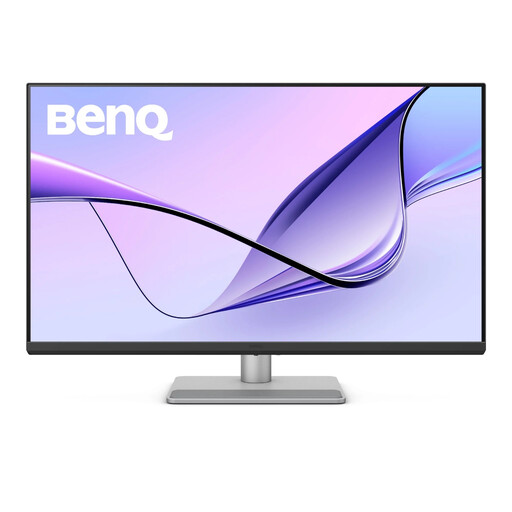
BenQ MA320UP 32-inch 4K USB-C Mac monitor
Consider this larger display if the desk is used to view several records windows. Its title specifies a Nano Glossy IPS 4K UHD screen and a height-adjustable stand; check desk space and compatibility with the laptops that will use it, particularly non-Mac devices.
View on Joybuy
 No image available
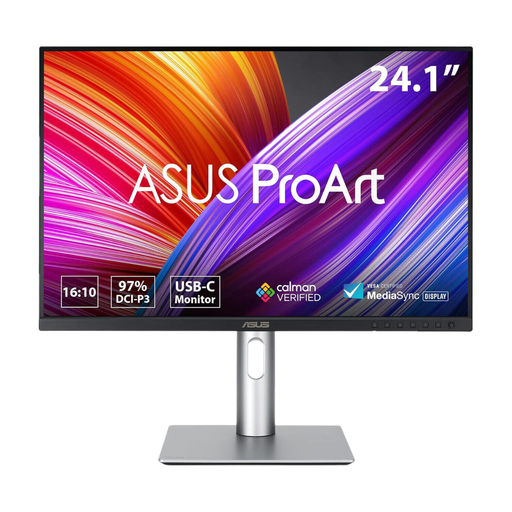
ASUS ProArt PA248CRV IPS WUXGA monitor
Consider its WUXGA display when vertical room for forms or spreadsheets is a priority. If laptops or shared peripherals will connect through the monitor, confirm the required laptop compatibility and the configuration supplied.
View on Joybuy
 No image available
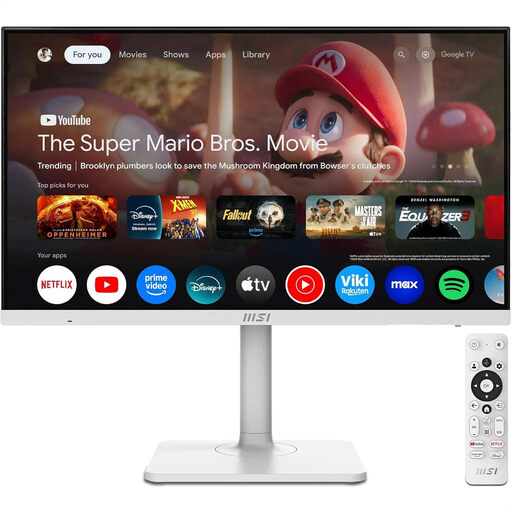
MSI MD272UPSW 27-inch 4K Smart monitor
This is an option for a desk where a 27-inch 4K display fits and detailed records need to remain visible. The title specifies IPS, Google TV, Dolby Audio and USB-C 65 W; check that each laptop supports the required video connection and that its charging needs fit the stated rating.
View on Joybuy
 No image available
ASUS ProArt PA278CV IPS WQHD monitor
Consider its WQHD format for schedules and spreadsheets, provided the screen fits the shared desk. If USB-C charging matters, confirm the monitor’s power-delivery rating against the laptops before choosing it for docking.
View on Joybuy
 No image available
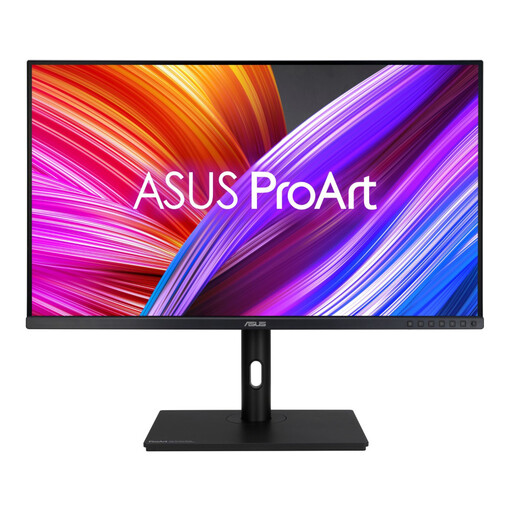
ASUS ProArt PA328QV IPS WQHD monitor
Consider its WQHD display where the desk has room for a larger records screen. Check physical fit and the connections needed by shared laptops; plan separately for laptop charging if that is part of the desk setup.
View on Joybuy
Common questions
Does a shared desk need a display screen equipment assessment?
For workers using display screen equipment daily for continuous periods of an hour or more, the Health and Safety Executive says employers must assess the workstation. Its hot-desking guidance also advises workers who change desks regularly to carry out a basic risk assessment; the assessment covers the whole setup, not only the monitor. That worker guidance does not, by itself, establish how the rules apply to every volunteer arrangement.
What should someone adjust when taking over the monitor?
Set the screen so its top is roughly level with the eyes and it sits about an arm’s length away, following Health and Safety Executive guidance. Then adjust the chair, keyboard and mouse position, and check the screen for reflections or glare.
Is USB-C necessary for tracking volunteer hours?
No: the connection should suit the laptops and peripherals used at the desk. USB-C can be useful for compatible laptops when video and charging are both needed, but check those capabilities and the required power; HDMI or DisplayPort may suffice when one-cable docking is not needed.


