Small-desk laptop extension builders
You need room to read code, use DevTools and keep browser windows open, without letting the monitor base and laptop connections take over the desk.


A 27-inch 4K monitor is a useful starting point for laptop-based browser-extension work, but choose one only if the screen and its stand or mount fit the desk while leaving a comfortable viewing distance. Prioritise a position you can adjust and text you can read at your preferred display scaling; check USB-C video and charging against your laptop if fewer cables matter. Colour features deserve more attention when you also review interface assets.
You need room to read code, use DevTools and keep browser windows open, without letting the monitor base and laptop connections take over the desk.
If you inspect icons, layouts, screenshots and branded assets, documented colour modes may matter alongside coding space.
You build extensions but also want smoother scrolling or casual gaming. Consider refresh rate after confirming that the screen fits and text is comfortable to read.
Start with usable desk space and screen position, then assess text scaling, laptop connections and any colour-sensitive work. The Health and Safety Executive advises placing a screen about an arm’s length away, with its top near eye level.
| Concern | What to check | Who this matters to |
|---|---|---|
| Desk fit and viewing position | Measure usable desk depth and the stand base; check adjustment or compatible mounting if the screen needs repositioning. | I need space for a keyboard and laptop without pushing the screen too close. Around 36% of consumers would put desk fit and positioning first. |
| Readable code and browser workspace | Try a readable operating-system scaling setting before assuming that 4K will provide more usable window space. | Code, DevTools and a browser view need to remain legible together. Readable workspace would be the primary need for around 29% of consumers. |
| Single-cable laptop connection | Check USB-C video support and compare the monitor’s power delivery with the laptop’s charging requirement. | I want fewer connections around my laptop, but still need display output and adequate charging. Around 21% of consumers would make that cable setup their first priority. |
| Colour-sensitive UI review | Look for relevant colour modes and calibration information; consider how your operating system and applications manage colour. | When I review branded assets or interface colours, their appearance matters more than extra workspace alone. Colour review would come first for around 14% of consumers. |
A 27-inch panel still needs a workable viewing position. BenQ specifies a 238.3 mm stand depth for the PD2706U; that figure applies to that model, not to every 27-inch monitor.
Measure the space left after the keyboard, laptop and cables are in place. If you plan to use an arm, check the monitor’s mounting pattern, the arm’s load rating and desk-edge clearance.
A USB-C socket does not, by itself, establish video compatibility or sufficient charging power. LG specifies up to 90W charging for the 27UP850K-W, while ASUS specifies 96W power delivery for the PA279CRV; neither figure establishes suitability for every laptop.
Confirm USB-C video output, the cable requirements and the laptop’s charging needs before planning a one-cable setup.
If the monitor cannot supply the connection your laptop needs, you may still need to keep a separate charger or dock on the desk.
Documented colour coverage is relevant when reviewing visual assets, but it does not replace readable text, a usable screen position or appropriate colour settings in your workflow.
Decide whether you regularly review branded UI assets or design hand-offs before making colour features a deciding criterion.
The Health and Safety Executive advises considering screen position, lighting and breaks as part of display-screen work; monitor specifications alone do not determine the setup.
After installation, adjust the screen and lighting, and arrange the keyboard and mouse so the workstation works as a whole.
The 27UP850K-W is a 27-inch 4K IPS option for laptop users considering USB-C display, data and charging connections.
The PD2706U combines 27-inch 4K display specifications with documented colour features for development that includes visual review.
The ProArt PA279CRV is a 27-inch 4K option to consider when extension work includes colour-sensitive assets as well as laptop connectivity.
The S2725QC is a 27-inch 4K USB-C model for buyers considering work use alongside a higher refresh rate.
These 27-inch 4K monitors offer different approaches to extension work on a small desk, from laptop connections to adjustable positioning and a gaming-focused option. Check each model’s base dimensions against your space before deciding.
 No image available
Consider this for laptop-based extension work if its glossy screen suits your desk lighting.
The product name specifies an IPS panel, USB-C and a height-adjustable stand. Check laptop video and charging compatibility, as well as the stand’s base dimensions.
 No image available
Consider this model if you want a 27-inch 4K screen for code and browser windows.
Check its supplied-stand dimensions against your desk. If you need laptop charging through the monitor, confirm the connection and power-delivery specifications before relying on one cable.
 No image available
Consider this model if you want a 4K coding screen with the Smart Monitor features named in its listing.
The product name specifies an IPS panel and USB-C 65W. Confirm that 65W meets your laptop’s charging needs, that its port supports video output, and that the stand fits the desk.
 No image available
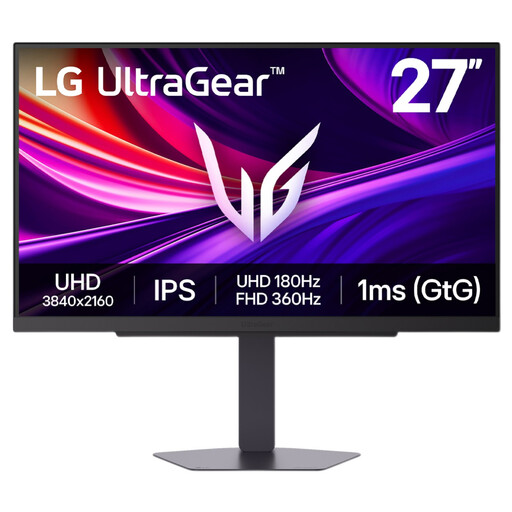
Consider this gaming-focused model if you also value its refresh-rate options; they are not a requirement for building extensions.
The product name specifies an IPS panel and Dual Mode with a stated maximum of 360Hz. Check the display mode, required connections and with-stand dimensions for your intended setup.
 No image available
Consider this model for code and browser windows if its connections suit your computer.
The product name specifies 60Hz, HDMI, DisplayPort and built-in speakers. Check the stand’s base dimensions, and verify your connection options if you want a single-cable laptop setup.
No: it needs to fit at a workable viewing distance, with space left for your keyboard and laptop. The Health and Safety Executive advises placing the screen about an arm’s length away with its top near eye level, so measure the desk and the exact stand or mounting arrangement before buying.
Check that the laptop supports video output through its USB-C port, that the cable suits the connection and that the monitor supplies enough power for the laptop in use. A monitor’s stated charging wattage alone does not establish compatibility.
The Health and Safety Executive’s display-screen guidance focuses on workstation assessment and reducing risks, not choosing a particular monitor size. If you use display screen equipment for work, assess whether the screen and mounting arrangement allow a suitable working position.
Qualifying display screen equipment users can ask their employer to arrange an eye test, according to the Health and Safety Executive. This is separate from choosing a monitor; discuss your working arrangements with your employer rather than expecting a display feature to address eyesight concerns.
Use the energy label and product information sheet to compare energy information for otherwise suitable displays. GOV.UK states that products within the scope of UK energy-information rules must show an energy label at the point of sale and have a product information sheet; an energy class does not tell you whether text scaling or laptop connections will suit your setup.