Sports-footage reviewers
If you follow fast action, pause clips and replay moments at your desk, check both the display mode and the output your playback device can provide.


For sports footage and study work on one screen, choose a resolution and refresh rate your source device can deliver, then check screen positioning and private audio. If you also intend to record a live fixture, establish the separate capture method, service permissions and applicable TV Licence requirements before choosing a monitor: display specifications do not establish recording capability.
If you follow fast action, pause clips and replay moments at your desk, check both the display mode and the output your playback device can provide.
If the same screen serves footage, notes and schedules, positioning and audio control matter alongside resolution. The Health and Safety Executive advises arranging the desk and screen to avoid glare or bright reflections.
If capturing a live programme is the main task, treat the monitor as the viewing part of a wider setup. Check the source, recording equipment and permissions before selecting a display connection.
Settle what you need to record and how you will record it before comparing screen specifications. For viewing, weigh motion against workspace detail, then check how the monitor will fit a quiet desk.
| Concern | What to check | Who this matters to |
|---|---|---|
| Recording setup | Identify the source, capture method and required connections. For live programmes, check service permissions and TV Licence requirements. | If recording the fixture is my main aim, a clearer picture will not help unless I can capture the intended source. Around 33% of consumers put recording arrangements first. |
| Fast-motion playback | Check resolution and refresh rate through the input you will use, and what your source device can output. | When I replay quick movement, I want a display mode that suits the footage and my playback device. Roughly 25% of consumers make motion their primary concern. |
| Quiet-study setup | Check stand adjustment or VESA mounting, reflections at your desk and a suitable private-audio route. | If others share my quiet space, I need to position the screen comfortably and keep sound under control. About 25% of consumers put the study setup first. |
| Detail and workspace | Compare native resolution and screen size with your source material and desk-work needs. | When I read notes beside footage or inspect still frames, usable screen detail matters more to me than the highest refresh-rate figure. Around 17% of consumers prioritise detail and workspace. |
A screen’s inputs, refresh rate or HDCP support do not establish that a sports service can be captured. Recording depends on the intended source and the wider setup.
Define the source and recording method, then check the service terms and every device in the signal chain before buying.
A monitor’s maximum refresh rate cannot add frames to footage that lacks them, and the available mode may depend on the connection.
Check the resolution and refresh rate available through your chosen input against the output of your computer, console or playback device.
Speakers can be convenient without being suitable when sound would disturb someone nearby.
Plan how you will control the volume or listen privately, and check the audio connections on the exact model.
The Health and Safety Executive advises arranging the desk and screen to avoid glare or bright reflections.
Check desk dimensions and light direction, then confirm that the stand adjustment or a compatible mount allows the position you need.
These examples describe particular monitor lines, not every model from each brand.
Dell UK specifies the 27-inch S2725QS with 4K resolution, up to 120Hz, height and pivot adjustment, and dual 5W speakers.
LG UK specifies the 27-inch UltraGear 27GS60F-B as a Full HD IPS monitor with a 180Hz refresh rate and 1ms GtG response-time specification.
Samsung UK describes the 27-inch Odyssey G50D as a QHD IPS gaming monitor rated at 180Hz.
BenQ lists the 27-inch MOBIUZ EX2710Q with QHD resolution, a 165Hz refresh rate, a headphone jack, height adjustment and VESA mounting.
These monitors offer different screen sizes, resolutions and display modes for viewing sports footage alongside desk work. If you intend to record, assess the source and capture setup separately from the screen.
 Image unavailable
Consider its 4K UHD resolution if footage detail and desk work matter to you. The product name specifies a Nano IPS panel, separate 240Hz and 480Hz dual modes, DisplayPort 2.1 and HDMI 2.1; check which mode your source can deliver through your chosen connection.
For a quiet desk, confirm that its audio and positioning arrangements meet your needs. Recording a fixture still requires a suitable source and capture method.
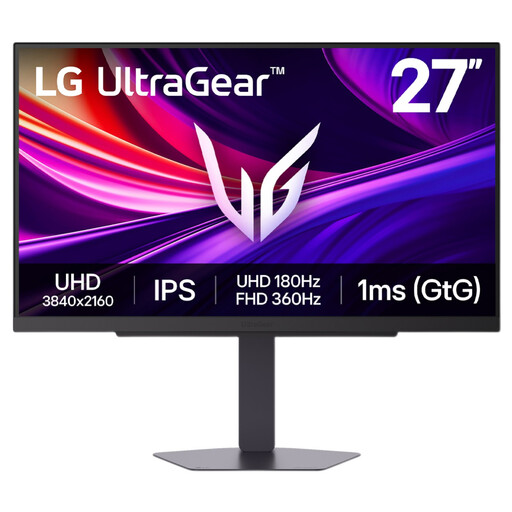 Image unavailable
Its 27-inch 4K UHD IPS specification is relevant if you use one display for footage and detailed desk work. The product name states a maximum 360Hz dual-mode refresh rate; confirm the resolution and connection associated with the mode you intend to use.
Check private-audio and screen-positioning requirements against your desk setup, and establish any recording workflow separately.
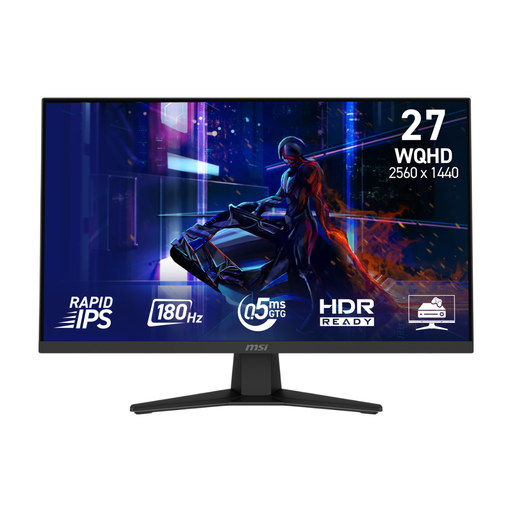 Image unavailable
Consider this WQHD model if you want to compare desk-work resolution with fast-motion display specifications. Its product name states a 180Hz refresh rate, a 0.5ms response-time specification and Adaptive Sync; check the available mode through the connection your source uses.
Confirm the adjustment and audio arrangements you need in a quiet study. The display specification does not settle recording compatibility.
Image unavailable
If a curved screen suits your desk, compare this model’s WQHD Rapid VA panel with the other panel options here. The product name specifies 180Hz and a 0.5ms response time; check the mode your playback device and chosen connection can supply.
Assess reflections, screen position and private audio for your room, and check the separate recording chain if capture is required.
 Image unavailable
Consider the larger 31.5-inch screen if physical viewing space matters at your desk, while checking that it fits your working distance and available space. The product name lists an IPS panel, Adaptive Sync, a 4ms response-time specification and built-in speakers; confirm its exact native resolution for your intended work.
If the study must remain quiet, plan private listening rather than relying on its speakers. Check recording equipment and permissions independently.
Do not assume a monitor can record a fixture because it can display one. Identify whether your source is a live programme, camera, console or saved file, then check the appropriate capture equipment, software and permissions before buying.
Yes, if you record a programme as it is being shown live in the UK, TV Licensing says you need to be covered by a TV Licence. A licence does not, on its own, establish that a particular service permits your intended recording method, so check its terms separately.
Not necessarily: choose a display mode your footage and source device can use. A monitor rated at 165Hz or 180Hz does not turn lower-frame-rate footage into a higher-frame-rate recording; check the resolution and refresh rate available through your intended input.
Plan screen placement and audio control together. The Health and Safety Executive advises positioning the desk and screen to avoid glare or bright reflections; check stand or mount adjustment for your desk, and arrange private listening when speaker sound would disturb others.