What should you prioritise?
For routine home or hybrid laptop work, start by identifying whether the main need is screen position, more room for work or easier reconnection. HSE guidance addresses home-working display screen equipment (DSE), but the appropriate setup depends on the workstation and, where relevant, its assessment.
External monitor
Consider when: You routinely need a separately positioned display or more room for documents alongside laptop work.
Trade-off: Check resolution, text scaling, desk space and the laptop’s video connection; a USB-C hub display only offers its advertised single-cable functions with compatible equipment.
Monitor arm or stand
Consider when: You already have a suitable screen but need to reposition it, or several people use the same desk.
Trade-off: An arm or stand changes positioning, not screen resolution or laptop connectivity; check the monitor’s weight, mounting pattern and desk attachment.
Laptop dock or display accessory
Consider when: You often connect a compatible laptop to a desk display and peripherals, or need two independent external screens.
Trade-off: A hub’s output claims do not establish that your laptop can extend to two displays; check video support, power, cables and the laptop’s display limit.
| Concern |
What to check when buying |
Who this matters to |
| Positioning for sustained laptop work |
Check stand adjustment or mounting compatibility, screen position, and room for a separate keyboard and mouse. |
If I work at a laptop for long stretches, I want to position the screen independently and keep the keyboard at a workable height. Around 33% of consumers prioritise positioning for sustained work. |
| Usable space for documents and work |
Compare native resolution, comfortable text scaling and desk depth. The BenQ GW2790 is specified at 1920 × 1080; Dell specifies 3840 × 2160 for the U2723QE. |
When documents and work windows compete for space, I want usable display area without overwhelming my desk. Roughly 27% of consumers put extra workspace first. |
| Reconnecting at a shared desk |
Match the laptop’s video-capable port, charging needs and cable to the monitor or dock’s specified functions. |
If I move my laptop between home and a shared desk, I want to reconnect the display and peripherals with suitable connections. About 20% of consumers prioritise quick reconnection. |
| Two independent external displays |
Verify the laptop’s supported display count and the dock or monitor’s dual-display mode, resolution and refresh rate; check any DisplayPort MST requirements. |
For two separate external screens, I need the laptop and dock to extend rather than mirror the desktop. Around 20% of consumers make independent dual-display support their primary concern. |
Related Joybuy products
This selection covers ways to position existing screens, add a portable laptop display or connect a laptop to desk peripherals. Check each laptop and screen’s requirements before choosing.
 No image available
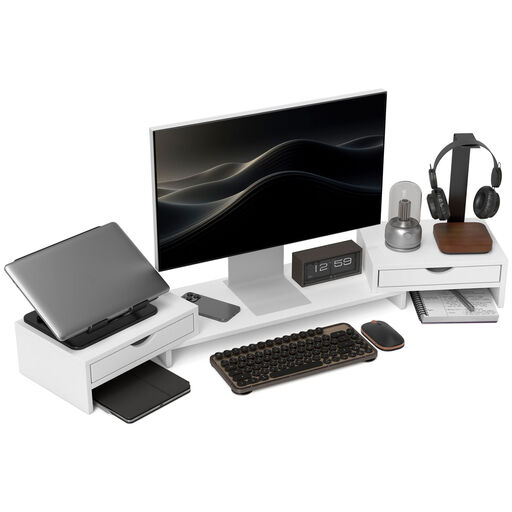
HOMCOM Dual Monitor Stand Riser, 2 Drawers, Adjustable Length and Angle, 116 cm, White
A raised display position may suit a desk where the screen needs to sit separately from the laptop keyboard; check whether the adjustable length and angle fit your workspace.
The product name specifies two drawers and an adjustable length of 116 cm.
View on Joybuy
 No image available
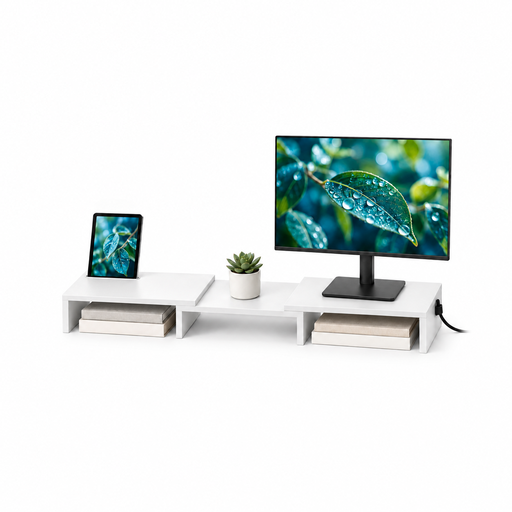
Floordirekt Monitor Stand for 2 Monitors, Adjustable Width, 80–108 cm, White
A stand for two existing screens may suit a desk arrangement that needs adjustable width; check whether its fixed lift gives you the screen height you want.
The listed height is fixed at 10.4 cm; the product name specifies an 80–108 cm adjustable width.
View on Joybuy
 No image available
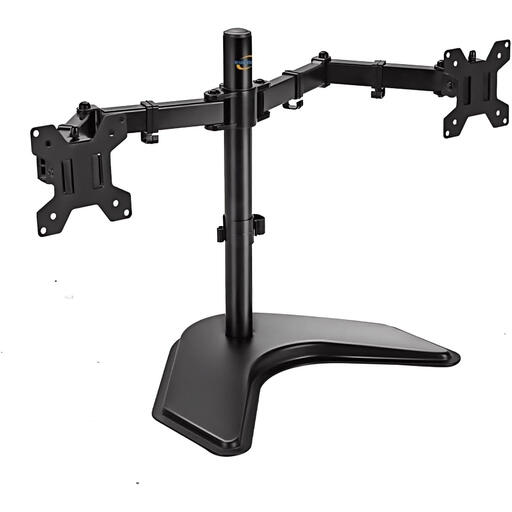
Multibao Freestanding Dual Monitor Stand, 13–27 Inch, VESA 75 × 75 mm and 100 × 100 mm, Black
For positioning two existing displays, check that each screen’s size and VESA pattern match the ranges specified for this freestanding holder.
The product name lists 13–27-inch screens and VESA patterns of 75 × 75 mm and 100 × 100 mm.
View on Joybuy
 No image available
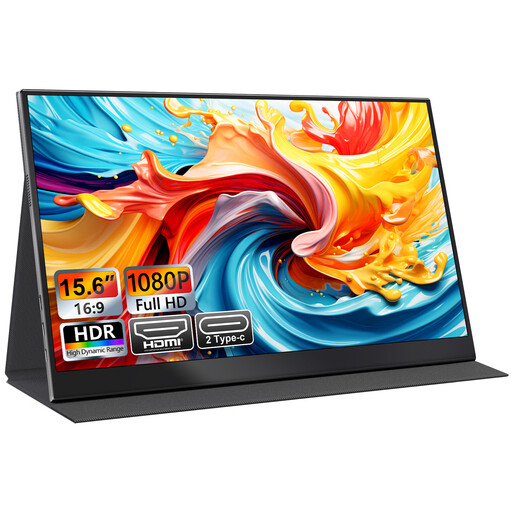
UFYQL Portable Monitor M156F04, 15.6 Inch Full HD 1080P IPS, USB-C and HDMI, Black
A portable display may suit laptop work that needs an additional screen; check that the laptop’s video output and selected cable match the monitor’s USB-C or HDMI connection.
The product name specifies a 15.6-inch Full HD 1080P IPS display and a smart cover stand.
View on Joybuy
 No image available
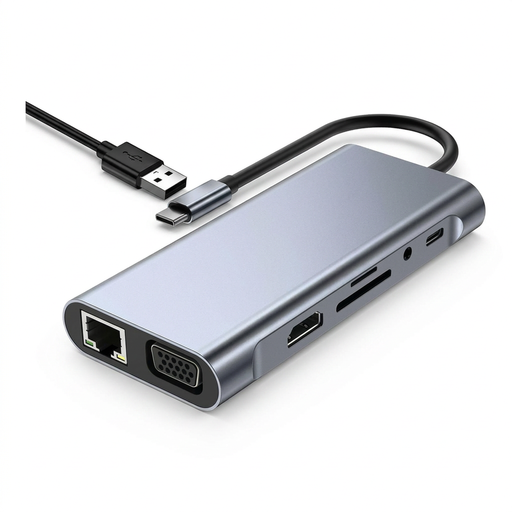
USB-C Hub Docking Station TW11A, 11-in-1, HDMI, VGA, USB 3.0, Type-C PD, RJ45 Ethernet, SD and TF Card Reader
For reconnecting a laptop to a display and peripherals, check that its outputs match the laptop and intended screen setup; the listed outputs alone do not establish support for two extended displays.
The product name lists HDMI, VGA, USB 3.0, Type-C PD, RJ45 Ethernet, SD and TF card reader connections.
View on Joybuy
Frequently asked questions
Is a separate monitor required for every UK home worker?
No blanket monitor requirement follows from the cited guidance. For covered DSE users, the workstation assessment considers the individual setup; HSE notes that a suitable posture may not require office equipment at home, but the suitability of existing equipment should be checked.
When should I speak to my employer instead of buying equipment myself?
If your home or hybrid workstation assessment identifies action such as providing DSE equipment, HSE says you cannot be charged for it. Raise the assessment finding with your employer before privately buying equipment for that identified need; this does not mean every monitor you would prefer must be employer-funded.
Can I raise my laptop instead of buying a monitor?
For prolonged laptop use, HSE describes using a separate keyboard and mouse so the screen can be elevated on a riser or similar. Check whether that arrangement gives you enough usable screen space and a suitable position at your own desk.
Will a two-HDMI hub necessarily give my laptop two extended screens?
No. Check the laptop’s supported external-display count and the hub’s specified output mode. Microsoft notes that a display splitter duplicates a signal rather than creating two independent extended displays.
What setup checks matter after installation?
Recheck screen position, reflections and the workstation arrangement when the desk or its use changes. HSE says covered workstations should be reassessed after relevant changes or reported discomfort, and employers must plan breaks or changes of activity for DSE users.


