Long-session paper readers
If you spend extended periods reading PDFs and moving between quotations, notes and a reference manager, assess text size and document space at your usual viewing distance rather than choosing by resolution alone.


Choose a monitor you can position comfortably both seated and standing, then decide how much screen space and detail you need for papers, notes and citations. A 27-inch QHD model with an adjustable stand avoids clamp-mounting checks; consider 27-inch 4K for denser documents, or a larger arm-mounted 4K display if your desk has the depth and a suitable mounting point. If you want one cable to a laptop, check video output and charging compatibility separately.
If you spend extended periods reading PDFs and moving between quotations, notes and a reference manager, assess text size and document space at your usual viewing distance rather than choosing by resolution alone.
If you change desk height during a research session, check where the screen sits in both postures. The Health and Safety Executive advises placing the top of the screen at eye level, while the Chartered Institute of Ergonomics and Human Factors notes that a sit-stand setup may still need a monitor arm or riser.
If you connect a laptop for each work session, a compatible USB-C monitor may carry the display signal and provide charging through one cable. Check the laptop’s video-output capability and charging requirement before making that connection part of your decision.
Start with the screen position you need at both desk heights. Then compare document space and laptop connections against the way you work.
| Concern | What to check | Who this matters to |
|---|---|---|
| Screen position | Compare stand or arm movement with the screen positions you need seated and standing; check desk fit if a clamp is involved. | When I change posture, I need the screen to follow without leaving my neck at an awkward angle. Around 42% of consumers put adjustable screen position first. |
| Reading space | Compare panel size and native resolution, then check viewing distance and how your computer scales text and windows. | I want to read a paper while keeping notes or citations visible, without making the text uncomfortable to follow. For around 33% of consumers, document detail and workspace are the primary concern. |
| Laptop connection | Check USB-C video support on the laptop and the monitor’s charging rating against the laptop’s requirements. | Connecting my laptop should be straightforward when I raise or lower the desk, and I would rather manage fewer cables. Connection simplicity comes first for around 25% of consumers. |
Raising a desk does not change the screen’s position relative to the desktop. The Health and Safety Executive advises keeping the top of the screen level with your eyes and the display about an arm’s length away; the Chartered Institute of Ergonomics and Human Factors notes that extra screen-height equipment may still be needed at a sit-stand desk.
Measure the screen position you need in both postures and compare it with the stand’s adjustment range or an arm’s movement before buying.
If the stand cannot reach those positions, you may need a separate arm or riser.
A USB-C socket alone does not establish that your laptop can send video through it or that the monitor can supply enough charging power.
Check the laptop’s USB-C or Thunderbolt video capability and charging requirement against the monitor’s stated connections and power-delivery rating.
You may still need a separate charger, suitable cable or adapter.
A larger display needs room at a comfortable viewing distance, while an integrated clamp arm needs a suitable desk edge and mounting clearance.
Check usable desk depth, rear-edge access, any obstruction beneath the desktop and the arm’s reach in both working positions.
An unsuitable edge or obstructed cable tray may require a different mount or a rearranged workspace.
Dell’s UltraSharp U2724D is an example of a 27-inch QHD monitor with a conventional adjustable stand.
LG offers relevant examples in both a conventional 27-inch 4K USB-C format and a larger 4K format with an integrated arm.
BenQ’s PD2706UA is a 27-inch 4K option with an ergonomic arm, particularly relevant if your research also involves preparing colour-sensitive figures.
Samsung’s ViewFinity range includes the 27-inch UHD S80UD, a model to consider when comparing high-resolution work displays.
These monitors offer different approaches to a literature-review desk: 27-inch QHD or 4K displays and larger WQHD options. Compare each stand with your seated and standing screen positions, and check connections against your computer.
 No image available
Consider this for reading detailed documents from a laptop if the connection suits your computer. Its title specifies a Nano Glossy IPS screen and height-adjustable stand; check whether the screen reaches a comfortable position at both desk heights.
 No image available
This is a 4K option for document work where a laptop connection matters. The title specifies an IPS panel and USB-C rated at 65 W; compare that rating with your laptop’s charging needs and check the stand’s movement for both desk heights.
 No image available
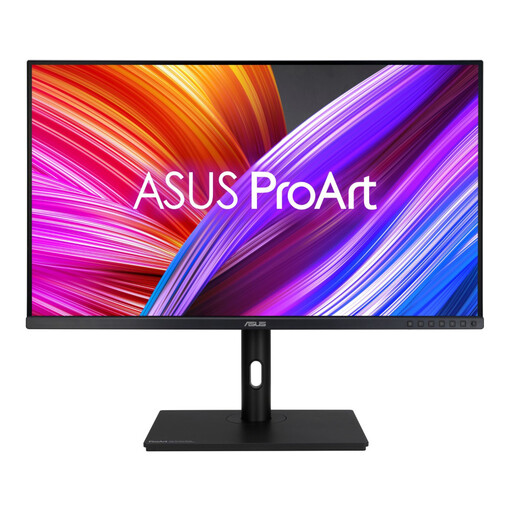
Consider a larger-format screen if your desk has enough depth for your preferred viewing distance. This model’s title specifies IPS and WQHD; check its physical dimensions, connections and stand range against your workspace.
 No image available
This IPS WQHD model is an option for paper reading when you prefer a conventional monitor setup. Check its stand travel for both working positions; if USB-C matters, confirm the connections and charging rating of the exact unit.
 No image available
Consider this 4K display for detailed papers if HDMI or DisplayPort fits your computer setup. The title lists a height-adjustable stand; check its range against both desk positions and confirm your connection method if you use a laptop.
Position it so you can keep your neck comfortable rather than simply raising the desk and leaving the screen where it was. The Health and Safety Executive advises placing the top of the screen level with your eyes and the display about an arm’s length away; check that you can achieve a suitable position when seated too.
Not necessarily: a built-in stand may be enough if it places the screen comfortably in both desk positions. Consider an arm or riser when you need more height or reach, and check mounting compatibility and desk clearance before choosing one.
Only if the laptop supports video through the relevant port and the monitor’s charging output suits its power requirement. Check the cable as well; for a model-specific reference, LG lists power delivery up to 90 W for its 27UP850K-W.
No: a sit-stand setup lets you change posture rather than requiring continuous standing. The Chartered Institute of Ergonomics and Human Factors advises alternating positions and moving away from the desk during the working day.