For household spending charts at a standing desk, prioritise a screen you can position comfortably at standing height, then choose a resolution that suits the number of spreadsheet columns and charts you keep visible. A 27-inch QHD or 4K display offers more pixel workspace than Full HD, while a simpler Full HD setup may suffice for occasional budgeting. USB-C can reduce cable clutter only when the laptop, monitor and cable support the required display and charging functions.
Who this setup suits
Standing-desk budget planners
If you regularly update household spending while standing, screen position deserves attention alongside screen size. The Health and Safety Executive advises positioning the top of a display around eye level and the screen about an arm’s length away; check whether the stand or a suitable arm lets you achieve that at your desk.
Spreadsheet and chart multitaskers
If you compare budget columns and charts across several windows, the available pixel workspace matters. The 27-inch Full HD, QHD and 4K configurations documented by BenQ, Dell and LG give you different amounts of room for that layout.
Occasional laptop budgeters
If you mainly want a larger screen for an occasional budget check, start with the laptop’s video output. Choose one-cable USB-C display and charging only after confirming that your laptop can use those functions with the particular monitor and cable.
What matters when choosing
Check screen position at the desk’s standing height before deciding how much spreadsheet workspace or laptop connectivity you need.
| Concern |
What to check |
Who this matters to |
| Standing-height positioning |
Check the stand’s height and tilt range at your standing desk position. For an arm, check the monitor’s mounting pattern and weight against the arm and desk clamp. |
If I switch between sitting and standing, I need the screen to reach a comfortable viewing position without straining my neck. Around 42% of consumers put screen positioning first. |
| Spreadsheet workspace |
Compare 27-inch Full HD at 1920 × 1080, QHD at 2560 × 1440 and 4K at 3840 × 2160; check your computer’s output and how text looks with your preferred display scaling. |
Keeping budget columns and chart windows visible together is my priority, rather than repeatedly switching between them. For around 33% of consumers, workspace is the primary concern. |
| Laptop connection |
Identify the laptop’s video output. For one-cable use, check USB-C display support, the cable and whether the monitor’s power delivery meets the laptop’s charging needs. |
I want a straightforward connection for occasional budgeting and would use one-cable charging only if my laptop supports it. Connection simplicity comes first for around 25% of consumers. |
Common buying mistakes
-
Choosing a stand without checking its standing-height range
A monitor that is comfortable when seated may not reach the right position when the desk rises. The Health and Safety Executive advises keeping the top of the screen around eye level and the display about an arm’s length away.
Check the stand’s specified adjustments against your desk height. If you plan to use an arm, confirm the mounting pattern, monitor weight and desk-clamp compatibility.
A separate arm or riser may be needed if the supplied stand cannot reach a comfortable position.
-
Assuming any USB-C port will carry video and charge a laptop
USB-C functions differ between devices. BenQ specifies up to 65W power delivery for the GW2790QT, while LG specifies up to 90W for the 27UP850K-W; neither figure establishes compatibility with a particular laptop.
Check the laptop’s USB-C display output and charging requirements against the exact monitor and cable before planning a one-cable setup.
Otherwise, you may still need a separate video adapter or the laptop’s own charger.
-
Making gaming or colour-production features the deciding factor
Household budget work centres on text, tables and charts. A monitor’s refresh-rate, HDR or wide-colour features do not replace checks on workspace, screen position and connection compatibility.
Decide which charts and columns you want visible, then check resolution, stand adjustment and the connection your computer can use.
Brands worth comparing
Dell
Dell’s UltraSharp range includes 27-inch QHD and 4K office-monitor configurations with adjustable stands.
- Dell lists height, tilt, swivel and pivot adjustment for the 27-inch QHD U2724DE; its U2723QE 4K specification lists those adjustments and USB-C power delivery up to 90W.
- Check the exact model rather than assuming that every UltraSharp monitor has the same resolution, connections or power delivery.
LG
LG’s 27UP850K-W illustrates a 27-inch 4K IPS configuration with USB-C and an adjustable stand.
- LG specifies height, pivot and tilt adjustment, with connected-device charging up to 90W.
- Confirm laptop and cable compatibility before relying on USB-C display and charging; HDR and wide-colour features need not drive a household-charting decision.
BenQ
BenQ’s GW2790 and GW2790QT show different 27-inch approaches to a home-monitor setup: Full HD and QHD respectively.
- BenQ specifies USB-C data and 65W power delivery for the QHD GW2790QT, alongside height, tilt, pivot and swivel adjustment.
- Do not assume that the Full HD GW2790 has the GW2790QT’s stand or USB-C functions. BenQ specifies 1920 × 1080 resolution and a 100 × 100 mm mounting pattern for the GW2790.
Joybuy monitor choices
These 27-inch 4K and Full HD monitors offer different starting points for household charts. Compare their stated connections and check how each screen can be positioned at your standing desk; the models shown here do not represent every resolution discussed above.
 Image unavailable
BenQ MA270UP 27-inch 4K Nano Glossy IPS USB-C monitor
Consider this model if you want a 4K workspace for budget sheets and a height-adjustable stand for a changing desk position.
The product name specifies a 27-inch IPS display, USB-C and HDR P3. Check the stand’s height range and the laptop, cable and monitor functions before relying on one-cable use.
View on Joybuy
 Image unavailable
LG 27UP650K 27-inch 4K IPS monitor
This is a 4K option to consider when spreadsheet and chart workspace matters more to you than one-cable laptop use.
The product name specifies HDMI and DisplayPort inputs and built-in speakers. Check your computer’s 4K output and the stand’s positioning range; plan the laptop’s charging connection separately.
View on Joybuy
 Image unavailable
MSI MAG 275UPD E14 27-inch 4K gaming monitor
Its 4K mode may suit a budget worksheet with several charts, but check screen positioning and computer compatibility for your desk setup.
The product name specifies a 144Hz 4K mode and a Full HD 288Hz dual mode. Those gaming modes are separate from the basic requirement to display household charts; confirm which resolution and mode your computer can output.
View on Joybuy
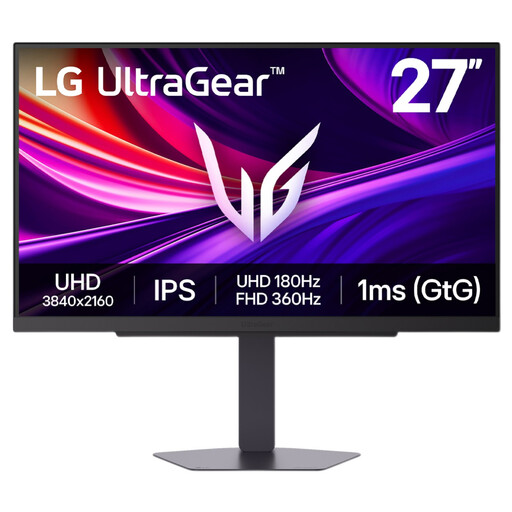 Image unavailable
LG UltraGear 27G810A-B 27-inch 4K IPS monitor
Consider its 4K resolution for chart and spreadsheet layout, while checking whether the screen can reach your preferred standing position.
The product name identifies a dual-mode gaming monitor with a maximum stated refresh rate of 360Hz. Confirm the stand’s height range and pivot adjustment if either matters to your setup, as well as your laptop’s video and charging connections.
View on Joybuy
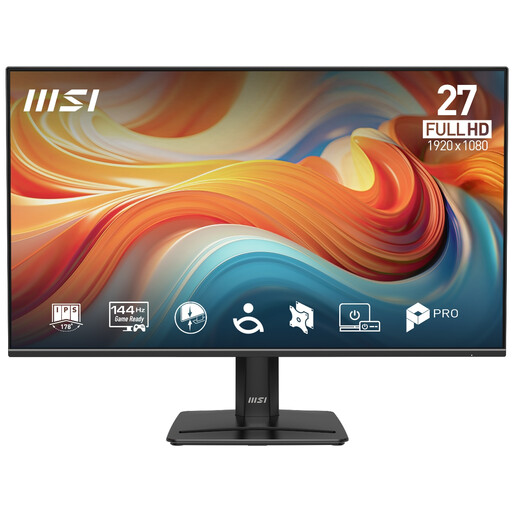 Image unavailable
PRO MP271 E14A 27-inch Full HD IPS monitor
This Full HD option may suit occasional budget checks if you do not need as much pixel workspace for side-by-side columns and charts.
The product name specifies 1920 × 1080 resolution and a 144Hz refresh rate. Check whether its stand reaches your standing-height position, or whether a compatible mounting arrangement would be needed.
View on Joybuy
Common questions
Where should a monitor sit when I use a standing desk?
Start with the top of the screen around eye level and the display about an arm’s length away, then adjust the stand or arm at your actual standing desk height. The Health and Safety Executive also advises placing the screen and keyboard centrally to avoid twisting.
Can one USB-C cable run the display and charge my laptop?
Yes, if the laptop supports USB-C display output and the monitor, cable and available power delivery meet its requirements. BenQ specifies up to 65W for the GW2790QT and LG up to 90W for the 27UP850K-W; check the exact models you intend to connect.
Do UK display screen equipment rules require a monitor for private budgeting?
Private household budgeting is not the employer-work situation described in the Health and Safety Executive’s display screen equipment guidance. HSE describes duties concerning workers who use display screen equipment daily for continuous periods of an hour or more; its positioning advice can still help you arrange a personal desk comfortably.
How should I dispose of an old monitor?
Check your local council’s electrical-waste service and any available retailer take-back arrangement rather than putting the monitor in a household bin. Coventry City Council describes a household recycling-centre route for electrical goods, while Southwark Council says electrical waste must not go in household bins; arrangements depend on your area.


