Choose a 27-inch QHD monitor if your desk can accommodate it and you need a booklet page, puzzle grid and editing tools visible together. A 23.8–24-inch Full HD monitor is a more compact route for writing and occasional layout work; consider a 27-inch 4K model when fine-detail checking matters, and check USB-C video compatibility and charging output separately if you want a one-cable laptop setup.
Who each setup suits
Puzzle-booklet layout multitaskers
If you keep a puzzle grid, source notes, page layout and proofing view open together, additional on-screen workspace may matter more than a compact footprint. Dell and Lenovo describe 27-inch QHD models relevant to multi-window work; check that the screen and stand fit your desk.
Small-desk creators
For writing, proofing and occasional page layout at a narrow desk, a compact screen may leave more room for your laptop, notes and booklet pages. BenQ specifies 23.8-inch Full HD options in its GW range; compare each model’s dimensions with its stand before choosing.
Single-cable laptop users
A USB-C monitor may carry video and charge a compatible laptop through one connection. Check both the laptop’s video-output capability and the monitor’s power-delivery rating: BenQ specifies up to 20 W for the GW2490TC, while LG specifies up to 90 W for the 27UP850K-W.
What matters when choosing
Compact Full HD
Choose it when: a small desk and straightforward writing or proofing work matter more than keeping several full-size windows open.
Trade-off: a 23.8-inch Full HD screen offers less room for simultaneous layout views than the QHD and 4K options discussed here.
27-inch QHD
Choose it when: a booklet page and reference or editing windows need to remain visible together, and the desk fits a 27-inch monitor.
Trade-off: it needs more physical room than a 23.8-inch display; QHD does not, by itself, tell you whether USB-C charging is available.
27-inch 4K with USB-C
Choose it when: detailed artwork or dense pages warrant closer visual checking and your laptop supports the monitor’s USB-C video connection.
Trade-off: check how your layout software scales on a 4K screen and whether the monitor’s charging output meets your laptop’s requirements.
| Concern |
What to check |
Who this matters to |
| Layout workspace |
Compare native resolution and screen size; allow for the monitor and stand on your desk. |
If I need a booklet page, puzzle grid and notes in view together, switching constantly between windows gets in the way. Around 42% of consumers put simultaneous layout workspace first. |
| Desk footprint |
Measure usable width and depth, then compare dimensions with the stand fitted. |
When books and a laptop already occupy my desk, I need the monitor to fit without crowding the work surface. Roughly 33% of consumers make a compact setup their primary concern. |
| Laptop connection and positioning |
Confirm USB-C video support and charging wattage; check the stand’s available adjustments. |
If I want fewer cables and a screen I can position for long editing sessions, the connection and stand matter before extra pixels. About 25% of consumers prioritise laptop integration and positioning. |
Mistakes to avoid
-
Assuming USB-C will replace your laptop charger
A USB-C socket alone says little about charging. BenQ specifies up to 20 W power delivery for the GW2490TC, whereas LG specifies up to 90 W for the 27UP850K-W.
Check your laptop’s USB-C video capability and charging requirement against the exact monitor’s specification.
You may still need to use your laptop’s own charger.
-
Choosing a larger screen by diagonal size alone
Panel size and resolution answer different questions. BenQ lists 93 pixels per inch for its 23.8-inch Full HD GW2490; Dell lists 109 pixels per inch for its 27-inch QHD S2725DS.
Compare native resolution and pixel density alongside size, particularly if you will proof small text and puzzle details.
-
Checking the stand only after the monitor arrives
A screen that fits the desk may still be awkward to position. The BenQ GW2490TC and Dell S2725DS specify height adjustment and pivot, while the GW2490’s listed stand is tilt-only. The Health and Safety Executive identifies workstation design and environment as factors in display-screen discomfort.
Measure the desk and consider your seated screen position and glare before ordering.
If the supplied stand cannot position the screen as needed, a suitable riser or monitor arm may be necessary.
-
Treating a model specification as a current listing
A manufacturer’s specification helps define the features you need, but does not establish whether that exact model is available from your chosen seller.
Before ordering, check the seller, exact model number, listing status and applicable warranty terms.
Relevant brands and model ranges
BenQ
BenQ’s GW2490 models provide examples of compact screens for a student-room desk.
- BenQ UK specifies the GW2490 as a 23.8-inch Full HD IPS monitor with HDMI and 100 × 100 mm VESA mounting.
- The GW2490TC adds height adjustment, pivot and USB-C video with up to 20 W power delivery; that charging output may not meet every laptop’s requirements.
Dell
The Dell 27 Plus QHD Monitor S2725DS illustrates the larger-screen layout route.
- Dell UK specifies a 27-inch 2560 × 1440 IPS panel and a stand with 130 mm height adjustment, tilt, swivel and pivot.
- Allow room for the 27-inch screen and check the exact model’s current seller listing before making it your choice.
Lenovo
Lenovo’s ThinkVision P27q-30 is a reference point for QHD work with multiple windows.
- Lenovo UK specifies a 27-inch 2560 × 1440 IPS panel, HDMI 2.0, DisplayPort 1.4 and DisplayPort output for daisy chaining.
- Consider whether those additional connections serve your setup if you use just one laptop and monitor.
LG
LG’s 27UP850K-W illustrates a 27-inch 4K route with USB-C laptop charging.
- LG UK specifies a 4K IPS panel, height, pivot and tilt adjustment, and USB-C for display, data and up to 90 W charging.
- Confirm that your laptop supports the required USB-C video connection and that its charging requirement falls within the monitor’s stated output.
Joybuy monitor choices
These models offer compact, 27-inch and larger-screen options for puzzle-booklet work. Start with the space available on your desk and the resolution you need, then check the exact listing’s connections and stand before choosing.
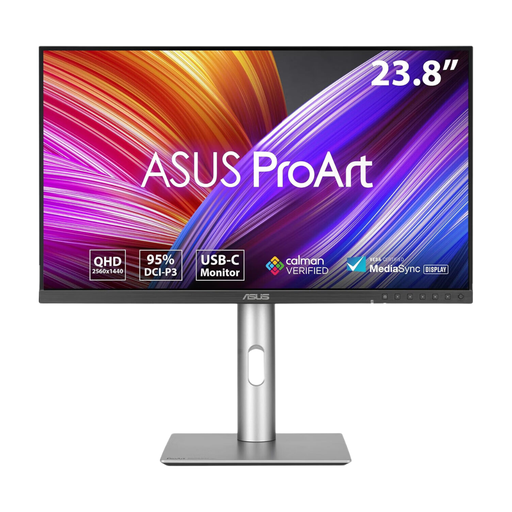 Image unavailable
ASUS ProArt PA24ACRV IPS QHD
Consider this compact-format option when you want room for booklet layout work but need to protect desk space.
The product title identifies an IPS QHD display. If you plan to connect a laptop by USB-C, confirm its video compatibility and charging requirements against the exact listing.
View on Joybuy
 Image unavailable
ASUS ProArt PA278CV IPS WQHD
Consider this model if your priority is keeping a booklet page and editing tools visible together.
The product title identifies an IPS WQHD display. Check the monitor-with-stand dimensions against your desk, and confirm USB-C charging output if your laptop needs it.
View on Joybuy
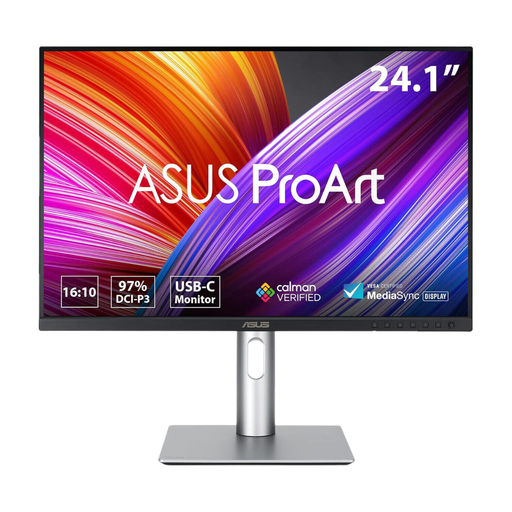 Image unavailable
ASUS ProArt PA248CRV IPS WUXGA
Consider this smaller-desk option if document layout is central to your booklet work.
The product title identifies an IPS WUXGA display. Check its full dimensions and verify laptop video and charging compatibility if you intend to use USB-C.
View on Joybuy
 Image unavailable
LG 27UP650K 27-inch 4K IPS, white
Consider this option when checking fine details in puzzle pages or artwork matters more than keeping the screen compact.
The product name specifies a 27-inch 4K IPS display, HDMI and DisplayPort, built-in speakers and 95% DCI-P3 coverage. Check its dimensions with the stand and its connections if you need a one-cable laptop setup.
View on Joybuy
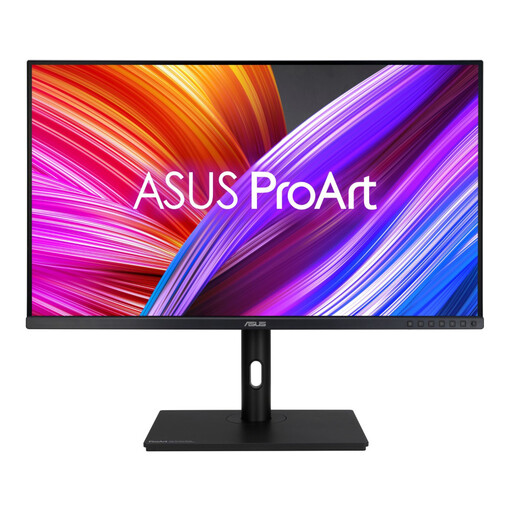 Image unavailable
ASUS ProArt PA328QV IPS WQHD
Consider this larger-screen option only if you have enough desk room for the monitor and its stand.
The product title identifies an IPS WQHD display. Measure the available width and depth before ordering, and check the connections against your laptop.
View on Joybuy
Common questions
What should I measure before choosing a student-room monitor?
Measure usable desk width and depth, including space for the stand, keyboard, laptop and booklet pages. Compare those measurements with the manufacturer’s dimensions with stand, then check whether its adjustments let you position the screen comfortably and away from glare.
Will any USB-C monitor charge my laptop?
No: the laptop must support the required USB-C video connection, and the monitor’s power-delivery output must meet the laptop’s charging needs. BenQ specifies up to 20 W for the GW2490TC, while LG specifies up to 90 W for the 27UP850K-W; check the exact model rather than relying on the USB-C label.
What should I do with an old monitor when replacing it?
Ask the retailer about its electrical-equipment take-back arrangements rather than putting the monitor in ordinary household waste. GOV.UK guidance says retailers must offer take-back for waste electrical equipment of the same type as an item bought from them; check how the retailer provides that service.


