What to check before buying
Settle the screen-position and text-layout questions first. Then decide whether video colour review or a laptop connection calls for additional features.
| Concern |
What to check |
Who this matters to |
| Screen position when changing desk height |
Compare the stand’s height and tilt range with both desk positions. If using an arm, check the exact monitor’s mounting specification and the arm’s size and weight limits. |
I need the screen to remain comfortably positioned when I raise the desk, not just when I sit down. Around 42% of consumers put that adjustment need first. |
| Readable editing workspace |
Check how a 3840 × 2160 display works with your subtitle editor’s window layout, text size and operating-system scaling. |
Keeping dialogue, timing controls and a video preview visible is my main concern, but the text still has to be easy to read. For around 33% of consumers, workspace layout is the primary need. |
| Colour and laptop workflow |
Match any required Rec.709 or sRGB mode to the exact model; check calibration information and the laptop’s USB-C video and charging requirements. |
If I review video for delivery or connect an editing laptop at the desk, those workflow requirements decide which features I need. Around 25% of consumers place them first. |
Relevant brands and models
These model-specific specifications help frame the choice; a brand’s features should not be transferred to a different model.
BenQ
The 27-inch 4K IPS PD2705U is relevant when subtitle work also involves a specified Rec.709 or sRGB video workflow.
- BenQ lists 99% sRGB and 99% Rec.709 coverage, a factory calibration report, 110 mm height adjustment, pivot, 100 × 100 mm VESA mounting and USB-C power delivery up to 65 W for the PD2705U.
- Those are manufacturer specifications, not a measure of accuracy in your workflow. Check whether 65 W meets your laptop’s charging requirement.
ASUS
The 27-inch 4K IPS ProArt PA279CRV is a route for editors whose video-colour or laptop workflow calls for its stated features.
- ASUS states 99% DCI-P3 and 99% Adobe RGB coverage, factory pre-calibration to Delta E < 2, USB-C power delivery up to 96 W, and height, tilt, swivel and pivot adjustment.
- Those colour specifications do not, by themselves, make the PA279CRV necessary for text-only subtitle entry. Match the required delivery mode and laptop needs before choosing it.
Dell
Dell’s UltraSharp U2723QE and U2725QE illustrate different 27-inch 4K workstation specifications; their features are not interchangeable.
- Dell lists 100% Rec.709 and 100% sRGB coverage, Delta E < 2 calibration, positional stand adjustment and USB-C power delivery up to 90 W for the U2723QE.
- Dell lists an IPS Black panel, height and pivot adjustment, a stated 3000:1 contrast ratio and 120 Hz for the U2725QE. Check that model’s own colour and connection specifications rather than applying U2723QE figures to it.
LG
The 27-inch 4K IPS 27UP850K-W offers a manufacturer-stated USB-C and adjustable-stand route for laptop-based work.
- LG states 95% DCI-P3 coverage, USB-C power delivery up to 90 W, and height, pivot and tilt adjustment for the 27UP850K-W.
- If your delivery workflow specifies Rec.709, check the exact mode you need rather than treating the DCI-P3 coverage figure as confirmation of it.
Joybuy monitor choices
These 4K choices relate to subtitle editing at a standing desk. The selection includes 27-inch monitors and one 32-inch model; check each stand against your desk positions, and match colour or laptop features to the work you actually do.
 No image available
BenQ MA270UP 27-inch 4K Nano Glossy IPS USB-C monitor
Consider this model if you want a height-adjustable screen for changing desk positions and a USB-C connection for a laptop setup. Its title specifies a 27-inch 4K UHD Nano Glossy IPS display; check how the glossy surface works with your desk lighting.
If you review delivery colour, confirm the required colour mode for the MA270UP rather than applying specifications from the different BenQ PD2705U. Check your laptop’s USB-C video and charging requirements separately.
Joybuy
 No image available
MSI MD272UPSW 27-inch 4K IPS Smart Monitor
This is a height-adjustable option for checking a subtitle layout at seated and standing desk heights. The title specifies a 27-inch 4K UHD IPS display, Google TV and USB-C with 65 W power delivery.
Before relying on one cable, check the laptop’s display-output and charging requirements. If video-colour review is part of the job, confirm the exact colour mode needed.
Joybuy
 No image available
LG 27UP650K 27-inch 4K IPS monitor
Consider its height-adjustable design if screen position is your main concern when moving between sitting and standing. The title specifies a 27-inch 4K IPS display, 60 Hz, 95% DCI-P3 coverage, HDMI and DisplayPort.
For a delivery workflow requiring Rec.709 or sRGB, check the required mode on this exact model. Confirm laptop connection needs separately if you want a single-cable arrangement.
Joybuy
 No image available
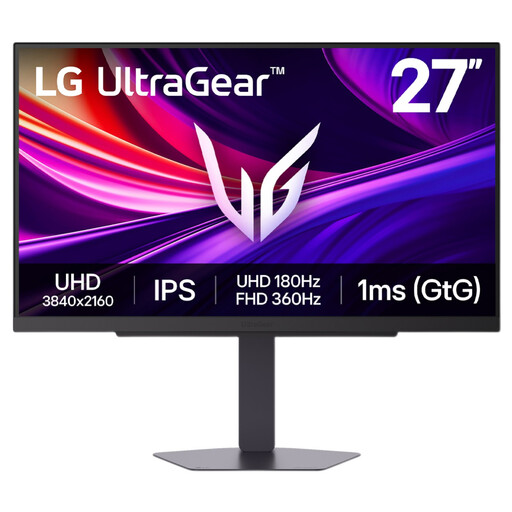
LG UltraGear 27G810A-B 27-inch 4K dual-mode monitor
This 27-inch IPS 4K model is worth considering if its height adjustment can accommodate both of your desk positions. Its title identifies a dual-mode gaming display; decide whether that feature is relevant to your work rather than treating it as a subtitle-editing requirement.
If portrait rotation matters, confirm pivot support for this model. Check the required video-colour mode and laptop connection before choosing it for those purposes.
Joybuy
 No image available
ASUS ProArt Display PA32UCG-K 32-inch 4K HDR monitor
Consider this larger model only if a 32-inch screen fits your desk and viewing position at both working heights. Its title specifies 4K, hardware calibration and Thunderbolt 3; confirm that the connection serves your particular laptop workflow.
Check the exact panel specification before purchase because the model information describes IPS and Mini LED inconsistently. Confirm the laptop’s charging requirements rather than assuming that the connection provides sufficient power.
Joybuy
Questions about setup and features
How should I position a monitor at a standing desk?
Place the screen directly in front of you, with its top at eye level and the screen about an arm’s length away, following Health and Safety Executive guidance. Recheck the position after changing desk height; the HSE also advises keeping the keyboard central and just below elbow height.
Does my employer need to assess this workstation?
In the UK, the Health and Safety Executive says employers must carry out a workstation assessment if you use display screen equipment daily as part of normal work and continuously for an hour or more. The assessment covers the whole workstation, work conditions, the job and individual requirements; it is not a certification of a monitor.
Do translated subtitles require a Rec.709 monitor?
Text entry alone does not call for Rec.709 coverage. If you also inspect video appearance for a Rec.709-oriented delivery workflow, check that the exact monitor states the required mode and suitable calibration information; BenQ lists Rec.709 and sRGB coverage for the PD2705U, and Dell does so for the U2723QE.
Will a USB-C monitor charge my editing laptop?
It will depend on both the monitor’s stated power delivery and the laptop’s documented requirements. For example, BenQ specifies up to 65 W for the PD2705U, LG up to 90 W for the 27UP850K-W and ASUS up to 96 W for the PA279CRV; also confirm that the laptop supports the intended USB-C display connection.


