One-screen work-and-play users
If the same display handles documents and tactical games, desk positioning and connections matter alongside resolution and smooth motion.


For one screen shared between tactical games and office work, a 27-inch QHD IPS monitor around 180Hz is a useful starting point: check its stand, adaptive-sync compatibility and refresh rate through the port you will use. Consider QD-OLED if gaming contrast and fast rated response take priority over long periods of static desktop content, or 4K IPS if desktop detail matters more and your computer can run games satisfactorily at your chosen settings.
If the same display handles documents and tactical games, desk positioning and connections matter alongside resolution and smooth motion.
If tracking movement is your priority, compare refresh rates through the input you will use, rated response times and adaptive-sync compatibility with your system.
If you favour OLED contrast and fast rated response, consider how often office windows or game interfaces will remain unchanged on the screen.
Choose the display route around your main trade-off—an adjustable shared workspace, OLED gaming characteristics or finer desktop detail—then check whether your computer and connections can use the mode you want.
Choose it when: One monitor needs to handle frequent document work as well as high-refresh tactical games.
Trade-off: Workstation connections vary: BenQ specifies 65W USB-C power delivery for the EX271Q, while ASUS specifies 7.5W for the XG27ACS.
Choose it when: Gaming contrast and very fast rated pixel response matter more to you than prolonged static office use.
Trade-off: RTINGS identifies burn-in risk from constant exposure to static elements; assess your desktop habits and the exact warranty terms.
Choose it when: A denser desktop is the priority and your computer can run games satisfactorily in your intended mode.
Trade-off: Check gaming performance at 4K rather than assuming that a high monitor refresh rate guarantees equally high game frame rates.
| Concern | What to check | Who this matters to |
|---|---|---|
| Game motion and workspace | Compare native resolution and refresh rate through your intended input; confirm adaptive-sync compatibility. | I want enough room for work windows without giving up smooth tactical play. Around 33% of consumers put that QHD work-and-game balance first. |
| Connections and positioning | Check USB-C video and charging functions, then the stand adjustment or VESA mount you need. | My work laptop and gaming setup share a desk, so changing devices and positioning the screen must be practical. That is the leading need for around 27% of consumers. |
| OLED contrast and response | Consider time spent with static desktop elements and read the model’s warranty terms. | Dark scenes and fast rated pixel response matter most to me, even though I also use the screen for work. Around 20% of consumers prioritise those gaming characteristics. |
| Desktop detail | Check your computer’s gaming performance at the chosen resolution and any available display modes. | I value finer desktop detail and can adjust my gaming settings if needed. For around 20% of consumers, that sharpness or mode flexibility comes first. |
USB-C capabilities differ. BenQ specifies 65W power delivery on the EX271Q, whereas ASUS specifies 7.5W on the XG27ACS; a USB-C socket alone does not settle your laptop’s video or charging needs.
Compare your laptop’s video output, charging requirement and peripheral connections with the exact monitor specifications.
A separate charger, hub, dock or cable may still be needed.
RTINGS identifies burn-in risk with constant exposure to static elements. Fixed taskbars and application panels make that trade-off relevant to a shared work screen.
Consider how much of your day the display shows unchanged content and read the exact panel warranty before choosing OLED.
BenQ specifies 180Hz through DisplayPort but 144Hz through HDMI for the EX271Q. The connected device and input therefore matter as much as the headline figure.
Check refresh rates by input against your computer’s output and choose a suitable connection.
The Health and Safety Executive’s display-screen-equipment guidance also addresses furniture, desk space, posture and screen reflections.
Measure your desk and check stand adjustment or mounting compatibility before ordering; arrange the screen and lighting to limit reflections.
If the supplied stand cannot position the display as needed, a compatible monitor arm or a different desk arrangement may be necessary.
These model-specific examples illustrate different work-and-gaming trade-offs; a brand name alone does not establish a monitor’s connections, stand functions or suitability.
The EX271Q is relevant if a QHD gaming screen must also connect to a work laptop and shared peripherals.
The ROG Strix XG27ACS offers a QHD Fast IPS route with several stand adjustments.
LG lists both QHD and 4K IPS models relevant to a shared gaming and desktop setup.
The AW2725D and AW2725QF represent different routes: QHD QD-OLED and switchable-resolution IPS.
The Q27G4F is a QHD gaming-monitor option to assess against your desk and connection requirements.
These monitors offer different ways to share a screen between tactical games and desk work, including an ultrawide layout, QHD IPS options and QD-OLED options. Match each one to your available space, connection and tolerance for static-screen use.
 No image available
Consider the 34-inch ultrawide format if one screen needs room for gaming and work windows; check that it fits your desk.
The named variant lists 3440 × 1440 resolution, 175Hz through DisplayPort and 100Hz through HDMI, with height, swivel and tilt adjustment. Choose the connection around the refresh rate you intend to use.
 No image available
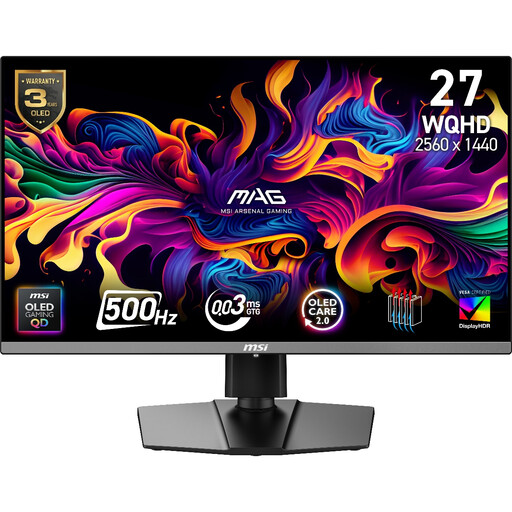
Consider this QD-OLED option if high-refresh tactical play takes priority and you can account for static office content.
The product name specifies 2560 × 1440, 500Hz, a 0.03ms response-time rating and AMD FreeSync. RTINGS identifies burn-in risk with prolonged static elements; check the applicable warranty and whether its connections meet your laptop’s needs.
 No image available
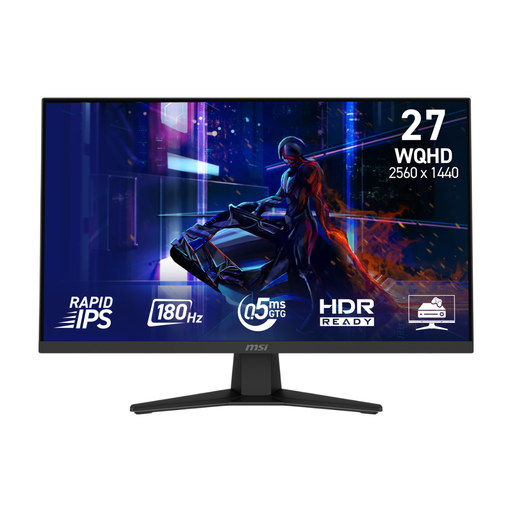
This QHD IPS option is worth considering if high-refresh play matters and you can arrange the screen to suit your desk.
The product name lists 180Hz, a 0.5ms response-time rating and adaptive sync. Check the refresh rate through your chosen input and whether the supplied stand or a compatible mount gives you the positioning you need.
 No image available
Consider this 27-inch QHD option if you want one display for gaming and productivity and can check how it fits your workspace.
The product name specifies 2560 × 1440 and 220Hz. Confirm the refresh rate through your intended input, the supplied stand’s adjustment and how the screen finish works with your room lighting.
 No image available
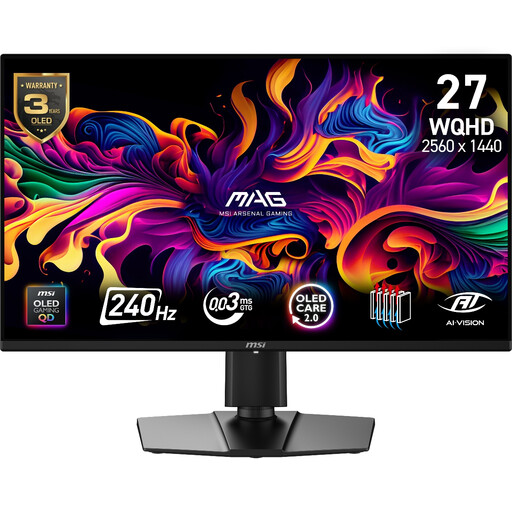
This QD-OLED route suits a shared desk only if its gaming priorities outweigh your concern about prolonged static content.
The product name specifies 2560 × 1440, 240Hz, a 0.03ms response-time rating and adaptive sync. Consider your office-screen habits and check the exact warranty coverage before relying on it.
A 27-inch QHD IPS model around 180Hz is a useful starting point for this shared use. Check the refresh rate through your intended input, adaptive-sync compatibility and stand adjustment; if a laptop will share the screen, check USB-C video and charging functions separately.
QD-OLED can suit a screen used for varied work and gaming when contrast and fast rated response are priorities, but long periods of unchanged content deserve particular consideration. RTINGS identifies burn-in risk from constant static elements, so assess your taskbars and application windows and read the exact model warranty.
The Health and Safety Executive’s display-screen-equipment guidance can apply to home workers; it concerns the workstation, not a required gaming-monitor specification. HSE says employers must assess workstations for employees who use display screen equipment daily as part of normal work for continuous periods of an hour or more. Screen positioning, desk arrangement and reflections therefore matter alongside gaming features.
Check an electrical-equipment recycling or retailer take-back route rather than putting the old monitor in ordinary household rubbish. Oxfordshire County Council advises that larger retailers must provide take-back for an equivalent old electrical item when a new one is bought; confirm the retailer’s process before ordering.
Contact the retailer with your order details and a clear description of the fault. GOV.UK explains that consumer law covers faulty goods and that sellers cannot remove statutory rights; a manufacturer warranty does not replace those rights. The appropriate remedy depends on the circumstances, so distinguish a fault from a change-of-mind return.