People comparing detailed specifications
Readers of dense tables, engineering drawings and datasheets who need to inspect detail while keeping several documents in view.


For dense technical documents at a shared desk, a 27-inch 4K IPS monitor is a useful starting point, provided text scaling is comfortable and the screen suits the room’s lighting. Prioritise laptop video and charging compatibility and a stand that different users can adjust. Choose KVM switching or colour-focused features when the work calls for them, rather than treating either as essential for every desk.
Readers of dense tables, engineering drawings and datasheets who need to inspect detail while keeping several documents in view.
Staff who take turns at one workstation and need to connect their own laptop, use desk peripherals and reposition the screen.
Reviewers of colour-coded diagrams, CAD/CAM material or product imagery whose files and software call for a defined colour space.
For a shared technical-document desk, start with the task that most affects the choice: reading fine detail, connecting different computers, adjusting the screen or interpreting colour.
| Concern | What to check | Who this matters to |
|---|---|---|
| Fine detail and workspace | Compare screen size and native resolution, then try the operating system’s text scaling. Check the screen finish against the room’s lighting. | If I need to read drawing annotations while keeping a specification sheet open, both detail and readable text matter. Around 31% of consumers put fine-detail clarity first. |
| Laptop connection and switching | Check each laptop’s USB-C video capability, the monitor’s power-delivery rating and whether its KVM arrangement covers the intended computers and peripherals. | When several of us bring different laptops to one desk, I want to avoid reconnecting each peripheral separately. For around 31% of consumers, device connection and switching are the primary concern. |
| Adjustable positioning | Check stand height, tilt and pivot, or compatible mounting, alongside the available desk depth. | If the next person needs the screen at a different height, I need a setup we can reposition. Around 23% of consumers place adaptable screen positioning first. |
| Colour interpretation | Identify the colour space required by the files and software; compare the exact model’s stated gamut and calibration information. | For colour-coded diagrams or visual approvals, I need the display settings to suit the material being reviewed. Colour interpretation comes first for around 15% of consumers. |
A USB-C connector alone does not establish that a laptop can send video through it or that the monitor can supply enough charging power. Dell UK, BenQ UK, ASUS UK and LG UK list different power-delivery ratings for their cited models.
Check the port specifications of every intended laptop, its charging requirement, the monitor’s stated delivery and the cable needed for the connection.
Some setups will still need a separate charger, suitable cable, adapter or dock.
A detailed panel can still be awkward for someone who cannot position it comfortably. The Health and Safety Executive advises placing the top of the screen about level with the eyes and the display about an arm’s length away.
Check the stand’s actual adjustments or mounting compatibility, then assess the screen as part of the whole workstation.
If the supplied stand cannot accommodate different users, a compatible arm or alternative stand may be needed.
The colour-space and calibration specifications listed by BenQ UK and ASUS UK matter when the files and software use the relevant colour-managed workflow. They do not, by themselves, establish a benefit for comparing ordinary text and tables.
Identify the required colour space before prioritising those features; otherwise focus on readable documents, connections and positioning.
GOV.UK guidance on CE and UKCA marking for Great Britain distinguishes Northern Ireland’s processes.
For a monitor destined for Northern Ireland, check the applicable marking route and the seller’s documentation for that destination.
Dell UK lists office-oriented Pro monitors and UltraSharp hub monitors. Its U2725QE is a 27-inch 4K IPS Black model aimed at a connected desk.
BenQ UK’s PD2705U is a 27-inch 4K IPS model relevant to a desk that combines technical documents, colour-managed work and computer switching.
ASUS positions its 27-inch 4K ProArt PA279CRV for work involving colour-sensitive visuals.
LG UK lists the 27U730A-B as a 27-inch 4K IPS monitor with USB-C display, data and charging connectivity.
These monitors offer different ways to set up a desk for comparing detailed documents. Check laptop connections, screen positioning and any colour requirements against the exact model you choose.
 No image available
Consider this model for a shared desk where detailed documents and device control both matter.
Its stated features include a 4K UHD IPS panel, USB-C 65W and Multi-Control. Check video support and charging needs for each laptop before planning a one-cable setup.
 No image available
Consider the glossy screen’s reflections in the office lighting, particularly if several people will use this desk.
The title specifies a Nano Glossy IPS panel, USB-C and a height-adjustable stand. Check video and charging compatibility for every intended laptop, especially non-Mac models.
 No image available
This 27-inch 4K model is relevant to desks used for reading detailed documents and spreadsheets.
If laptop docking is important, confirm USB-C video and power-delivery behaviour for the exact setup before buying.
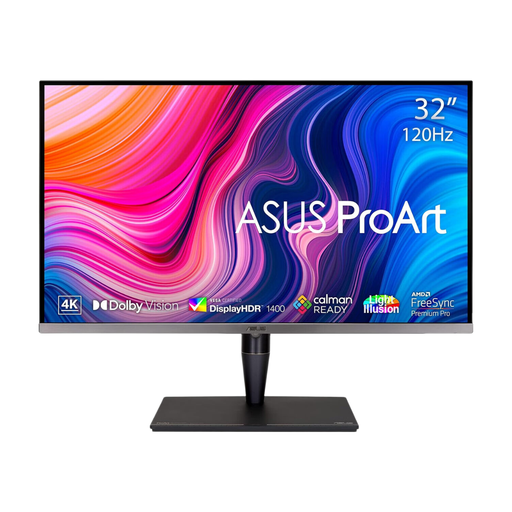 No image available
Consider this larger screen when technical review also involves colour-sensitive visuals, provided the desk and viewing distance accommodate it.
The title specifies an IPS Mini LED panel, Thunderbolt 3 and hardware calibration. Check laptop charging requirements separately before treating it as a docking connection.
 No image available
This model is relevant when the desk needs a 27-inch screen for detailed documents and users can connect through the required video inputs.
The title specifies an IPS panel, HDMI and DisplayPort. Confirm the exact HDMI port count if several connected devices will share the desk, and check connection needs if laptop docking is required.
Not for every document: a 27-inch 4K screen is worth considering when you need to inspect fine text or diagrams alongside other material. Check that operating-system scaling keeps text comfortable for everyone using the desk.
No. The laptop must support video through the relevant USB-C or Thunderbolt port, and the cable and monitor must support the intended connection. Check the monitor’s charging output against each laptop’s needs rather than relying on the presence of a USB-C socket.
No. The Health and Safety Executive says employers must assess workstations when staff use display screen equipment daily for continuous periods of an hour or more. An adjustable screen is only one part of a setup that also includes the work, conditions and individual user needs.
The Health and Safety Executive advises placing the top of the screen about level with the eyes and the display about an arm’s length away. Allow each user to adjust the position while accounting for the chair, input devices and reflections.