What matters when choosing?
Start with the physical space you need for maps and GIS panels, then decide whether colour-controlled output, screen positioning or laptop connectivity changes your choice.
| Concern |
What to check |
Who this matters to |
| Map detail and workspace |
Check native resolution, desk dimensions and whether map labels and GIS panels remain comfortable to read at your usual viewing distance. |
If I work with contours and several panels open, I want enough usable space without making labels awkward to read. Around 31% of consumers would put map detail and workspace first. |
| Colour and exports |
For colour-sensitive work, check the exact model’s stated colour-space coverage and calibration conditions, then consider how you will review exports. |
When a terrain colour ramp carries meaning into a published map, I need to judge it in the intended output workflow. Colour interpretation would come first for around 31% of consumers. |
| Position and reflections |
Check stand adjustment or VESA mounting, screen coating and where the study lights will reflect. |
I may spend a long session at this desk, so I want to position the screen comfortably and keep reflections out of the map. Around 23% of consumers would prioritise workstation positioning and glare control. |
| Laptop connection |
Check the laptop’s video output, the required cable and, if charging matters, compatible USB-C power delivery. |
If my laptop is the centre of the study setup, I want the connections to suit it without unnecessary cables. Laptop integration would be the primary concern for around 15% of consumers. |
Joybuy monitor choices
These 4K monitors cover compact 27-inch desks and larger 32-inch map workspaces. Compare their stated connections and finishes against your computer and study lighting.
 No image available
LG 27UP650K 27-inch 4K IPS monitor
Consider this 27-inch format if desk space matters while you work with detailed maps. The listing names a 4K IPS panel, 60 Hz refresh rate, 95% DCI-P3 coverage, HDMI and DisplayPort; check your computer’s output and whether the screen finish suits your lighting.
Joybuy
 No image available
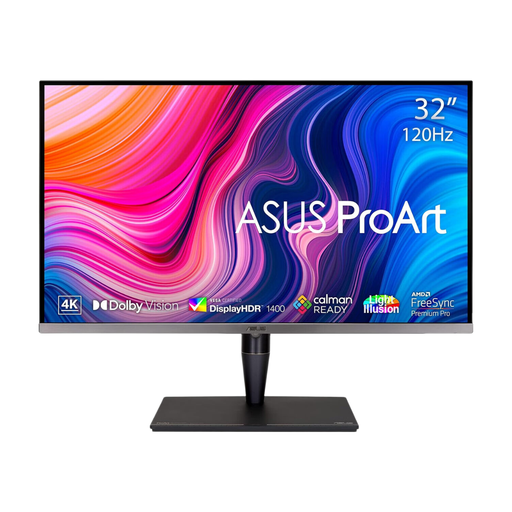
ASUS ProArt Display PA32UCG-K 32-inch 4K IPS Mini LED monitor
Consider its larger screen if you want a physically larger map canvas beside your GIS panels and have room for it on the desk. The listing names 4K resolution, 120 Hz, Thunderbolt 3 and HDMI 2.1; check laptop video and charging compatibility rather than assuming one cable will handle both.
Joybuy
 No image available
BenQ MA270UP 27-inch 4K Nano Glossy IPS USB-C monitor
This 27-inch format suits a smaller mapping desk if you also want to assess a USB-C connection. Its title specifies a 4K IPS panel and Nano Glossy finish; check reflections in your study and confirm your laptop’s video and charging requirements separately.
Joybuy
 No image available
iiyama ProLite XUB2792UHSU-B6 27-inch 4K UHD monitor
The 27-inch 4K format is worth considering when you need map workspace on a compact desk. Before choosing it for long sessions or a laptop setup, confirm the stand movement, screen finish and connection requirements that matter to you.
Joybuy
 No image available
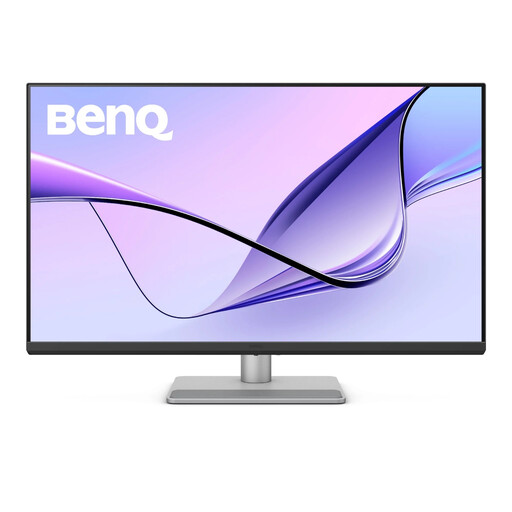
BenQ MA320UP 32-inch 4K Nano Glossy IPS USB-C monitor
Consider this larger format if you want more physical room for a map and its controls and can position it comfortably on your desk. Its title specifies 4K IPS, USB-C and a Nano Glossy finish; check reflections, laptop video support and charging requirements before relying on it for a one-cable setup.
Joybuy
Frequently asked questions
Do I need a 4K monitor to create terrain maps?
No, 4K is not a requirement for making terrain maps, but it is a practical option when you want to view fine detail beside legends, layers and tables. Consider the screen’s physical size as well as its resolution: 27 inches takes less desk space, while a 32-inch screen makes elements physically larger.
Do terrain maps require a wide-colour-gamut monitor?
Not for every mapping task. If you mainly analyse maps for personal use, consider workspace, positioning and connections first; if colour-coded layers or published exports must be assessed carefully, check the exact monitor’s stated colour specifications and review the output in its intended workflow.
How should I position a monitor for long mapping sessions?
Position it to suit your desk and chair, using stand adjustment or a suitable mount, and arrange lighting to limit reflections. The Health and Safety Executive identifies fatigue, eye strain and physical discomfort as possible issues with overuse or poorly arranged display-screen workstations.
Can one USB-C cable carry laptop video and charging?
It can if the laptop supports compatible video output, accepts the monitor’s available power delivery and uses a suitable cable. For example, ASUS specifies up to 96 W USB-C power delivery for the PA279CRV, while Dell specifies up to 90 W for the U2723QE; check your laptop’s requirements before depending on either arrangement.


