What matters when choosing?
Check whether the screen can be positioned away from window reflections, then compare the space available for your transcript and supporting windows. Treat laptop charging as a separate compatibility decision.
| Concern |
What to check |
Who this matters to |
| Reflections and positioning |
Check the screen finish, stand adjustment and whether the desk position lets you avoid a reflected window. |
When daylight obscures lines of a transcript, I need to change the screen’s position rather than rely on a brightness setting. Around 46% of consumers put reflection control and positioning first. |
| Readable workspace |
Compare QHD and 4K at your usual font size and display-scaling setting, with notes and recording controls open. |
I want to read the transcript while keeping reference material in view without making the text too small. For around 36% of consumers, usable text workspace is the main concern. |
| Laptop connections |
Match USB-C video support and stated power-delivery output to the laptop; check the cable needed. |
If I move my laptop between desks, one connection for the display and charging would simplify setting up. Around 18% of consumers prioritise compatible laptop connectivity. |
Joybuy monitor choices
These monitors offer different screen sizes and shapes for arranging a transcript alongside other windows. Compare each layout at your preferred text size, and check screen placement and stand adjustment for the desk beside your window.
 No image available
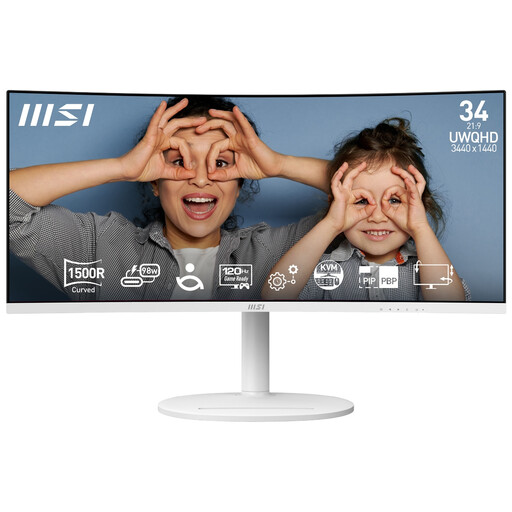
Modern MD342CQPW 34-inch curved monitor, white
Consider the ultrawide format if you want a transcript and supporting windows side by side on a fixed desk. Its stated configuration is 3440 × 1440, 120Hz and 1500R curvature; check that the 34-inch screen fits your desk and preferred viewing arrangement.
If laptop charging matters, confirm the monitor’s USB-C video function and power output against your laptop before choosing it.
Joybuy
 No image available
ASUS ProArt PA278CV IPS WQHD
Consider this WQHD model if you prefer a conventional screen layout for a transcript and reference material. Check its screen finish and stand movements against your window-side setup, and compare any USB-C charging output with your laptop’s requirements.
Joybuy
 No image available
AOC Q32V4 31.5-inch IPS monitor
Consider the larger screen if physical display size is important for your transcript layout. Check its stated resolution at your usual font size, and confirm the stand’s height and tilt options before planning where it will sit beside the window.
Joybuy
 No image available
LG UltraWide 29U511A 29-inch IPS, 1080p
Consider the wide layout if you place a transcript beside notes or recording controls. Its stated 2560 × 1080 format gives a different balance of horizontal and vertical space from a QHD screen; compare that balance at your usual text size and check the positioning available from its stand.
Joybuy
Common questions
Will a brighter monitor solve glare from a bright window?
No, not on its own. The Health and Safety Executive advises arranging screens and lighting to avoid reflections and glare. Position the monitor away from direct reflections where possible; a matte or anti-glare surface and adjustable stand can support that setup.
Do I need 4K to edit interview transcripts?
Not necessarily: a 27-inch QHD layout can accommodate text and supporting windows without making 4K a requirement. Consider 4K if you also work with detailed visuals or dense application layouts, and check that your computer’s display scaling keeps transcript text comfortable to read.
Can one USB-C cable show the display and charge my laptop?
Yes, if the laptop and monitor support compatible USB-C video and power-delivery functions and the monitor’s output meets the laptop’s charging needs. For example, Dell UK specifies DisplayPort Alt Mode and up to 90W power delivery for the P2725DE; check the cable as well as both devices’ requirements.
Do UK display screen equipment rules apply when I edit transcripts at home?
They can apply to employees working from home. The Health and Safety Executive says the rules apply when workers use display screen equipment daily as a significant part of normal work, continuously for an hour or more; employers must assess applicable workstations and reduce risks. The assessment concerns the whole setup, not only the monitor.


