For a laptop-based desk, a 4K monitor can provide a separate space for slide editing while the laptop screen holds notes or reference material. If you want two external monitors instead, check how many displays your computer or dock can drive before choosing the screens; a monitor’s USB-C or Thunderbolt ports do not establish that capability. Prioritise charging, colour features or keyboard-and-mouse switching only when your workflow calls for them.
Who this setup suits
Two-screen presentation builders
If you keep a deck open alongside notes, research or rehearsal controls, focus on an extended display setup rather than screen size alone. Microsoft’s Windows and PowerPoint guidance explains how separate displays can be arranged and used for Presenter View.
Laptop-first desk workers
Keeping the laptop panel as one screen and adding a desk monitor may suit you if you move between desks. A compatible USB-C or Thunderbolt connection can also serve your charging and peripheral needs; check the functions of the laptop, monitor and cable together.
Creators working with visual assets
If decks contain brand imagery, photography or video, compare the exact models’ documented colour specifications. BenQ and Lenovo publish colour-related specifications for the PD2706U and ThinkVision P27u-20 respectively; those features need not drive a text-led purchase.
What matters when choosing
Two external monitors
Choose when: You want separate full-size screens for slide editing and reference material and have room for both.
Trade-off: Your computer or dock must support two external displays, and the layout takes more desk space and connections.
Monitor plus laptop screen
Choose when: You want to use the laptop panel for notes or references beside an external editing screen.
Trade-off: One-cable docking depends on compatible video, data and charging functions across the laptop, monitor and cable.
| Concern |
What to check |
Who this matters to |
| Extended two-screen output |
Check the computer or dock’s supported external-display count and the available video connections. Plan to use Extend rather than Duplicate for separate workspaces. |
I need the deck and my notes or research visible separately, so I want to know the planned displays will work together. Roughly 27% of consumers put dependable extended output first. |
| Laptop docking |
Check whether the upstream connection carries video and whether its stated charging output suits your laptop; check the cable too. |
When I return to my desk with a laptop, I want to reconnect my screen and other desk equipment without repeated cable changes. Around 33% of consumers prioritise straightforward docking. |
| Colour or computer switching |
For visual assets, compare the exact model’s stated colour coverage. For two computers, check how its KVM and upstream connections work. |
My decks use colour-sensitive assets, or I switch between computers while keeping one keyboard and mouse. Roughly 20% of consumers place these specialised workflow needs first. |
| Desk fit and positioning |
Check screen and stand dimensions, adjustment options and mounting compatibility against your desk layout and lighting. |
I spend long sessions editing slides and need the screens positioned without awkward viewing angles or distracting reflections. About 20% of consumers prioritise desk fit and positioning. |
Buying pitfalls
-
Assuming USB-C guarantees two external displays
A monitor’s hub connection does not determine how many external screens your computer or dock supports. Microsoft advises checking that the presenting device supports multiple monitors.
Confirm the exact computer or dock’s display limit, available outputs and cable requirements before planning a two-external-monitor layout.
-
Duplicating the desktop when separate views are needed
Duplicate shows the same image on both displays, rather than giving the deck and reference material their own spaces.
In Windows, select Extend and arrange the displays to match their physical positions. For a presentation, set up PowerPoint Presenter View if you need private speaker notes.
-
Choosing specialist features without a use for them
KVM switching is relevant to two-computer use, while detailed colour specifications matter more when deck assets require colour-aware work. Neither is automatically needed for text-led slides on one computer.
Decide how many computers you will connect and what visual assets you handle before comparing those features.
-
Overlooking the physical screen layout
Two displays can be difficult to position if their stands take too much desk space or the screens catch reflections. The UK Health and Safety Executive identifies screen arrangement and lighting as workstation considerations.
Measure your desk, compare stand adjustments and check mounting compatibility if you plan to use monitor arms.
Relevant brands for reference
Dell UltraSharp
The U2725QE is a 27-inch 4K hub-monitor option for a laptop-centred desk.
- Dell UK specifies an IPS Black panel, a 120Hz refresh rate, height adjustment and up to 90W Power Delivery for the U2725QE.
- Its hub features do not establish your laptop’s external-display capacity, and slide production alone does not require a 120Hz screen.
BenQ PD
The PD2706U offers specifications to consider when slide work includes colour-aware assets or two-computer switching.
- BenQ UK lists 4K resolution, 90W USB-C Power Delivery, KVM and stated coverage of 100% sRGB, 100% Rec.709 and 95% P3 for the PD2706U.
- For decks made mainly of text on one computer, decide whether the colour and KVM functions would serve a practical need.
Lenovo ThinkVision
The P27u-20 is a Thunderbolt-focused option to examine for a fixed, multi-device desk.
- Lenovo Support GB lists 4K resolution, Thunderbolt 4 input and output, 1Gbps Ethernet, KVM and up to 100W Power Delivery for the P27u-20.
- Check laptop and cable compatibility before relying on its connections for your intended display arrangement.
Joybuy monitor choices
These monitors cover external-screen choices for slide editing alongside a laptop display or another monitor. Match the connections and screen size to your planned layout, then confirm that your computer supports it.
 Image unavailable
BenQ MA270UP Nano Glossy IPS 27-inch 4K USB-C Mac Monitor
Consider this model for a Mac-based desk where the laptop screen remains part of the workspace. Its product name identifies a 27-inch 4K display, USB-C connection and height-adjustable stand; confirm the MacBook and cable support your intended screen arrangement.
View on Joybuy
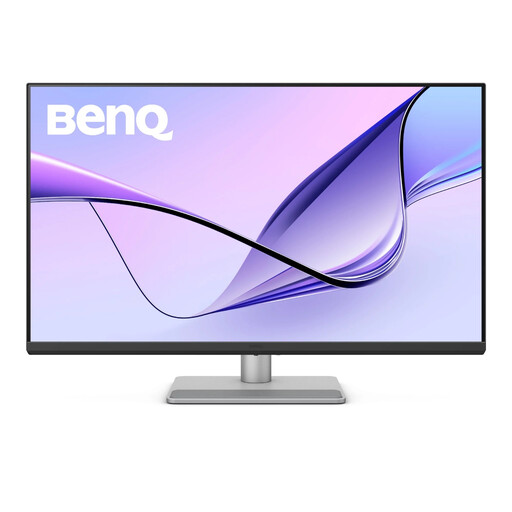 Image unavailable
BenQ MA320UP Nano Glossy IPS 32-inch 4K USB-C Mac Monitor
Consider the larger screen if it fits your desk alongside a laptop or another display. The product name identifies 4K resolution, USB-C and a height-adjustable stand; measure the available space and confirm computer and cable compatibility.
View on Joybuy
 Image unavailable
MSI MD272UPSW Smart 27-inch 4K Monitor with Google TV
Consider this 27-inch display if USB-C charging is part of your laptop desk setup. Its product name states 65W USB-C and Multi-Control; check whether 65W suits your laptop. Multi-Control does not establish how many external displays your computer can drive.
View on Joybuy
 Image unavailable
LG 27UP650K 27-inch 4K IPS Monitor
Consider this model for a layout using its stated HDMI or DisplayPort connections. The product name also specifies 60Hz and 95% DCI-P3 coverage; check the inputs on your computer or dock and whether it can support the planned displays.
View on Joybuy
 Image unavailable
iiyama ProLite XUB2792UHSU-B6 27-inch 4K UHD Monitor
Consider this 27-inch 4K screen for a separate slide-editing or reference workspace. If you intend to dock a laptop through USB-C, check the exact connection’s video and charging functions before relying on a single cable.
View on Joybuy
Common questions
Will a USB-C monitor automatically let my laptop run two screens?
No. The result depends on the laptop’s supported display configuration and on the functions of the monitor and cable. Microsoft advises confirming that a device supports multiple monitors; check your laptop or dock’s documentation for the number of external displays it can run.
How can I keep PowerPoint notes on a separate screen?
Use an extended display setup and enable PowerPoint Presenter View. Microsoft explains that Presenter View can show speaker notes on one screen while the presentation appears without notes on the other; in Windows, choose Extend rather than Duplicate.
Do I need KVM for two-screen slide editing?
Not if one computer drives both screens. KVM is relevant when you want to use one keyboard and mouse with two computers; BenQ lists it for the PD2706U, and Lenovo lists it for the ThinkVision P27u-20.
What should I adjust once both monitors are on my desk?
Arrange the on-screen display positions to match the physical screens, then adjust their placement and the lighting to reduce awkward viewing angles and reflections. The UK Health and Safety Executive includes desk arrangement, screen adjustment, lighting and changes of activity in its display-screen-equipment guidance.


