For routine volunteer-hour records, choose a monitor around the computer, desk and reporting work you already use: prioritise readable screen space, a position you can adjust and compatible connections. A USB-C monitor is worth considering for a compatible laptop that can receive video and charging through it; a conventional office display is sufficient if that connection is unnecessary. The monitor displays records, while the spreadsheet or volunteer-management system handles hour entry, approvals and reports.
Who needs this setup?
Fixed-desk volunteer coordinators
If you review logged hours, rotas and exported reports at one desk, focus on a screen you can position for regular work rather than gaming-focused features. The Health and Safety Executive advises considering screen position as part of the workstation.
Laptop-based charity administrators
If you move a laptop between workspaces, a USB-C display may simplify the desk connection. Check that the laptop can send video through its USB-C port and that the monitor’s charging output meets the laptop’s needs.
Reporting-heavy programme managers
If you review hours alongside schedules and other programme information, consider how much on-screen workspace the reports need. Better Impact describes hour tracking and reporting as software tasks; the monitor provides a view of that work, not the recording system.
What matters when choosing?
Start with the records and reports you need to see, then check the computer connection and how the screen will fit the workstation.
| Concern |
What to check |
Who this matters to |
| Viewing daily records |
Check the native resolution, screen size and whether the display can be positioned where you read hour logs. |
If I mostly check entries and schedules in one application, I need the text and rows to be easy to follow. Around 40% of consumers put clear daily records first. |
| Laptop connection |
Check the laptop’s USB-C video and charging capabilities against the monitor’s connections and power-delivery limit. |
When I bring a laptop to the desk, I want to connect it without repeatedly arranging several cables. Roughly 30% of consumers prioritise a simpler laptop setup. |
| Frequent reporting |
Consider the workspace needed for reports and the stand’s adjustment range; assess the rest of the workstation too. |
If I spend long sessions reviewing reports and schedules, I need a screen position and layout that suit that work. About 30% of consumers place reporting workspace and positioning first. |
Buying pitfalls
-
Expecting the screen to record volunteer hours
A monitor can display entries and reports, but it cannot record hours, approve entries or manage access to volunteer records on its own.
Confirm how people enter hours, who approves them and which reports the spreadsheet or volunteer-management system must produce before choosing the display.
-
Choosing USB-C without checking the laptop
A USB-C socket alone does not establish that a laptop can send video to a monitor or charge at the required rate. Dell lists up to 90 W power delivery for its P2425HE, while LG lists up to 65 W for its 24BA650-B; those limits apply to those specific models.
Compare the laptop’s USB-C video support and charging requirement with the exact monitor and check which cable comes with it.
If the intended connection cannot provide both video and sufficient charging, a separate charger or connection accessory may still be needed.
-
Treating stand adjustment as the whole workstation solution
An adjustable screen cannot resolve problems with the chair, keyboard, lighting or the way the work is organised. The Health and Safety Executive advises assessing the full workstation and individual needs.
For regular desk work, check the whole setup. As a general positioning guide, the Health and Safety Executive suggests placing the top of the screen around eye level and the screen about an arm’s length away, adjusting for the user.
-
Leaving volunteer records visible on a shared desk
Volunteer records can contain personal information; a larger display can also make unattended records visible to others. The Information Commissioner’s Office calls for security measures appropriate to the risks of processing personal data.
Use appropriate account permissions, lock the computer when unattended and set an organisation-wide approach to privacy information and retention.
Brands to consider for office monitors
Dell
Dell’s Pro 24 Plus P2425HE is an office-oriented option for a fixed desk or compatible laptop connection.
- Dell UK lists a 23.8-inch Full HD IPS display, an adjustable stand and USB-C power delivery up to 90 W for the P2425HE.
- Check the laptop’s video connection and charging requirement. This display does not replace hour-tracking software or access controls.
LG
LG’s 24BA650-B is a business-display option for administrators who want USB-C connectivity and stand adjustment.
- LG UK lists a 23.8-inch Full HD IPS panel, USB-C power delivery up to 65 W, downstream USB ports and height, swivel, pivot and tilt adjustment.
- Confirm that the laptop supports the intended connection and can charge within the stated 65 W limit.
HP
HP’s office-monitor range offers another point of reference when comparing displays for a fixed workstation.
- The HP UK store lists the Series 3 Pro 327ph as a 27-inch Full HD height-adjustable monitor.
- Check the exact model’s ports, stand adjustment, supplied cables and laptop-charging capability before comparing it with a USB-C hub monitor.
Joybuy monitors for this work
These displays cover conventional desk screens, an adjustable office-monitor option and a screen for a more flexible workspace. Match each one to the computer connection and screen position your volunteer-record workflow requires.
 No image available
ASUS ProArt PA24ACRV QHD IPS monitor
Consider this for a regular desk where you review detailed records and need to check how the screen can be positioned.
QHD IPS display. If you plan to connect a laptop through USB-C, check its video capability, charging needs and the cable supplied with this variant.
View on Joybuy
 No image available
iiyama ProLite XB2492HSU 24-inch Full HD monitor
This is a conventional desk-display choice for checking hour logs and schedules on a connected computer.
24-inch class Full HD LED monitor. Check the computer’s video output and the cable needed for the connection you intend to use.
View on Joybuy
 No image available
Dell P2425 24-inch monitor
Consider this model for a regular desk used to read records and reports; check that its connections and positioning suit your workstation.
This is the P2425, not the P2425HE USB-C hub model discussed above. Confirm the exact ports and laptop-charging capability if docking matters, and check the refresh-rate specification for this variant before purchase.
View on Joybuy
 No image available
ASUS ZenScreen MB249C IPS USB-C monitor
Consider this for a flexible workspace where the screen connection and mounting arrangement need particular attention.
IPS monitor with USB-C in the product name. Check the laptop’s USB-C video and charging compatibility, and confirm which mounting accessories and power adapter come with the package.
View on Joybuy
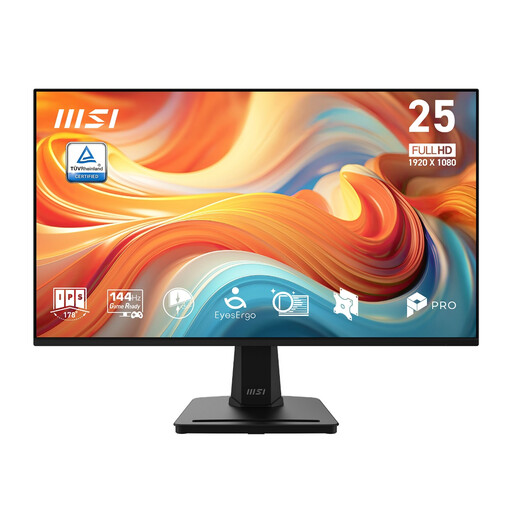 No image available
MSI PRO MP251 E14L 24.5-inch Full HD IPS monitor
This is an option for viewing routine hour logs at a desk, provided its connection and screen position fit the setup.
The product name specifies 1920 × 1080 resolution and a 144 Hz refresh rate; volunteer-record viewing does not require that refresh-rate figure. Check the stand adjustments you need, particularly if different people use the desk.
View on Joybuy
Frequently asked questions
Can a monitor track volunteer hours by itself?
No. A monitor displays information from a connected computer; a spreadsheet or volunteer-management system records the hours and produces reports. Decide how entries and approvals will work before choosing the screen used to view them.
When does a charity need to assess the whole workstation?
For employees who normally use display screen equipment daily for continuous periods of an hour or more, the Health and Safety Executive says employers must assess the workstation. That assessment covers the equipment, furniture, working conditions, task and individual needs, not just the monitor.
How can a shared screen be used with volunteer records?
Set up access so that personal records are visible only to people who need them, and lock the computer when it is unattended. The Information Commissioner’s Office advises security measures appropriate to the risk and asks organisations to establish why they use volunteer information and how long they keep it.
Should I check an energy label when buying a monitor?
Yes, check the label for a new display covered by the energy-labelling rules rather than assuming its efficiency from its size or brand. GOV.UK says electronic displays within the rules must show an energy label at the point of sale, including on a website.


