Writing through changing daylight
You write and read near a window as the light changes through the day. Reflections, screen position and convenient brightness adjustment matter more to you than gaming features.


Start with the window, not a brighter monitor: the Health and Safety Executive advises positioning the screen to avoid glare and bright reflections, with blinds or a change of angle where needed. Then choose a screen surface and resolution that suit your writing desk. An ambient-light sensor or USB-C charging is worth prioritising only if changing daylight or a compatible laptop makes it useful to you.
You write and read near a window as the light changes through the day. Reflections, screen position and convenient brightness adjustment matter more to you than gaming features.
You want to refer to a job advert, CV and browser pages while drafting a covering letter. Native resolution and the amount of usable space on screen shape your choice.
You want to connect a compatible laptop and adjust the monitor’s position at your desk. USB-C video support, charging power and stand adjustment are the checks that matter.
Check whether you can control reflections at the desk before comparing displays. Once the window position is workable, choose the text workspace you need and decide whether automatic brightness adjustment or laptop charging would simplify your setup.
| Concern | What to check | Who this matters to |
|---|---|---|
| Glare and changing daylight | Check desk orientation, a matte or anti-glare surface and accessible brightness controls. Consider an ambient-light sensor if daylight changes often. | If window light keeps reflecting off my screen, I need to change its position or control the light before relying on display settings. Around 50% of consumers put glare control and changing daylight first. |
| Text workspace | Compare native resolution and the text size you would use. For the 27-inch models discussed here, BenQ lists Full HD, Dell QHD and LG 4K resolutions. | When I keep a covering letter, job advert and reference pages open together, I want enough room to read them at a comfortable size. Around 33% of consumers make text workspace their primary concern. |
| Laptop connection and adjustment | Check USB-C video compatibility, stated power delivery against your laptop’s requirement, and the stand movements you need. | If I work from a laptop, I want to know whether one connection can carry video and provide enough charging power while I position the screen comfortably. Around 17% of consumers prioritise laptop connection and adjustment. |
A bright reflection can remain on the screen regardless of the monitor you choose. The Health and Safety Executive advises arranging the desk and display to avoid glare.
Try a different screen angle and use blinds or curtains where needed before treating a brighter display as the answer.
Surface treatment and stated brightness describe different things; neither tells you that text will remain readable with a window reflecting directly in the panel.
Check both properties for the exact model, then assess them alongside the position of your desk and window.
Charging capacity differs by model: BenQ specifies 20 W for the GW2790TC, while Dell and LG specify up to 90 W for the P2725DE and 27U730A-B respectively. The laptop must also support a compatible video connection.
Match the monitor’s video mode and power-delivery rating to your laptop, and check the cable you plan to use.
Depending on that setup, you may still need a separate laptop charger, suitable cable or dock.
BenQ’s GW2790TC is Full HD, Dell’s P2725DE is QHD and LG’s 27U730A-B is 4K. Those specifications offer different pixel counts for arranging text and windows; resolution does not solve reflections.
Decide how much material you want visible together and what text scaling feels comfortable before choosing among them.
The GW2790TC is a reference point if you want automatic adjustment as daylight changes.
The P2725DE is relevant to a laptop-based writing desk where QHD resolution, a USB-C hub and stand adjustment matter.
The 27U730A-B is a reference point for a 27-inch 4K document workspace with USB-C laptop charging.
These monitors offer WQHD, ultrawide and Full HD options for a writing desk. Choose the screen space and connections you need after considering how you will control reflections from the window.
 No image available
Consider this for writing beside reference documents if a WQHD workspace suits your preferred text size.
IPS panel and WQHD resolution. If you need a one-cable laptop setup, check the monitor’s USB-C charging capacity against your laptop’s requirement.
 No image available
Consider this for reading and comparing documents if its WQHD format suits the space available on your desk.
IPS panel and WQHD resolution. Check the available connections before choosing it for a one-cable laptop setup.
 No image available
Consider the ultrawide format if you want to arrange a covering letter beside other material; decide whether its text size works for you.
29-inch IPS display, UWFHD 1080p resolution, DisplayPort and HDMI. Check your laptop connection needs separately if you want charging through the monitor.
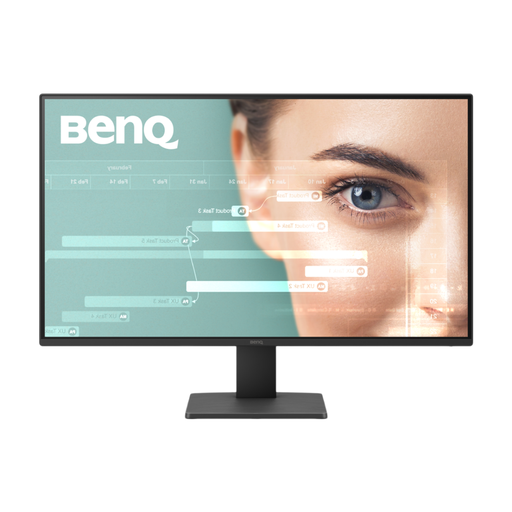 No image available
Consider this for a straightforward writing setup if Full HD gives you enough room for the documents you use.
27-inch IPS display, Full HD resolution and 100 Hz refresh rate. Check the GW2791’s own features if automatic brightness adjustment or USB-C charging is important; features of the different GW2790TC model should not be assumed here.
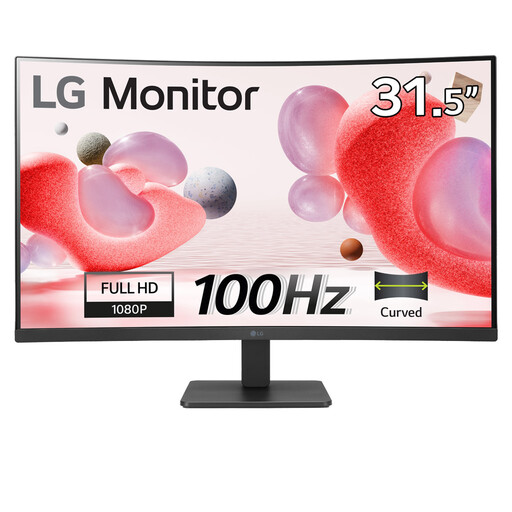 No image available
Consider the larger curved screen for everyday reading and writing, but check whether Full HD provides the text workspace you want at 32 inches.
VA panel, anti-glare finish and HDMI connection. Position the screen to avoid direct window reflections, and check connections separately if you need laptop charging.
Not reliably on its own. The Health and Safety Executive advises arranging the desk and screen to avoid glare and bright reflections; changing the screen angle or using blinds may help. Treat surface finish and brightness controls as supporting choices, not substitutes for controlling the light.
Choose according to how much material you want visible alongside the letter and the text size you find comfortable. BenQ specifies 1920 × 1080 for the 27-inch GW2790TC, Dell 2560 × 1440 for the 27-inch P2725DE and LG 3840 × 2160 for the 27-inch 27U730A-B. Check your preferred display scaling as well as resolution; more pixels do not solve glare.
No: check both video compatibility and the power available for charging. BenQ specifies 20 W for the GW2790TC, while Dell and LG specify up to 90 W for the P2725DE and 27U730A-B respectively. Your laptop must support the relevant USB-C video mode, and the monitor’s power delivery must meet its charging requirement.