Drawing-comparison home workers
If you keep plans, elevations, mark-ups or CAD/BIM windows open for long sessions, you need to inspect fine detail while positioning the screen comfortably.


A 27-inch 4K IPS monitor is a useful starting point for comparing detailed plans and mark-ups at home, provided it fits your desk and viewing distance. Prioritise a CAD/CAM viewing mode for linework, stated calibration for colour-sensitive presentations, or docking features for a compatible laptop only when those features serve your work. Check screen positioning, reflections and computer connections before choosing a model.
If you keep plans, elevations, mark-ups or CAD/BIM windows open for long sessions, you need to inspect fine detail while positioning the screen comfortably.
If you also review renders, presentation boards or colour-sensitive client material, stated colour-space coverage and factory calibration become more relevant than they are for linework alone.
If you work from a USB-C laptop or switch between computers, charging, hub ports, wired networking or a keyboard-video-mouse (KVM) switch may affect your choice.
Start with the drawings and visual material you need to inspect, then check whether the screen will fit your workstation; consider laptop docking features once you know your computer can use them.
| Concern | What to check | Who this matters to |
|---|---|---|
| Fine drawing detail | Check for 3840 × 2160 native resolution and assess screen size, viewing distance and interface scaling together. A CAD/CAM mode is an optional model-specific feature. | If small annotations and adjacent drawings are my main task, I want detail I can inspect at my usual viewing distance. Around 36% of consumers put drawing detail first. |
| Colour and presentation | Match stated colour-space coverage and any factory-calibration claim to the files you deliver; a wider gamut alone does not establish how prints or other screens will look. | When I review renders or presentation boards, I need colour specifications that suit that work as well as readable plans. Colour and presentation are the primary concern for around 29% of consumers. |
| Position and reflections | Check stand adjustment or VESA mounting against your desk setup, and assess screen reflections in the room. | For frequent, lengthy drawing sessions, I need to place the screen comfortably without fighting glare. Around 21% of consumers prioritise workstation comfort and reflection control. |
| Laptop connectivity | Check the laptop's USB-C video support and charging requirements; consider LAN or KVM only if you use wired networking or switch computers. | If my laptop is the usual source, I want fewer connection changes without assuming one cable will handle every function. Docking and device switching come first for around 14% of consumers. |
A larger panel will not fix glare or an awkward viewing position. The Health and Safety Executive advises considering screen placement and the wider workstation together.
Measure the available desk space and choose a stand or confirmed mounting option that lets you position the screen directly in front of you, with its top around eye level and the display about an arm's length away.
A stand that cannot reach a suitable position may leave you needing a compatible monitor arm or a different desk arrangement.
USB-C power delivery on a monitor does not establish that your laptop can send video through that port or accept its charging profile.
Check the laptop's video-output support and required charging power against the monitor's connection specifications.
You may still need the original charger, a suitable cable or a dock if the connections do not work together as intended.
A monitor's stated gamut or factory calibration does not, by itself, establish how a print or a client's screen will reproduce your work.
For presentation work, choose specifications relevant to your files and check the display within your colour-managed workflow. For technical linework, also consider detail, reflections and screen position.
LAN, KVM and advanced hub connections address particular wired-network and multi-computer setups; they are not measures of drawing accuracy.
List the computers and peripherals you use regularly, then choose these features only if they simplify those connections.
The DesignVue PD2705U is a drawing-focused option with a named CAD/CAM viewing mode.
The PA279CV and PA279CRV address drawing work that also involves colour-sensitive visuals.
The U2725QE is a hub-oriented 27-inch 4K option for a workstation with compatible connections.
The ViewFinity S8 S80UD focuses on connections for a laptop-based desk.
The 27U730A-B is a 27-inch 4K IPS option for a compatible USB-C laptop setup.
These monitors offer different ways to approach drawing comparison: some emphasise a 27-inch 4K screen, while others add colour-work or laptop-connection features. Check each model against your room, computer and the type of drawings you review.
 No image available
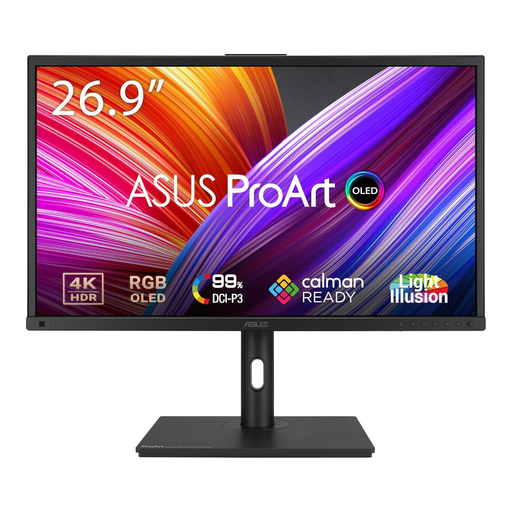
Consider this model if your drawing work also includes colour-sensitive presentation material. Its stated 4K OLED display and matte coating may be relevant, but prolonged static images at high brightness may increase OLED burn-in risk; weigh that against long sessions with persistent drawing interfaces. Check the colour-accuracy and laptop-charging specifications needed for your setup.
 No image available
The stated 27-inch 4K format is relevant if you compare fine drawing details at a desk. Check how its screen surface handles your room's reflections, and confirm any colour-accuracy or laptop-charging requirement before relying on it for those tasks.
 No image available
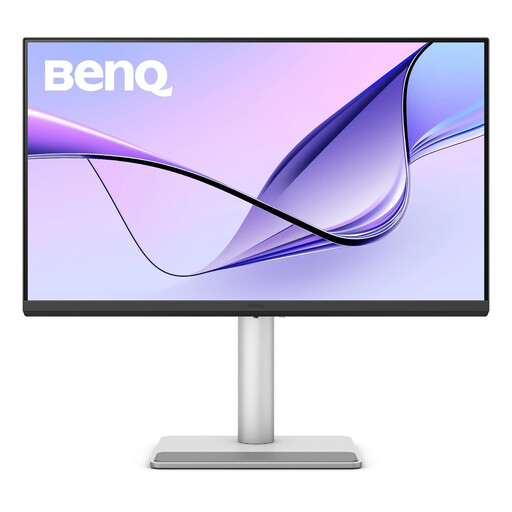
This USB-C model may suit a compatible Mac laptop desk where you also compare drawings. Its Nano Glossy finish makes room reflections worth assessing; verify computer compatibility and the charging and colour-accuracy specifications your work requires.
 No image available
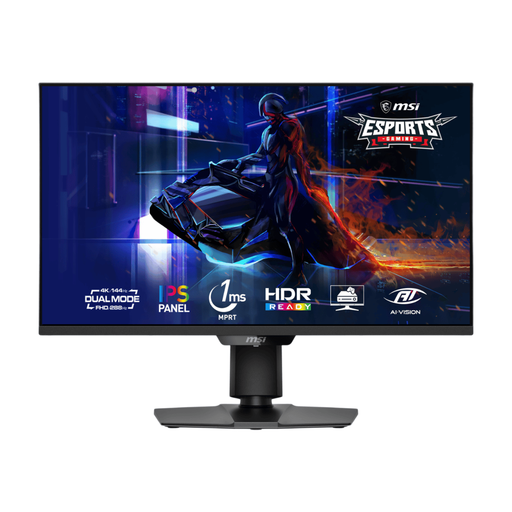
Its stated 27-inch 4K format is relevant to viewing drawings, while the advertised UHD 144 Hz and FHD 288 Hz dual modes address other uses rather than establishing drawing accuracy. Check the screen coating for your room and the colour specifications if presentation work matters.
 No image available
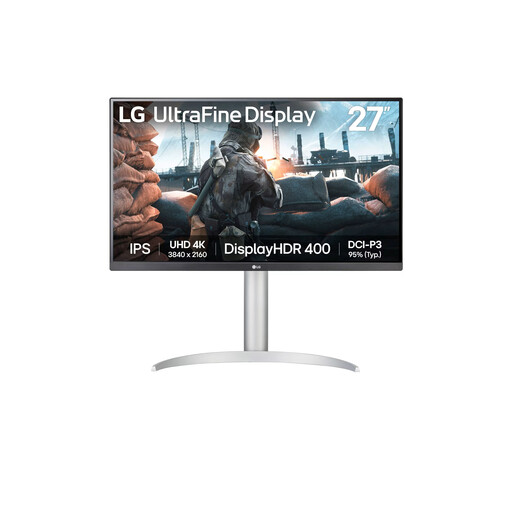
This model's stated 27-inch 4K IPS screen offers a format to consider for detailed plans. Its name also specifies 60 Hz, 95% DCI-P3 coverage, HDMI and DisplayPort; check reflection handling and colour-accuracy requirements separately if those affect your work.
Yes, if you want to inspect detailed drawings on a screen that fits your home-office desk. Check your normal viewing distance and preferred interface scaling before deciding that 27 inches works for you.
No; it is a model-specific option, not a requirement for comparing drawings. BenQ UK lists a CAD/CAM mode for the PD2705U, which is worth assessing with your own linework if that is your main task.
Only if the laptop supports the relevant USB-C video connection and accepts a compatible charging profile. Check its port and power requirements against the exact monitor model before planning a single-cable setup.
The Health and Safety Executive advises placing the screen directly in front of you, with its top around eye level and the display about an arm's length away. Arrange the desk and lighting to limit reflections; stand adjustment or a compatible arm can help you reach a suitable position.
It can apply to home workers who use display screen equipment daily for continuous periods of an hour or more, according to the Health and Safety Executive. That concerns the working setup, not a requirement to buy one particular monitor model.