For checking mobile menus beside a bright window, deal with reflections first: look for a suitable screen finish and a position you can adjust, rather than expecting resolution or brightness alone to solve glare. Then choose the screen size and resolution your review workflow needs, and check USB-C video and charging compatibility if you want to connect a laptop with one cable.
Who this setup suits
Bright-room UI reviewers
If daylight reaches your desk while you inspect menu labels, icons and alignment, screen placement and reflection control matter alongside clear rendering. The Health and Safety Executive advises arranging screens and lighting to avoid glare.
Laptop-based responsive designers
If you move between a laptop and an external display to compare mobile layouts with browser tools, check whether the monitor and laptop can carry the video, data and charging functions you want through USB-C.
Office users working through changing daylight
If the light at your desk changes during the day, an adjustable screen position may help you respond to reflections. Manufacturer-described automatic brightness controls are another feature to assess, not a replacement for arranging the workstation.
What matters when choosing
Start with the window, desk position and screen finish; only then decide how much workspace and laptop connectivity your mobile-menu checks require.
| Concern |
What to check |
Who this matters to |
| Reflections and readability |
Check the screen finish and whether you can position the display away from window reflections. Compare brightness figures on the same stated basis. |
When window light crosses menu text and icons, I need to see those details without a reflection covering them; around 33% of consumers would put reflection control first. |
| Detail and workspace |
Compare screen size, native resolution and the scaling you would use with a mobile viewport and browser tools open. |
If I inspect a narrow layout alongside design references, I need enough usable space to keep both visible; roughly 27% of consumers would prioritise detail and workspace. |
| Screen positioning |
Check the stand’s height and angle adjustments, or VESA mounting compatibility if you plan to use an arm. |
During a long review session, I need to move the display as the light shifts rather than stay at one fixed angle; around 20% of consumers would make positioning their primary concern. |
| Laptop connection |
Confirm USB-C video support, the monitor’s power-delivery rating and your laptop’s charging requirement. |
If I reconnect my laptop for responsive checks, I want to know whether one connection can handle the functions I use; roughly 20% of consumers would put laptop connectivity first. |
Buying pitfalls
-
Choosing resolution as a fix for window glare
More pixels may help with workspace, but they do not remove reflected light. The Health and Safety Executive advises arranging both the screen and lighting to avoid reflections and glare.
Work out where the display can sit during the brightest part of your working day, then check its screen finish and positioning options before deciding how much resolution you need.
-
Assuming every USB-C connection does the same job
A USB-C socket alone does not establish whether a particular laptop can send video through it or receive enough charging power.
Check the laptop’s video output and charging requirements against the monitor’s documented connection and power-delivery capabilities.
Depending on that compatibility, you may still need a separate charger, dock or suitable cable.
-
Relying on comfort features instead of screen placement
Automatic brightness and other manufacturer-described comfort controls cannot, by themselves, establish whether window reflections will interfere with a mobile menu check.
Check the adjustments available on the particular stand and plan where the screen will face in relation to the window.
Brands to consider
Dell
Dell’s UltraSharp U3225QE is a reference point if you are considering a larger 4K display with workstation features. Dell lists it as a 31.5-inch IPS Black monitor.
- Dell lists anti-glare and anti-reflective surface treatment, an ambient-light sensor, height adjustment and hub features for this model.
- Check whether a 31.5-inch screen and its stand fit your desk; these specifications do not apply to every Dell monitor.
BenQ
BenQ’s GW2490T is an office-monitor example for a desk where lighting changes during the day. BenQ lists it as a 23.8-inch Full HD model.
- BenQ describes automatic brightness adjustment and height, tilt, pivot and swivel adjustment on the GW2490T.
- If you keep a mobile viewport beside several tools, compare its Full HD workspace with the screen size and resolution your layout requires.
LG
LG’s 27U730A-B is a 27-inch 4K IPS example for a laptop-based desk setup.
- LG lists an anti-glare surface and USB-C support for display, data transfer and 90W charging on this model, subject to laptop compatibility.
- LG states typical brightness of 300 nits; assess that figure alongside the room and screen position rather than treating 4K or USB-C as glare control.
Joybuy monitor choices
These monitors offer different screen sizes and resolutions to consider for mobile-menu review. Compare each model’s screen finish, positioning options and connections against your window and laptop setup before choosing.
 No image available
ASUS ProArt PA278CV IPS WQHD monitor
Consider this WQHD model if you want space for a mobile viewport and accompanying tools. Check the screen finish and stand movement against your window position, and confirm USB-C video and charging compatibility before planning a one-cable laptop setup.
View on Joybuy
 No image available
ASUS ProArt Display PA32UCG-K 32-inch 4K IPS Mini LED monitor
Consider the 32-inch 4K format if your mobile-menu checks share the screen with substantial reference material. Check desk space and screen positioning; compare brightness only after confirming which stated figure applies to the working conditions you care about.
View on Joybuy
 No image available
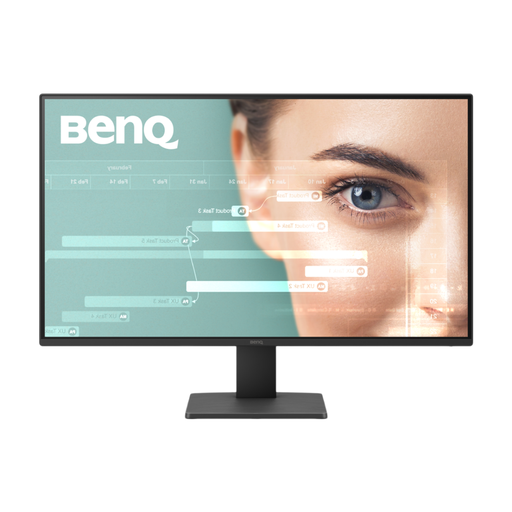
BenQ GW2791 27-inch IPS Full HD monitor
Consider this 27-inch Full HD model if that resolution fits your menu-review layout. Check how its screen finish and stand work at your desk, and assess any automatic brightness behaviour in the changing light you expect.
View on Joybuy
 No image available
ASUS ProArt PA27DCE-K OLED 4K UHD monitor
Consider this 4K model when detailed interface review is a priority, while assessing its screen position and finish separately for window reflections. If sustained brightness or laptop docking matters, check the applicable brightness and USB-C capabilities for this variant.
View on Joybuy
 No image available
LG UltraWide 29U511A 29-inch IPS UWFHD monitor
Consider the wide format if you prefer arranging a mobile viewport and other material side by side. Check whether its height and viewing angle suit the desk and window, rather than assuming extra horizontal space will reduce reflections.
View on Joybuy
Frequently asked questions
Will a brighter monitor solve glare from a nearby window?
Brightness alone will not remove a reflection. The Health and Safety Executive advises arranging screens and lighting to avoid glare, so consider screen placement and finish as well as brightness when inspecting menu details.
Can a USB-C monitor replace my laptop charger and dock?
It can do so for particular functions if the monitor, laptop and cable are compatible. LG says its 27U730A-B supports display, data transfer and 90W charging through USB-C; check your laptop’s video support and charging requirement before relying on a similar setup.
Does workplace screen guidance matter when I work from home?
The workstation, not just the monitor, matters for work use. The Health and Safety Executive says employers must assess workstations for workers who use display screen equipment daily as part of normal work for continuous periods of an hour or more; the assessment considers work conditions and user requirements too.
What should I do with an old monitor?
Check an electrical-waste collection or retailer take-back service before disposing of it. UK government guidance describes the Waste Electrical and Electronic Equipment framework as encouraging recovery, reuse and recycling; confirm that your chosen service accepts monitors.


