For comparing dense specifications beside a bright window, start with a matte or anti-glare screen, a position that avoids direct reflections, and a size and resolution that keep tables readable at your normal viewing distance. A 4K monitor offers more pixels for side-by-side material than a 1080p office monitor, but neither an HDR badge nor a high peak-brightness figure establishes how readable ordinary desktop content will be at your desk.
Who this setup suits
Daylight-facing technical researchers
If your desk is beside or facing a bright window, reflected light and the difference between room and screen brightness can make specifications harder to read. BenQ UK describes both reflections and direct light as possible causes of glare.
Dense-table and datasheet readers
If you compare component specifications, manuals, spreadsheets or browser tables, consider how many columns you need to see at once and whether the text remains comfortable at your usual viewing distance.
Colour-managed technical-content reviewers
If specifications sit alongside colour-sensitive diagrams or assets, check both the monitor’s colour modes and the controls available within them. ASUS notes that brightness adjustment is unavailable in sRGB mode on applicable ProArt monitors.
What to check when choosing
Deal with reflections and text size at the actual desk before deciding whether colour controls or a one-cable laptop connection should shape the choice.
| Concern |
What to check |
Who this matters to |
| Reflections and daylight readability |
Check the screen’s matte or anti-glare treatment, its stated typical brightness and whether you can angle it away from the window. |
If window light reflects in my screen, I need to control that reflection before comparing small figures. Around 36% of consumers would put reflection control first. |
| Text density and workspace |
Compare screen size with native resolution, then check text scaling and a representative table at your usual viewing distance. |
When I compare several columns or documents, I want the figures to remain legible without constantly changing zoom. For around 29% of consumers, usable space for dense text would be the primary need. |
| Colour and display modes |
Check the required colour space and whether its mode permits brightness adjustment; assess HDR specifications separately from ordinary desktop use. |
If diagrams carry colour-sensitive information, I need to know how the intended mode behaves in this room. Colour and mode control would come first for around 21% of consumers. |
| Laptop connection and positioning |
Match USB-C video and charging functions to the laptop, and check the stand or mounting adjustments needed at your desk. |
If I move my screen to avoid a reflection or connect a work laptop, I need the setup to function as expected. Around 14% of consumers would prioritise connection and positioning. |
Buying pitfalls
-
Treating an HDR badge as glare control
VESA DisplayHDR certification addresses HDR performance criteria; it does not establish whether window reflections will interfere with reading ordinary desktop text.
Check the surface treatment and where the window appears in the screen. Give the HDR tier weight if HDR content is part of your work.
-
Choosing 27-inch 1080p without testing a dense table
BenQ UK lists the 27-inch GW2790C at 1920 × 1080, while 27-inch 4K models provide more pixels for side-by-side material. The useful text size still depends on scaling and viewing distance.
View a typical specification sheet at your normal zoom level before deciding how much resolution and workspace you need.
-
Assuming USB-C will charge the laptop
USB-C functions differ by model. LG UK specifies charging up to 90 W for the 27UP850K-W with its included cable; BenQ UK lists video and data over USB-C for the GW2790C but no power delivery.
Match the monitor’s video, data and charging specifications, cable requirements and stated wattage to your laptop.
Depending on that combination, you may still need a separate laptop charger, dock or compatible cable.
-
Overlooking brightness controls in a colour mode
A fixed colour-space mode may limit adjustments you want at a daylight-facing desk. ASUS says brightness cannot be adjusted in sRGB mode on applicable ProArt monitors.
Check the controls available in the exact mode you intend to use, and try that mode in the room if possible.
Relevant brands to consider
Dell
Dell’s UltraSharp U3225QE is a business-monitor example for a desk where screen positioning and viewing more than one input matter.
- Dell UK lists a 31.5-inch 4K screen with anti-glare and anti-reflective treatment, an ambient-light sensor and Picture-by-Picture/Picture-in-Picture.
- Those features belong to the U3225QE; check the surface, stand and inputs on any other UltraSharp model separately.
BenQ
BenQ’s GW2790C illustrates a matte office monitor for conventional document layouts.
- BenQ UK lists a 27-inch, 1920 × 1080 matte screen with 300-nit typical brightness and a Visual Optimizer.
- Its USB-C connection does not provide laptop charging. BenQ also says light sources and monitor tilt can affect Visual Optimizer performance.
LG
LG’s 27UP850K-W is a 4K IPS example for readers who also want to assess a USB-C laptop setup.
- LG UK lists a 27-inch 4K display and USB-C charging up to 90 W when the included cable is used.
- Confirm that your laptop supports the required video connection and that the available charging power meets its needs.
ASUS ProArt
The ProArt PA24AC is an ASUS example for technical work that also involves colour-managed diagrams or assets.
- ASUS United Kingdom lists an anti-glare IPS screen, hardware calibration, 100% sRGB coverage and 350 cd/m² typical brightness for the PA24AC.
- ASUS says sRGB mode on applicable ProArt monitors restricts brightness adjustment; check the controls for the exact model and mode you plan to use.
Joybuy monitors for this setup
These monitors offer different formats for comparing technical material: 4K and WQHD ProArt models, a 32-inch 4K OLED model and a wider DQHD option. Check each screen’s surface, ordinary desktop brightness and connection requirements against your particular window-facing desk.
 No image available
ASUS ProArt Display PA32UCG-K 32-inch 4K IPS Mini LED
For dense specifications alongside colour-sensitive material, consider whether this 32-inch 4K format gives you comfortable text sizing at your desk.
The title specifies an IPS Mini LED panel and 120 Hz refresh rate. For the bright-window decision, confirm typical desktop brightness rather than relying on a peak-brightness figure; check the USB-C functions you need as well.
View on Joybuy
 No image available
ASUS ProArt PA27DCE-K 4K OLED
If you read detailed documents and review colour-sensitive content, check whether its 4K OLED format suits your preferred scaling and desk position.
Confirm typical desktop brightness for the window-facing setup. The product guidance cautions against leaving static images at high brightness for prolonged periods to reduce OLED burn-in risk, which matters if tables or dashboards stay open.
View on Joybuy
 No image available
ASUS ProArt PA278CV IPS WQHD
For technical documents with colour-sensitive diagrams, assess whether WQHD gives you enough room for the columns you normally compare.
Check the model’s typical brightness for your desk and confirm USB-C charging wattage if you expect the monitor to power a laptop.
View on Joybuy
 No image available
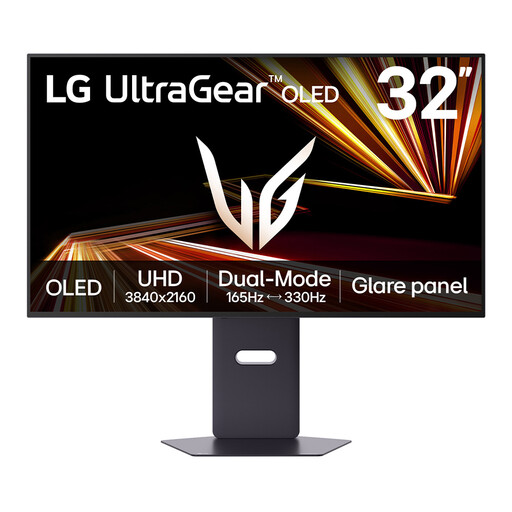
LG UltraGear 32GX850A-B 32-inch 4K OLED Dual Mode
If you want a large 4K workspace for technical references, check this model’s text size and reflection behaviour at your usual desk position.
Confirm typical desktop brightness rather than using its peak figure to judge daylight readability. The product guidance cautions against prolonged static images to reduce OLED image-retention risk, so consider how long fixed tables remain on screen.
View on Joybuy
 No image available
Acer X Predator X49X 49-inch curved DQHD QD-OLED
If you keep several references open side by side, consider the 49-inch, 32:9 format only after checking available desk space and text size at your viewing distance.
The title specifies an 1800R curve. DQHD is a different screen layout from a 27–32-inch 4K display, so compare your actual tables at the scaling you intend to use; confirm typical desktop brightness for the window-facing position.
View on Joybuy
Common questions
Is a higher brightness figure enough beside a bright window?
No: brightness alone cannot tell you how distracting a reflection will be. BenQ UK identifies direct light, screen reflections and differences between screen and surroundings as sources of glare. Compare typical brightness for the exact model, then check its screen surface and whether you can turn it away from the window.
Does DisplayHDR 400 tell me how readable technical tables will be in daylight?
No: DisplayHDR 400 is an HDR performance tier, not a daylight-readability rating for ordinary desktop work. VESA’s DisplayHDR criteria include luminance requirements, but reading beside a window also depends on reflections, normal desktop brightness and screen position.
Will one USB-C cable run the monitor and charge my laptop?
Only if the laptop, monitor and cable support the necessary video and charging functions. LG UK specifies charging up to 90 W on the 27UP850K-W with its included cable, whereas BenQ UK lists USB-C video and data but no power delivery on the GW2790C. Check the exact monitor’s wattage against your laptop’s requirements.
Why might brightness adjustment disappear in a colour mode?
A defined colour-space mode can restrict controls. ASUS says its sRGB mode on applicable ProArt monitors does not allow brightness adjustment. Check the manual for the exact model and try the mode you intend to use in your working environment.


