Detail-first simulation players
If you spend long sessions reading tooltips and tracking production chains across dense maps, compare resolution and readable interface scaling before prioritising refresh rate. An adjustable position matters too.


For long economic-simulation sessions, choose screen detail and comfortable positioning before chasing the highest refresh rate. A 27-inch 4K display suits dense maps and text if your PC can drive it and the interface remains readable at a comfortable scale; 27-inch QHD is worth considering if you also play faster games. A larger adjustable display needs enough desk depth, and screen features do not replace breaks.
If you spend long sessions reading tooltips and tracking production chains across dense maps, compare resolution and readable interface scaling before prioritising refresh rate. An adjustable position matters too.
If the same monitor also serves faster-paced games, weigh QHD and refresh capability against the extra native pixels of 4K. Check what your PC can output at the setting you intend to use.
If screen position is difficult to get right, check stand or mount movement against your seating position and desk. The Health and Safety Executive advises attention to screen positioning and regular breaks rather than relying on display features alone.
Start with the amount of detail you need to read, then check whether the screen fits your desk and your other games. Treat resolution, refresh rate and connection specifications as choices to match to your PC, not benefits you will automatically experience.
| Concern | What to check | Who this matters to |
|---|---|---|
| Dense text and maps | Compare native resolution at the same screen size, then check whether your preferred game and desktop scaling keep text readable. | If I spend most of a session reading small labels beside a crowded map, I want room for information without straining to read it. Around 36% of consumers would put interface detail first. |
| Long-session positioning | Check stand or mount adjustment, viewing distance and glare in your intended desk setup. | When I cannot place the screen comfortably in front of me, its display features matter less during a long session. Roughly 29% of consumers would prioritise physical positioning. |
| Mixed-game smoothness | Check the monitor’s refresh rate alongside the frame rates and connections your PC can provide at your chosen resolution. | I also play faster games and want the same monitor to suit them, even if I give up some native desktop pixels. Around 21% of consumers would make mixed-game smoothness their main concern. |
| Desk and laptop fit | Measure space for the screen or clamp; for USB-C use, check video compatibility and charging requirements separately. | If the desk is shallow or I connect a laptop, the display has to fit the space and the way I connect it. About 14% of consumers would put setup fit first. |
A higher refresh specification does not create more space for simulation menus or ensure that your PC produces enough frames to use it.
Decide whether interface detail or motion in other games matters more, then check your graphics output and cable against the resolution and refresh rate you plan to use.
Low-blue-light and flicker-free labels do not replace a suitable screen position, glare control or breaks.
Check stand or mount adjustment against your workstation. The Health and Safety Executive recommends short, frequent breaks for display-screen work.
A larger display needs a suitable viewing position, while a clamp must fit the desk edge and surrounding space.
Measure desk depth, edge thickness and clearance, and check the manufacturer’s installation guidance before choosing a clamp-mounted model.
If the clamp does not fit, you may need a different mounting arrangement.
A USB-C connection alone does not establish whether your laptop can send video to a particular monitor or receive enough charging power.
Check the laptop’s video-output support and charging requirement against the monitor’s stated USB-C functions.
Dell’s S2725QC and S2725DC offer two 27-inch routes to compare: 4K resolution or QHD with a higher stated refresh rate.
LG has 27-inch 4K and larger ergonomic models relevant to different desk layouts.
BenQ’s GW2790QT and GW2790 illustrate why screen size alone does not settle a text-density decision.
These gaming monitors offer 27-inch QHD or 4K options and larger Ultra HD options for comparing dense-interface space with other gaming needs. Check each model’s desk fit and connection requirements before deciding.
 No image available
Consider this 27-inch option if 4K interface detail matters and you also want a gaming display. The named dual-mode specification lists 240Hz and 480Hz; check which resolution applies to the mode you intend to use and whether your PC and cable support it.
The product name specifies DisplayPort 2.1 and HDMI 2.1 connections. Check stand movement against your preferred screen position.
 No image available
Consider the larger curved screen if you have room to position it at a comfortable distance. Its product name specifies 3840 × 2160 resolution, 165Hz, USB-C 65W and a USB hub.
Measure your desk before choosing it, and confirm USB-C video compatibility and whether 65W meets your device’s charging needs.
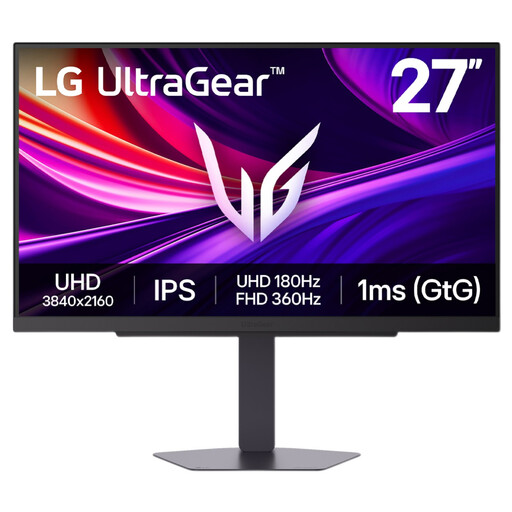 No image available
This is another 27-inch 4K choice for readers balancing simulation detail with gaming use. Its product name identifies a dual mode with a maximum of 360Hz, not a 360Hz rate at every resolution.
Confirm the refresh rate at your intended resolution, PC connection requirements and the stand movement you need.
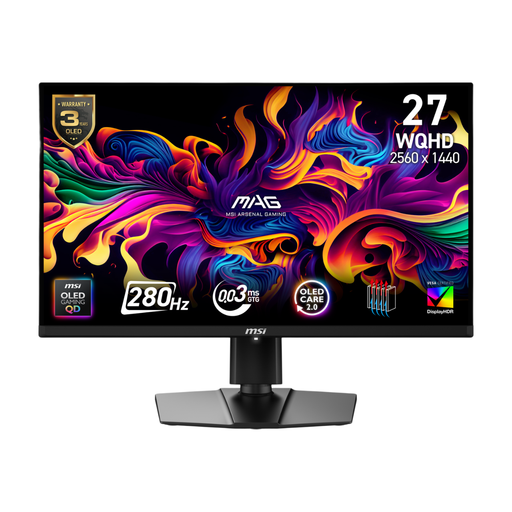 No image available
Consider this QHD option if faster games matter alongside simulations and you accept fewer native pixels than 4K for dense panels. Its product name specifies a QD-OLED display and 280Hz.
Check that your PC can use the intended refresh rate and that any USB-C connection meets your video and charging needs.
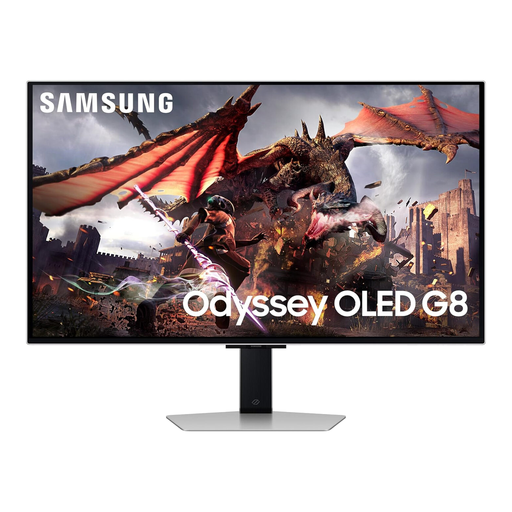 No image available
Consider this larger Ultra HD option if your desk can accommodate a 32-inch screen at a comfortable viewing distance. The product name identifies it as a smart gaming monitor.
Check the stand’s adjustment directions and ranges if you need a particular screen position, and confirm your PC supports the display mode you plan to use.
Choose 4K if native space for dense maps and panels is the priority, provided your PC can drive it and text stays readable at your preferred scale. Choose QHD if you also value a higher refresh rate for faster games; Dell UK specifies its S2725QC at 4K and 120Hz and its S2725DC at QHD and 144Hz.
No particular refresh rate is required by the genre as a whole. A higher-rate monitor may be more relevant if you also play faster-moving games, but your PC must produce enough frames and support the chosen display mode for you to use that capability.
Use a position you can maintain comfortably rather than choosing by screen size alone. The Health and Safety Executive advises placing the top of the screen around eye level, roughly an arm’s length away, with the screen directly in front of you; check that the stand, mount and desk allow this.
No. These are model-specific display features, not substitutes for positioning, glare control or changes of activity. For display-screen work, the Health and Safety Executive recommends short, frequent breaks rather than longer, less frequent ones.