Choose a monitor whose screen top can reach roughly eye level at your actual standing-desk height, then decide how much space you need for reading and editing instructions. A 27-inch 4K display may suit a conventional laptop desk setup, while a taller 3:2 display is worth considering for long, vertically structured documents. Check desk fit, adjustment range and laptop connections before buying; none of those choices guarantees a comfortable position on its own.
Who this setup suits
Standing-desk instruction writers
If you draft and revise customer instructions while working upright, the screen must reach a useful viewing position at your standing height. The Health and Safety Executive advises placing the top of the screen around eye level and the screen about an arm’s length away.
Laptop-based document teams
If you connect a laptop each time you use the desk, USB-C video, data and charging could simplify the setup. The connection will only meet that need if the laptop supports the required video output and charging arrangement.
Long-document proofreaders
If you compare sections of instructions, checklists or page layouts, consider whether a taller screen shape or a pivoting monitor helps you view the documents you actually use. Screen position still matters when you change posture.
What matters when choosing
Start by measuring where the screen needs to sit when you stand. Then compare document workspace and laptop connections against the way you write and review instructions.
| Concern |
What to check |
Who this matters to |
| Standing-height positioning |
Measure the screen-top height at your desk setting, not just the stand’s adjustment travel. Check that desk depth allows a comfortable viewing distance. |
If I switch between sitting and standing, I need the screen to reach eye level without bringing it too close; around 42% of consumers put standing-height positioning first. |
| Space for dense documents |
Compare screen size and native resolution together, including whether a 3:2 shape or portrait rotation suits your documents. Check text scaling at a comfortable viewing size. |
When I proofread long instructions, I want enough readable text on screen to follow the structure without making the type uncomfortably small; roughly 33% of consumers prioritise workable document space. |
| Laptop connections |
Confirm the laptop’s USB-C video output and charging requirement against the monitor’s ports and power-delivery rating. |
If I reconnect a work laptop at the desk, I want fewer cables without losing display output or suitable charging; about 25% of consumers make laptop connection their primary concern. |
Buying pitfalls
-
Choosing resolution before checking screen height
A sharp display can still sit awkwardly at a raised desk. The Health and Safety Executive’s screen-position guidance concerns eye level and viewing distance, not resolution alone.
Measure your standing eye height and desk depth, then compare them with the monitor’s achievable screen position. Check VESA mounting options if the supplied stand cannot reach it.
An unsuitable stand may mean using a compatible arm, riser or another desk arrangement.
-
Assuming USB-C means one cable will do everything
A monitor’s USB-C charging rating does not establish whether your laptop can send video through that port or receive enough power.
Check the laptop’s external-display method and charging requirement, as well as the monitor’s port capabilities and required cable.
Depending on the devices, you may still need a separate charger, suitable cable, adapter or dock.
-
Relying on display comfort settings alone
Anti-glare finishes, light sensors and display modes do not replace a suitable workstation. Screen position, lighting and the placement of your keyboard and mouse also affect how you work.
Set up the desk and screen first, then assess which display settings are useful in your room. The Health and Safety Executive advises assessing the workstation as a whole.
-
Expecting a new monitor to replace breaks
A different screen does not remove the need to change activity during prolonged display-screen work. The Health and Safety Executive advises short, frequent breaks or changes of activity.
Plan changes of activity around writing and review tasks, and make sure the workstation remains usable when you change posture.
Relevant brands to consider
BenQ
The RD280UA is a reference point for buyers considering a taller display and flexible mounting for long documents.
- BenQ lists a 28.2-inch, 3840 × 2560, 3:2 IPS panel, 130 mm stand height adjustment, pivot, 100 × 100 mm VESA mounting and a flexible arm for the RD280UA.
- Check the arm’s fit, available desk space and the resulting screen-top height at your own workstation; those specifications do not establish a comfortable fit for every user.
Dell
The UltraSharp U2723QE is a reference point for a 27-inch 4K laptop desk setup with a connectivity hub.
- Dell lists height, pivot, swivel and tilt adjustment, USB-C DisplayPort Alt Mode and power delivery up to 90 W for this model.
- Check the stand’s achievable position, laptop compatibility and current seller availability before relying on this particular model.
HP
The E27k G5 illustrates a conventional 27-inch 4K office monitor with several stand adjustments.
- HP lists an anti-glare finish, height, tilt, swivel and pivot adjustment, and an ambient-light sensor for the E27k G5.
- Measure the required screen-top height: an adjustable stand does not by itself establish that the display will reach your standing eye level.
LG
The 27UP850K-W is a reference point for a 27-inch 4K USB-C monitor with an adjustable stand.
- LG lists height, pivot and tilt adjustment, with USB-C display, data and charging up to 90 W for the 27UP850K-W.
- LG specifies use of the included USB-C cable for correct USB-C operation. Confirm your laptop’s video and charging support as well as the monitor’s standing-height fit.
Joybuy monitors for this setup
These 27-inch and 32-inch 4K monitors are options to assess for writing and reviewing instructions at a standing desk. Compare their screen size, connections and achievable viewing height against your own workstation; they are not substitutes for checking the fit in person.
 No image available
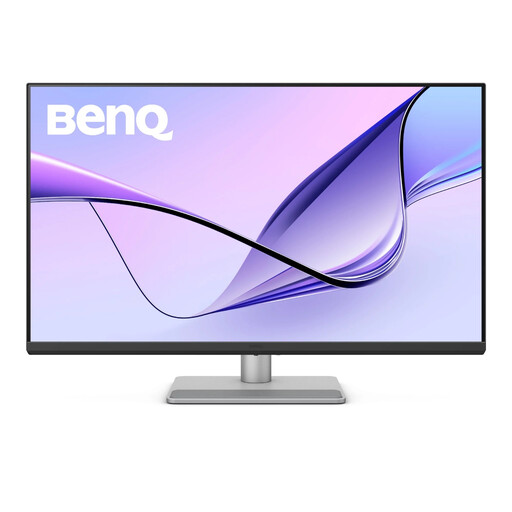
BenQ MA320UP Nano Glossy 32-inch 4K Mac monitor
Consider the 32-inch screen if it fits your desk and the way you lay out long documents.
The product name specifies a 4K UHD IPS panel, USB-C and a height-adjustable stand. Check the screen-top height at your standing setting, USB-C compatibility with your laptop and whether the glossy finish suits your lighting.
View on Joybuy
 No image available
BenQ MA270UP Nano Glossy 27-inch 4K Mac monitor
This is a conventional-size screen to consider if you write on a laptop and want a height-adjustable monitor.
The product name specifies a 27-inch 4K UHD IPS panel and USB-C. Check the actual screen-top position, your laptop’s USB-C video and charging support, and reflections from the glossy finish.
View on Joybuy
 No image available
MSI MD272UPSW 27-inch 4K smart monitor with Google TV
Consider this model if a 27-inch display meets your document-workspace needs and you also want its smart-monitor features.
The product name specifies a 4K UHD IPS panel, USB-C with 65 W power delivery and Dolby Audio. Before planning a laptop connection, confirm video compatibility and whether 65 W meets its charging requirement; also check the screen-top height at your standing desk.
View on Joybuy
 No image available
LG 27UP650K 27-inch 4K IPS monitor, white
Consider this 27-inch display for reading and reviewing instructions if its connections suit your computer.
The product name lists HDMI, DisplayPort and built-in speakers. Check its achievable screen-top height for standing use, and confirm the available connections before choosing it for a one-cable laptop setup.
View on Joybuy
Common questions
Where should my monitor sit when I write while standing?
Aim to place the top of the screen around eye level and the screen about an arm’s length away, following Health and Safety Executive guidance. Check the position at your actual standing-desk setting; an adjustable stand may still need to be supplemented by suitable mounting.
Does a standing desk remove the need for a workplace screen assessment?
No. The Health and Safety Executive says employers must assess workstations for workers who use display screen equipment daily as part of normal work for continuous periods of an hour or more. The assessment covers the wider setup, not just whether the worker sits or stands.
Do I need a fixed break schedule when working on instructions?
Plan breaks or changes of activity rather than relying on a new monitor to make continuous screen work comfortable. The Health and Safety Executive advises short breaks often instead of less frequent, longer ones; the arrangement should suit the work.
Must a monitor sold in Great Britain have UKCA rather than CE marking?
Not necessarily. Department for Business and Trade guidance on GOV.UK, dated 31 March 2026, says Great Britain continues to recognise CE marking alongside or in place of UKCA marking where the relevant product-regulation conditions are met. This applies to England, Scotland and Wales; Northern Ireland follows separate processes. For a particular listing, check its product documentation against the applicable rules.


